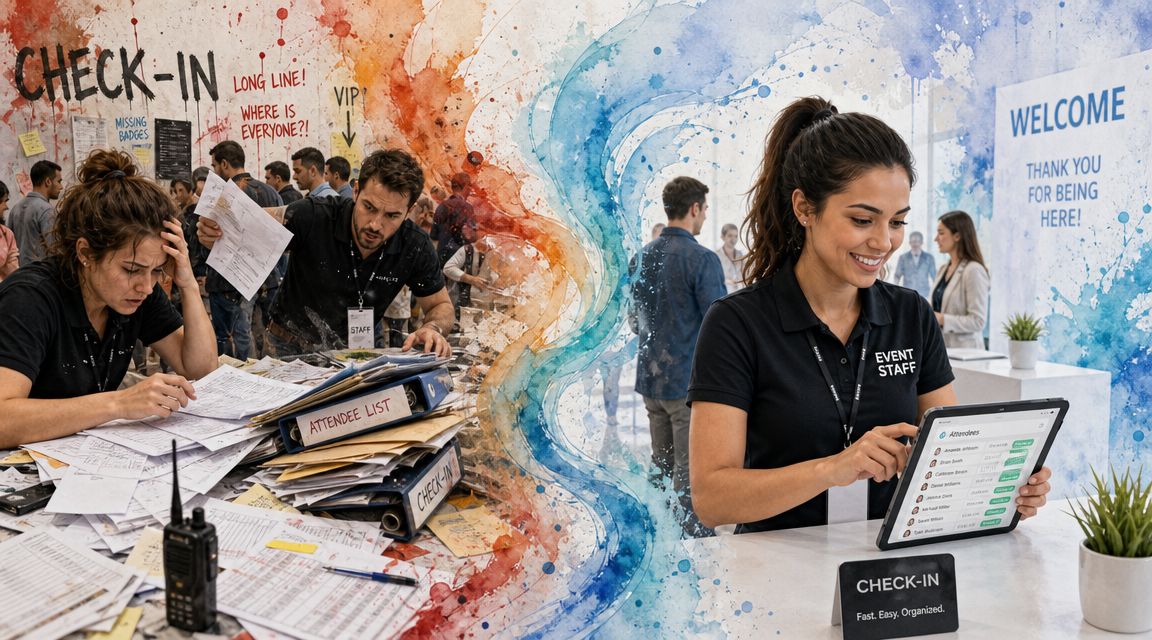
You're probably dealing with some version of this right now. One spreadsheet has the guest list. Another has staff assignments. A supervisor is texting changes to entry volunteers. Someone printed an old attendee list by mistake. At the door, one staffer is asking names, another is scanning QR codes in a different tool, and nobody is fully sure whether the VIP lounge list matches the latest registration file.
That's usually the moment teams start looking for an event staff app. Not because they want more software, but because they need one place where check-in, staff coordination, access rules, and live status all line up on event day.
The part many buying guides skip is the part that hurts most on-site. It's not just scheduling shifts. It's whether the app can still help your team verify the right person, at the right entrance, for the right session, when the network is slow and the queue is growing. If you're also planning for broader format changes across live, hybrid, and branded experiences, Snapbar on event industry shifts is a useful read for context.
Table of Contents
- What Is an Event Staff App and Why Use One
- Core Features Every Event Staff App Should Have
- How an Event Staff App Streamlines Operations
- Common Event Staff App Workflows in Action
- How to Choose the Right Event Staff App
- Avoiding Common Mistakes with Your Staff App
- An Example Check-In Using Google Workspace
What Is an Event Staff App and Why Use One
An Event Staff App is the operating layer your team uses to run people flow on event day. In plain terms, it replaces the patchwork of paper lists, radios, text threads, and last-minute spreadsheet edits with one shared system staff can use on their phones or tablets.
At the simplest level, it helps your crew answer a few important questions fast. Who's on shift? Who has arrived? Which guest is allowed through this door? Which staff member should handle a problem? If those answers live in different places, check-in slows down and mistakes multiply.
From clipboards to live operations
Older event workflows were built around static information. You printed the guest list, taped staffing notes to a table, and hoped nothing changed after doors opened. Modern events don't work that way. Registrations update late. Speakers bring guests. Volunteers switch gates. Security needs a cleaner access record.
That's why this category has become more established. One bootstrapped company, Event Staff App, was founded in 2011 and reached $1M ARR by 2024 after reporting $368.2K in 2023, which implies about 171% year-over-year revenue growth in that period, according to Latka's Event Staff App company profile. That matters because it shows event-staff software is no longer a fringe tool. Buyers are treating it like core operations infrastructure.
Why teams move away from spreadsheets
Spreadsheets are still useful. Most event teams won't stop using them. The problem is using them alone at the door.
A spreadsheet is a list. An event staff app is a live workflow.
- Shared visibility: Everyone sees the same current status instead of separate copies.
- Faster verification: Staff can search, scan, confirm, and move the line.
- Cleaner access control: A guest can be valid for one area and blocked from another.
- Less radio chatter: Floor leads don't have to keep asking for headcounts and updates.
Practical rule: If your team is checking names in one tool and permissions in another, you don't have a check-in system. You have a bottleneck.
If you want a practical look at how cloud-based workflows reduce version confusion, this guide to cloud event management workflows is a good companion read.
Core Features Every Event Staff App Should Have
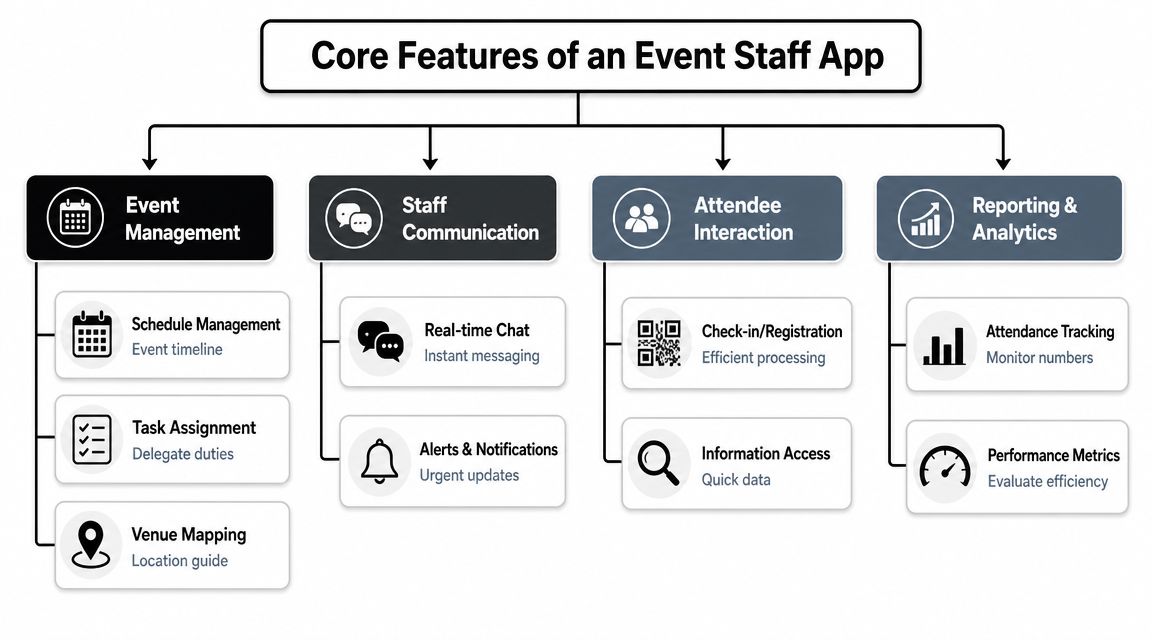
Most event staff apps advertise the same broad promises. Easier scheduling. Better communication. Smoother check-in. Those are fine starting points, but on event day you need to evaluate the actual moving parts.
One live source of attendee and staff data
The first requirement is synchronization. Your team should work from one current list, not exports passed around by email.
Good apps let managers maintain a master attendee list and make updates without rebuilding the whole check-in process. That matters when someone upgrades to VIP, changes sessions, or gets moved to a different entrance. Staff at the door shouldn't need a new PDF every time a record changes.
A strong setup also keeps staff data close at hand. Shift assignments, role permissions, and gate responsibilities should be visible inside the same working environment.
Check-in and access control that fit real venues
Many comparisons remain too generic. While “QR code scanning” sounds nice, the key question is what the scan checks.
For many events, a valid ticket isn't enough. The app needs to confirm the attendee belongs in that zone, on that day, for that session. A registration volunteer at the main entrance shouldn't accidentally admit someone to a sponsor lunch or backstage area just because the code exists.
Look for systems that support:
- Search and scan together: Staff should be able to scan a code or look up a name when phones are dim, screens are cracked, or emails are buried.
- Status changes in real time: Once a person is checked in, everyone else should see that update.
- Role-based access: Different staff need different permissions so they don't all see or edit everything.
For teams comparing guest flow tools, this overview of an attendance tracking system for live events helps clarify what the scan process should record.
Communication that reduces confusion
Messaging inside the app matters most when something changes fast. A room reaches capacity. A line needs to be rerouted. A speaker escort is delayed. If staff have to jump between personal messaging apps, radios, and printed run sheets, details get lost.
What you want is simple. Fast updates, visible assignments, and alerts that reach the right people without creating noise for everybody else.
The best communication feature is often the one that prevents a radio call, not the one with the most buttons.
Reporting that helps after doors open and after doors close
Reporting isn't just for the final recap. During the event, managers need live counts, no-show visibility, and a quick way to spot trouble points. After the event, they need a record they can reconcile against staffing, attendance, and sometimes payroll.
That reporting layer is also what turns check-in from a front-desk task into an operations tool. If you can't review what happened later, disputes become memory contests.
How an Event Staff App Streamlines Operations
A good event staff app doesn't just digitize old habits. It removes repeat work that slows your team down.
The biggest gain is administrative relief. Event Staff App's app store listing says businesses can cut 80% of management time spent on staff administration each week by automating scheduling, staff communication, clock-in and payroll-related workflow steps, as shown in its App Store listing. Even if your exact results differ, the practical takeaway is clear. The app should take routine coordination off your managers' plate so they can handle exceptions instead.
Faster queues and fewer handoffs
When guest data, check-in status, and access rules sit in one workflow, staff stop bouncing between tools. One device can search for a name, scan a code, confirm eligibility, and record attendance.
That speeds up entry for guests, but it also helps your team stay calm. A short queue usually means fewer rushed decisions, fewer duplicate check-ins, and fewer moments where a staffer waves someone through because the line feels too long to investigate properly.
Less manual reconciliation
Manual processes create a second job after the event. Someone has to compare paper sign-ins, email updates, text messages, and exported reports to figure out who showed up.
With an app-based workflow, that record builds while the event is happening. Managers can check live attendance, compare entrances, and answer simple questions without chasing every team lead. That's especially useful at hybrid events where on-site flow and digital participation can affect staffing decisions. For teams dealing with both physical and broadcast logistics, this guide to hybrid streaming gives good context on how operational complexity expands once multiple audience formats are involved.
Better use of supervisors
Supervisors shouldn't spend the whole day relaying list updates. They should handle judgment calls. A VIP arrival issue. A blocked sponsor entrance. A late volunteer replacement. Software is most useful when it absorbs repetitive communication and leaves people free for the work only people can do.
Here's the operational test I use: if your floor lead still has to answer the same three questions all day, your app isn't carrying enough of the load.
Common Event Staff App Workflows in Action
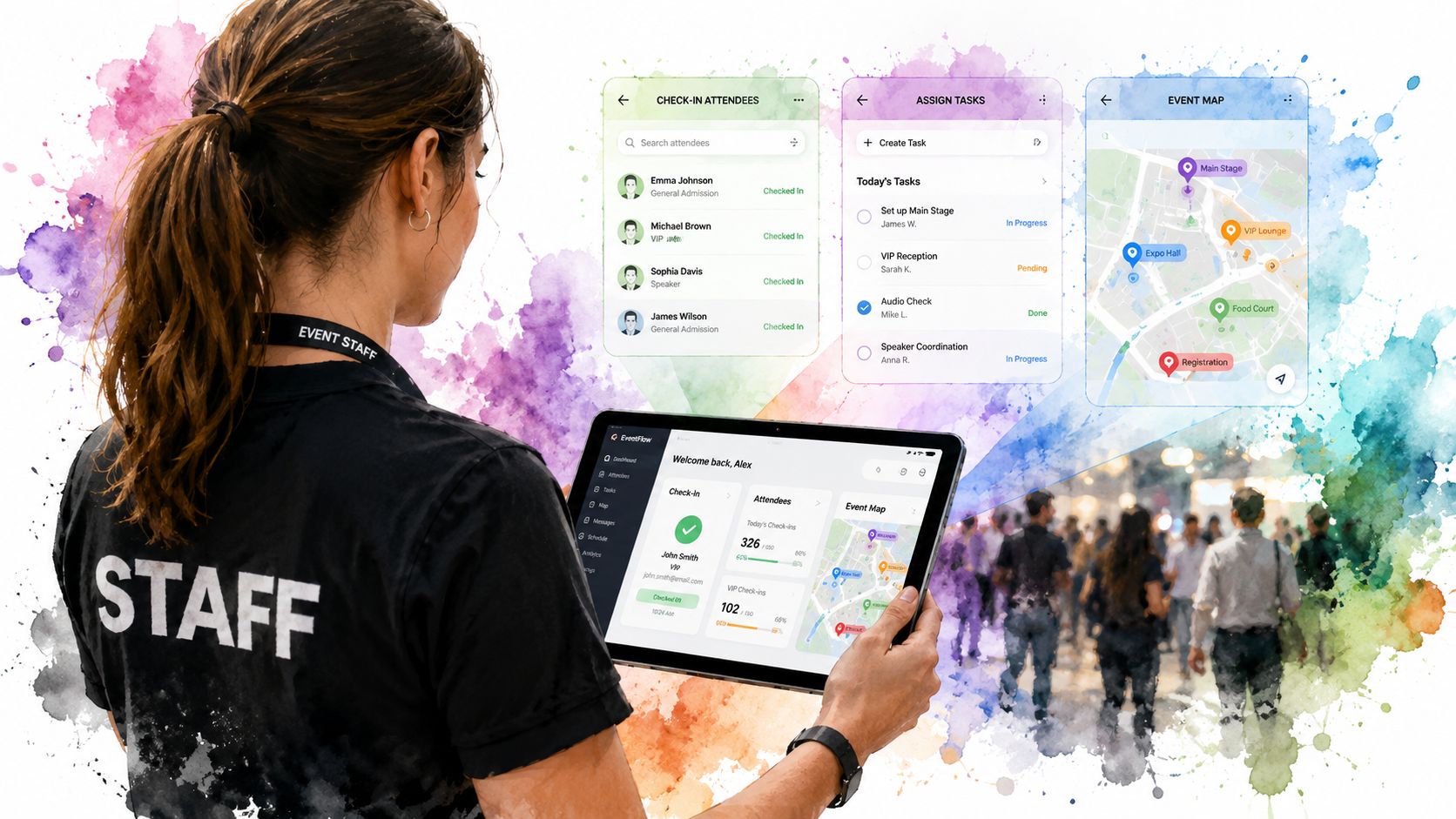
The easiest way to understand an event staff app is to follow what staff do with it.
Single-entry conference check-in
A corporate conference usually looks simple from the outside. One venue. One registration desk. One main entrance. In practice, it still creates pressure because arrivals bunch up at the same time.
Staff open the app on phones or tablets before doors open. The attendee list is already loaded. A guest approaches with a QR code from email. The staffer scans it, sees the registration status, confirms the badge type, and marks the person present. If the attendee can't find the code, the staffer searches by name instead.
The key detail is what happens next. The update should be visible immediately to the rest of the team. If the guest walks to another desk and asks again, staff should see they've already been checked in.
When lines form, staff need the shortest path to a confident yes or no.
A simple check-in demo helps teams visualize that handoff between scan, validation, and status update:
Multi-zone festival access
Festivals expose weak systems fast. You may have a main gate, a VIP entry, artist or crew access points, and separate activity zones. A code that's valid at one entrance may be invalid at another.
In a better workflow, each scanning point uses the same system but with role-based permissions. Main gate staff verify general admission. VIP staff verify upgraded access. Backstage staff only see the records and permissions relevant to their zone. That keeps the process clear and lowers the chance that someone is admitted based on the wrong list.
The important part isn't just scanning. It's contextual validation. The app should help the staffer answer, “Is this person allowed here, right now?”
Back-of-house staff attendance
This is the workflow planners often overlook. Guest check-in gets all the attention, but staff attendance matters too.
A catering lead can use the app to confirm who arrived for setup. A production manager can see whether crew checked in at the right location. If someone disputes hours later, the team has a cleaner attendance trail than a group chat and a handwritten sheet.
That's one reason event labor coordination has grown into a larger software category. Event Staff App's product materials say companies have staffed over 1,000,000 shifts using the platform, and its mobile app descriptions focus on scheduling, communication, clock-in and payroll export in one workflow, as shown in its Google Play listing.
How to Choose the Right Event Staff App
Most buyers compare checklists. Fewer test failure points. That's where bad app choices show up.
The overlooked question is reliability under pressure. Independent category coverage points out a real gap in many event staffing tools. They emphasize scheduling, shift swaps, geofencing, and communication, but often don't answer what happens when venue Wi-Fi or cellular coverage becomes unstable. The better buying question is whether the app can still validate attendance and keep data synchronized in poor connectivity conditions, as discussed in this overview of event staff app feature gaps and offline reliability.
Event Staff App Decision Checklist
| Criterion | Why It Matters | Key Question to Ask |
|---|---|---|
| Offline reliability | Entry points, backstage zones, and outdoor areas often have weak connectivity | Can staff still verify tickets or attendance when the network drops? |
| Security and permissions | Not every volunteer should edit guest records or view sensitive lists | What can each role view, scan, edit, or export? |
| Concurrent device support | Busy events need multiple doors scanning at once | How does the system behave when many staff are checking people in together? |
| Access control logic | Real events often have sessions, zones, days, or badge types | Can the app validate by area, date, or access level instead of only marking “present”? |
| Integrations | Your team already uses spreadsheets, forms, payroll, or CRM tools | What data can sync without manual re-entry? |
| Ease of training | Temporary staff need to learn fast | Can a first-time staffer understand the scan flow in minutes? |
| Auditability | Disputes happen after the event, not during the sales demo | Does the system leave a defensible record of who checked in, where, and when? |
| Pricing model | Some tools are cheap to start but expensive to scale | Are costs based on events, users, scans, or hidden add-ons? |
Questions that reveal real reliability
Sales demos usually happen on perfect internet with a product specialist guiding every click. Your venue won't be that kind.
Ask practical questions instead:
- Show me degraded mode: What does the scanner do if the device loses signal at the entrance?
- Show me conflict handling: If two staff scan close together, how is duplicate activity handled?
- Show me role setup: Can I limit one team to the VIP lounge and another to general admission?
- Show me recovery: When connectivity returns, how does the system reconcile updates?
A related lesson comes from wayfinding technology. Systems that seem elegant in ideal conditions can fail in real spaces with signal noise, layout complexity, or inconsistent infrastructure. This article on why beacons fail in navigation environments is useful because it highlights the broader point. Physical venues are messy, and tech buyers should test for that mess.
Buyer check: Don't ask only what the app can do. Ask what your staff can still do when the venue doesn't cooperate.
If you want one factual example of a tool built around this operational angle, Darkaa turns Google Sheets and Google Forms into QR-based event check-in with offline validation, real-time sync back to Sheets, unlimited concurrent devices, and access rules for multiple days, sessions, and zones.
Avoiding Common Mistakes with Your Staff App
Teams usually don't fail because the app has no features. They fail because they assume the event will be cleaner than it is.
One common mistake is trusting venue connectivity too much. If the system depends on perfect Wi-Fi at every entrance, your plan is fragile before guests arrive. Another is giving staff a tool that looks powerful in procurement but feels confusing at the door.
Four mistakes that cause preventable trouble
- Relying on one digital path: If a scan fails and staff have no search option, the line stalls.
- Skipping rehearsal: A setup that looked fine in the office can break under live queue pressure.
- Overcomplicating a simple event: Small events don't need a maze of permissions and screens.
- Ignoring the audit trail: If your app can't produce a defensible attendance record, disputes become harder to resolve later.
That last point matters more than many planners expect. Category coverage notes that many event staff apps emphasize scheduling and reminders but don't go deep enough on compliance, defensible attendance records, fine-grained controls, or dispute handling, as described in this review context for event staff app auditability and compliance concerns.
What experienced teams do differently
Run a full dress rehearsal with the same devices you'll use on event day. Don't test only with managers. Test with the exact type of temporary staff who'll be scanning at the door.
Then create a one-page cheat sheet. Keep it practical. How to scan. How to search by name. How to handle duplicates. Who to call if a guest appears on the wrong list.
Bring a backup that a stressed supervisor can use without instructions. A printed list is old-fashioned, but old-fashioned is better than frozen.
The goal isn't to distrust technology. It's to respect event conditions.
An Example Check-In Using Google Workspace
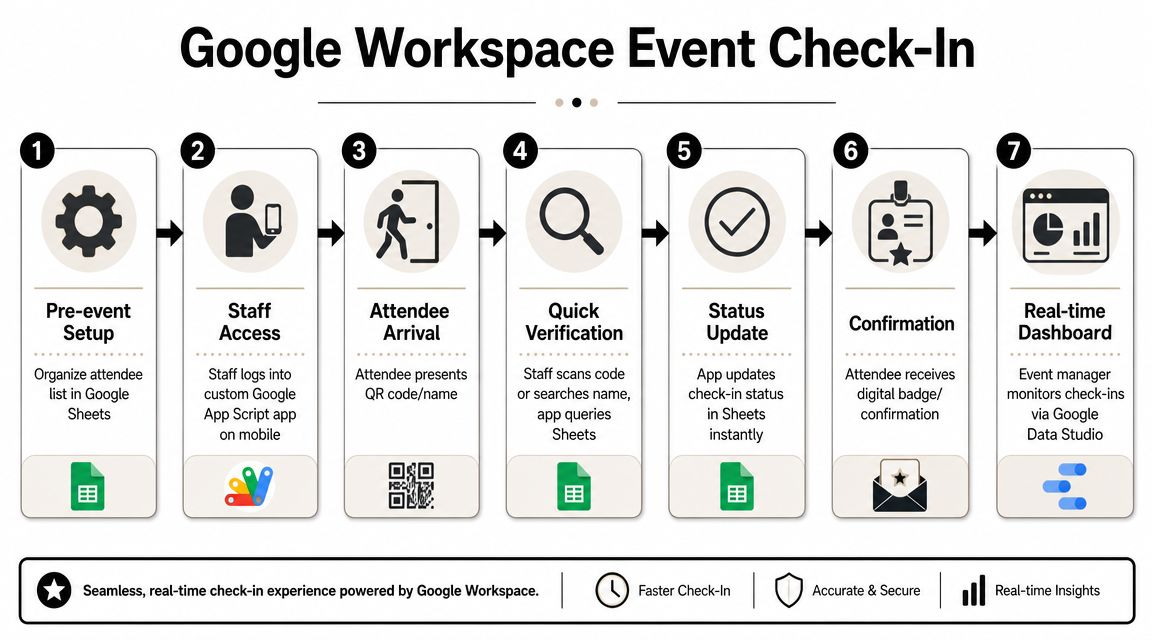
For many teams, the easiest system to adopt is the one that stays close to tools they already know. If your registrations, staff notes, or guest lists already live in Google Sheets, it makes sense to build the check-in workflow around that source instead of copying everything into a separate dashboard.
A simple working setup
Start with your attendee list in Sheets. Include the fields your door team needs, such as name, ticket type, day, session, or access zone. Then generate tickets from that sheet using QR code tickets for Google Sheets or collect registrations through Google Forms and tie them back to the same workflow.
On event day, staff use a mobile web app to scan QR codes or search names. The scan updates the record in Sheets, so the event lead can watch check-ins from one source of truth instead of collecting reports from multiple tables. If you're handling RSVP capture before ticketing, QR code attendance for Google Forms can also fit naturally into that same Google Workspace flow.
Why this approach is easier to run
This setup lowers training time because staff already understand the underlying tools. It also reduces integration headaches because your list, status updates, and reporting stay connected.
For planners who want the practical benefits of an event staff app without forcing the whole team into a new system, that's often the sweet spot. You keep the familiar spreadsheet backbone, but the door team gets a proper scan-and-verify workflow instead of a manual checkmark process.
If you want a practical next step, Darkaa gives teams a way to turn Google Sheets and Forms into a working check-in system with QR code ticket check-in for Sheets, QR code attendance for Google Forms, badge printing, and offline-capable scanning. You can see how it fits your workflow at Darkaa.