
You're probably in one of two situations right now. Either a free event is growing past the point where a simple RSVP sheet can handle it, or you're staring at a “free” ticketing platform that looks fine until you need branded tickets, controlled entry, and reliable check-in on event day.
That's the gap most guides ignore. Free event ticketing isn't hard when all you need is a name list. It gets hard when attendees expect a real ticket, staff need a fast scanner, and your team wants the data to stay inside tools you already use. A Google Workspace setup can handle that well if you build it like an event system, not like a shared spreadsheet.
Table of Contents
- Beyond the Free Tier The Real Cost of Free Ticketing
- Build Your Registration Engine with Google Forms and Sheets
- Design and Distribute Branded Tickets at Scale
- Implement Flawless QR Code Check-In and Access Control
- Pre-Launch Checklist Testing Troubleshooting and Privacy
- Conclusion Your In-House Professional Ticketing System
Beyond the Free Tier The Real Cost of Free Ticketing
A lot of free event ticketing tools are only free at the moment of issue. That sounds fine until the first line forms at the door.
Many platforms advertise no fee for free tickets, but still highlight the need for capacity controls, waitlists, timed entry, mobile check-in, and offline scanning. That matters because the key challenge usually isn't creating a ticket. It's preventing bottlenecks, duplicates, and no-show waste on event day, as noted in SimpleTix's free event ticketing overview.
Practical rule: If a free setup can't control entry and verify attendance reliably, it's not really solving ticketing. It's only collecting names.
The usual fallback is a spreadsheet plus manual email confirmations. That works for very small gatherings, but it breaks down fast. Staff can't tell whether a guest has already checked in. Attendees forward confirmation emails to each other. Session limits become guesswork. Branding disappears, and the whole thing feels improvised.
There's also a quieter cost. Dirty registration data creates problems before the event even starts. Confirmation emails bounce, reminders miss people, and staff assume the list is accurate when it isn't. If you're collecting registrations at volume, it helps to understand how to get a spotless email list before you start sending tickets and reminders.
What organizers usually need instead
A practical system for free event ticketing should do four things well:
- Capture clean records: every attendee needs one usable row with contact details, status, and any access rules.
- Issue a real ticket: not just a thank-you email, but a branded pass with a scannable code.
- Support event-day realities: weak Wi-Fi, multiple staff at multiple doors, and last-minute attendee changes.
- Keep ownership with the organizer: your team should control the list, exports, branding, and workflow.
That's why many teams end up looking for an Eventbrite alternative for Google-based ticketing workflows. The appeal isn't only lower cost. It's control. When the registration database lives in Google Sheets and the intake starts in Google Forms, your team can adapt the process without waiting for a platform's feature limits to loosen.
Build Your Registration Engine with Google Forms and Sheets
The strongest ticketing systems start with a clean attendee record. Google Forms and Google Sheets are good for this because they separate the public registration experience from the operational backend. Attendees see a simple form. Your team gets a structured database that can drive tickets, reminders, access rules, and check-in.
Start with the attendee record
Build the form around the record you'll need on event day, not around what feels easy to ask today. Name and email are obvious, but they're rarely enough.
A useful registration sheet usually includes attendee identity, ticket type, session choices, consent fields, attendance status, and internal notes. If your event has workshops, meal preferences, volunteer roles, or guest categories, collect them up front so staff don't end up reconciling side lists later.
For teams that want a lightweight way to automate form data collection to Sheets, the key idea is the same regardless of connector or add-on. Keep one master sheet as the single source of truth. Don't split attendee data across separate forms unless the event design absolutely requires it.
Make the form work for operations
The best Google Forms setup isn't the shortest one. It's the one that reduces manual cleanup.
Use required fields where missing data would block ticket delivery or check-in. Use multiple choice for values staff need to filter later, such as session, entrance group, or attendee category. Avoid open text when a controlled option will do the job better.
A practical structure looks like this:
- Identity fields first so attendees can complete the form quickly.
- Operational fields next, such as workshop selection or timed entry.
- Consent and communication fields last, when the attendee already has momentum.
A registration form is part of your door process. Every messy field becomes a check-in problem later.
If you're using QR code attendance for Google Forms, each response can become more than a row in a spreadsheet. It can become the trigger for ticket creation and later attendance verification. That's where a Google-based setup starts to feel like a real event system rather than a patchwork.
Keep the sheet clean from day one
Once the form is connected to Sheets, protect the raw response tab and do your working logic elsewhere. I usually create separate tabs for active attendees, filtered ticket groups, and check-in views. That keeps imports stable and gives the operations team a safer place to sort, tag, and validate records.
Use columns with clear purpose. For example:
| Column | Use on event day |
|---|---|
| Registration status | Confirms whether the attendee should receive a ticket |
| Ticket ID | Links the row to one unique pass |
| Access group | Controls which area or session the QR code should unlock |
| Check-in status | Shows whether the guest has already entered |
| Staff notes | Flags edge cases without editing core attendee data |
If you want a direct example of how this works in practice, this guide to QR code registration from Google Forms shows the pattern clearly. The value isn't just convenience. It's consistency. Every downstream action becomes easier when registration starts with a disciplined sheet.
Design and Distribute Branded Tickets at Scale
An email receipt isn't a ticket. It doesn't look like one, attendees don't treat it like one, and staff can't scan it reliably unless your workflow turns it into something structured.
The online event ticketing market is projected to grow from $50.97 billion in 2024 to $69.25 billion by 2029, a projected 6.7% CAGR, according to Softjourn's ticketing market summary. That projection reflects broader movement toward mobile ticketing and hybrid event operations. Even free event ticketing now sits inside a more professional set of attendee expectations.
What a real ticket needs
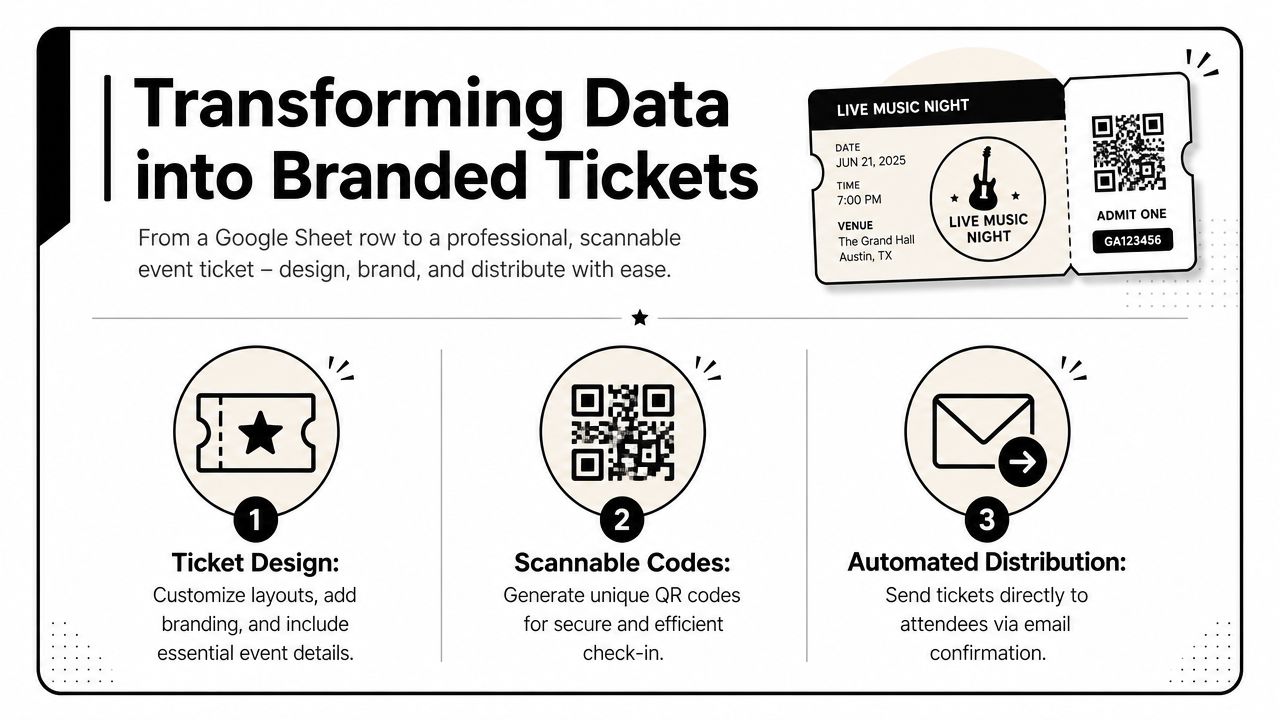
A usable ticket should do three jobs at once. It should reassure the attendee, present the event clearly, and give staff a unique code they can verify instantly.
That means each ticket needs:
- A unique QR code tied to one attendee record, not a reused event-level code.
- Visible event details such as title, date, venue, and any arrival instructions.
- Branding elements including logo, colors, and layout that match your event communications.
- Optional access details like session, seat area, entry window, or guest category.
QR code tickets for Google Sheets are particularly practical. A single row can populate ticket text, generate the code, and define what happens when staff scan it. If someone registered for a workshop but not the VIP lounge, the ticket can reflect that without extra manual work.
Automate the send process
Manual ticket sending causes errors fast. Someone gets missed. Another person gets the wrong version. A late registration never gets attached to the latest export.
A better workflow is to generate and send directly from the sheet once the row meets your rules. For example, only send tickets when payment status is marked complete for paid add-ons, or when an internal review column says approved for guest-list events.
One workable option in this category is Darkaa, which uses Google Sheets and Google Forms add-ons to generate branded PDF or image tickets, attach unique QR codes to each record, and distribute them by email or WhatsApp while writing scan results back into the spreadsheet. That keeps the process inside Google Workspace instead of forcing staff into a separate dashboard.
Don't batch design and batch send as separate projects if your attendee list changes every day. Tie design, generation, and delivery to the data record itself.
Small design choices that help at the door
Ticket design affects scanning more than people think. Dense layouts, low-contrast codes, and cluttered footers create avoidable problems. Keep the QR code prominent, leave quiet space around it, and make the attendee's name easy for staff to confirm visually.
I also recommend adding plain-language instructions under the code. Short lines work best. Bring this ticket on your phone. Increase screen brightness at check-in. Arrive during your selected session. Those details reduce friction without adding staff training.
Implement Flawless QR Code Check-In and Access Control
The test of free event ticketing is the door. Registration can look polished for weeks and still fail in five minutes if scanning is slow or the check-in rules are loose.
Statista's event tickets outlook projects worldwide revenue in this segment to rise from US$56.3 billion in 2023 to US$82.5 billion by 2027. Statista defines the segment broadly, which matters because it places free registration inside a large digital distribution system where attendance tracking and audience data collection are part of the workflow, not an afterthought, as shown in Statista's event tickets study.
How the door should run
A good check-in flow feels boring to the attendee. That's what you want.
Staff open the scanner on their phones. A guest presents the ticket from email, wallet, or screenshot. The phone reads the QR code, validates the attendee record, and updates the check-in status. If the person tries another entrance later, the system should show that the ticket was already used.
That process works best when your sheet already contains the operational fields discussed earlier. The scanner isn't just reading a code. It's checking a record with a status, access group, and attendance history.
Here's the usual event-day sequence:
- Front-of-house staff scan at the main entry and confirm identity if needed.
- The sheet updates the attendee status so all doors see the same record.
- Secondary access points check permissions for workshops, VIP zones, or timed sessions.
- Supervisors monitor exceptions such as duplicate scans, reassigned tickets, or manual admits.
For teams building this with Google Sheets, a guide to QR code event ticketing and access control is useful because it treats the spreadsheet as a live access database, not just a guest list.
Move beyond one-line entry
Many free platforms stop at yes-or-no check-in. Real events often need more.
You might need one QR code to admit an attendee to the main event but not the speaker lounge. Or a morning session but not the afternoon one. Or one day of a multi-day conference but not all days. If the attendee record contains those permissions, staff can validate each scan against the right rule instead of relying on wristbands, memory, or printed lists.
That's where QR code ticket check-in for Sheets becomes stronger than a generic RSVP list. You can use familiar spreadsheet columns to define who gets what access and when.
A simple example:
| Attendee field in Sheets | What staff can enforce |
|---|---|
| Session A | Admit only at Workshop Room A |
| VIP | Permit entry to premium zone |
| Day 1 only | Block entry on later days |
| Timed 10:00 slot | Prevent early or wrong-window entry |
Offline support matters here too. Weak venue connectivity shouldn't stop scanning. Staff need a mobile workflow that can continue validating tickets and sync back when service stabilizes.
A short walkthrough helps when you're training staff on that flow:
If your staff have to ask another staff member whether a guest belongs in a room, your access model is still too manual.
Staff setup that prevents line problems
Most check-in failures aren't technical. They come from unclear roles.
Assign one person to exception handling. Keep scanners with line staff. Don't make every door worker solve ticket transfers, name mismatches, or walk-in additions. Those should go to a separate table or supervisor device. When everyone tries to do everything, the line slows immediately.
Also decide in advance what counts as valid proof. QR ticket only, QR plus name match, or QR plus ID for restricted areas. Your staff should know that before the first guest arrives.
Pre-Launch Checklist Testing Troubleshooting and Privacy
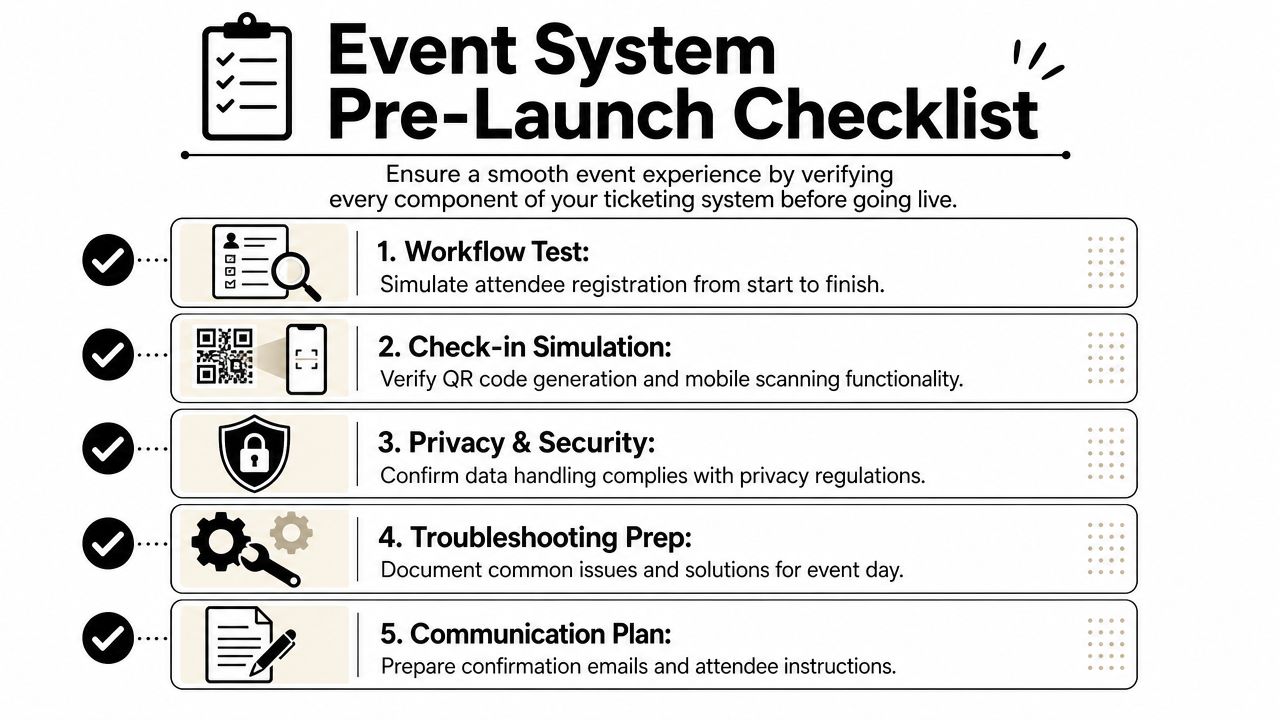
A ticketing system isn't ready because the form works. It's ready when the full chain works under ordinary stress. Registration, ticket generation, email delivery, scanning, permissions, and staff handling all need a dry run.
Test the system like an attendee
Run at least one complete registration using a real email address your team can access. Submit the form, confirm the row appears in the right sheet, generate the ticket, and scan it with the same device types attendees will likely use.
Don't stop at one happy-path test. Try the annoying cases too. Register with a long name. Open the ticket on a dim phone screen. Forward it to another inbox. Check whether the system flags a duplicate scan cleanly or leaves staff guessing.
A good pre-launch test set includes:
- Standard registration: confirm the normal path from form to ticket to successful scan.
- Wrong-session attempt: use a valid ticket at the wrong checkpoint and verify the response is clear.
- Offline check-in test: confirm staff can still scan when connectivity drops.
- Resend flow: make sure your team can reissue a ticket without creating duplicate records.
Troubleshoot before staff need to
Most event-day problems show up earlier if you look for them directly.
If QR codes won't scan well, inspect the design first. Codes that are too small, low contrast, or crowded by other visual elements are common causes. If emails don't arrive consistently, check whether the issue is formatting, sender setup, or bad addresses in your list. If staff can scan but the record doesn't update as expected, look at your sheet permissions and column mapping.
I keep a one-page operations note with short fixes for common issues:
- Ticket not found: search by attendee name or email, then verify the record was included in the send batch.
- Duplicate scan warning: direct the attendee to exception handling, not the main queue.
- Wrong access level: update the record in Sheets, then resync or refresh the scanner view.
- Unreadable phone screen: ask the attendee to raise brightness or use the emailed attachment instead.
The smoother your fallback procedure, the less your attendees notice that anything went wrong.
Privacy is part of operations
Registration data isn't just logistics. It's personal data, and your form should reflect that. If you're collecting names, emails, dietary requirements, or company information, say what you collect, why you collect it, and how long you keep it.
You don't need bloated legal language to do this well. You need clarity. Add a concise privacy notice near the form submission area. If you'll send marketing later, ask for that separately from event communications. Don't bundle operational necessity with optional promotion.
When teams want a plain example of how a company presents its handling practices publicly, reviewing LunaBloom AI privacy details can help as a formatting reference. The point isn't to copy another policy. It's to notice how clearly the categories of data use are explained.
Keep your Google Workspace permissions tight
A Google-based workflow gives you control, but only if you use that control carefully.
Limit edit access to the master sheet. Protect columns that drive ticket IDs, access rights, and check-in status. If volunteers only need scanning access, don't give them broad edit rights to registration data. If a vendor needs a report, export only the fields they need.
A short launch review helps:
| Check | What to confirm |
|---|---|
| Form settings | Correct fields, confirmation text, and response destination |
| Sheet protections | Core tabs and formula columns are locked |
| Ticket template | Branding, event details, and QR placement are correct |
| Scanner setup | Staff devices can access the right event view |
| Privacy notice | Attendees can see how data is being used |
Many organizers then tighten their system and realize they've built something sturdier than a free-plan event page.
Conclusion Your In-House Professional Ticketing System
A solid Google Workspace setup changes what free event ticketing can look like. You're no longer choosing between an expensive platform and an improvised spreadsheet. You're building a registration and check-in system that fits how your team already works.
Google Forms gives you a clean intake layer. Google Sheets becomes the operational record. QR tickets turn each approved row into a usable attendee pass. Mobile scanning closes the loop at the door and writes attendance back into the same system your team uses for planning.
That combination matters because it gives you control. You keep your attendee data. You decide how tickets look. You define access rules for sessions, zones, and time slots. You can adapt the workflow without migrating to a new dashboard every time your event format changes.
For professional organizers, that's a significant upgrade. Free event ticketing stops being a narrow promise about platform fees and becomes a practical in-house operation that handles registration, branding, attendance, and access in one place.
If you want to run this model inside Google Workspace, Darkaa is built for that workflow. It turns Google Sheets and Google Forms into a QR ticketing and check-in system, with branded ticket generation, mobile scanning, offline validation, and attendance syncing back to your spreadsheet.