
Your registration process probably looks organized from a distance. There's a spreadsheet, a form link, an inbox folder for confirmations, and maybe a staff WhatsApp group for last-minute updates. Up close, it's usually a mess. Someone updates the guest list in the sheet but forgets to notify the check-in team. A VIP replies by email instead of filling out the form. Two staff members edit different versions of the attendee list. On event day, the venue Wi‑Fi drops and nobody knows which file is current.
That's the point where a basic spreadsheet stops being a system and starts becoming a liability. An event registration tool fixes that, not by adding more software for the sake of it, but by turning registration, ticketing, check-in, and attendance tracking into one connected workflow. That matters most at the start of the promotion cycle, when 53% of event registrations occur within the first 30 days of an event's announcement according to Swoogo's event registration statistics. If your process is clumsy during that window, you feel it immediately.
Table of Contents
- Beyond Spreadsheets and Email RSVPs
- What Is an Event Registration Tool Really
- Essential Features Your Tool Must Have
- How to Choose the Right Event Registration Tool
- A Practical Implementation Workflow
- Common Pitfalls and How to Avoid Them
- Your Next Steps to Flawless Event Registration
Beyond Spreadsheets and Email RSVPs
The usual pattern is easy to recognize. You launch an event with a Google Form, then registrations start arriving from everywhere else too. Email replies. Direct messages. Team members forwarding names from partners. Someone pastes all of it into a master sheet, and from then on the list is always slightly wrong.

The stress doesn't come from volume alone. It comes from broken handoffs. Marketing has one list, finance has another, and the people at the door often get the least reliable version. If you've ever had a guest say, “I already registered,” while your team scrolls through duplicate rows trying to confirm it, you already know the problem.
A proper event registration tool cleans up those handoffs. It gives you one place to collect sign-ups, one logic for confirmations, and one current record for the check-in team. That's a bigger upgrade than most organizers expect. It turns registration from a pile of tasks into an operating flow.
The strongest registration setup is usually the one your team will actually keep updated under pressure.
That matters early, not just on event day. As noted in the opening, 53% of registrations happen in the first month after announcement. If your process is still held together by inbox searches and copied rows during that period, you lose time, clarity, and often registrations you should have captured cleanly.
For smaller teams, one useful improvement is to streamline event RSVP communication so guests aren't relying only on long email threads. Text-based RSVP workflows can reduce back-and-forth, especially for community events, school functions, and reminder-heavy attendance lists.
If you're already using Google Forms and Sheets, you also don't need to jump straight to a heavy platform. A practical path is to look at a Google Forms event registration alternative that adds ticketing and check-in. That approach keeps the tools familiar while fixing the parts spreadsheets handle badly, like ticket generation, scanning, and live attendance status.
What Is an Event Registration Tool Really
An event registration tool isn't just a prettier form. It's the control layer for your attendee journey.
A spreadsheet is a flight log. It tells you what was supposed to happen. An event registration tool is air traffic control. It shows who has registered, who still needs confirmation, who has paid, who checked in, who entered a restricted session, and what your team needs to do next.
That distinction matters because many teams try to stretch the wrong tool too far. A standalone form builder can collect names and emails. It can't reliably manage status changes, ticket delivery, on-site scanning, and access permissions without a lot of manual patchwork. At the other end, large enterprise suites can do almost everything, but they often bring setup complexity, training overhead, and workflows that feel oversized for a school event, nonprofit conference, association meeting, or local festival.
The middle ground most teams actually need
Most organizers don't need a giant event operating system. They need a tool that does five jobs well:
- Collects structured data so attendee information arrives in a consistent format
- Triggers confirmations so people know they're registered
- Issues credentials such as QR tickets or badges
- Supports check-in from a phone or tablet at the venue
- Updates attendance records so the office team and on-site team see the same reality
That middle ground is where the right event registration tool earns its value. It removes repetitive admin without forcing your team to learn an entirely new way of working.
Why familiarity matters more than people admit
Non-technical teams don't struggle because they lack effort. They struggle because every extra dashboard creates one more place where information can fall out of sync.
If your staff already live in Google Workspace, the smoothest setup often builds around that habit. Forms stay easy to edit. Sheets stay readable. Shared Drives stay useful. Permissions stay familiar. Then the event-specific layer handles the parts Google Workspace doesn't do on its own, like QR code ticketing, check-in logic, and attendance validation.
Practical rule: If a temporary staff member can't learn the check-in workflow in a short briefing, the setup is too complicated.
A good tool should feel like an extension of your existing process, not a separate world you visit only during event week.
Essential Features Your Tool Must Have
Feature lists can get noisy fast. Most demos make everything look polished. The better test is simpler. Ask what happens when guests register from different devices, when a speaker changes sessions, when the venue network fails, or when three staff members are scanning arrivals at once.
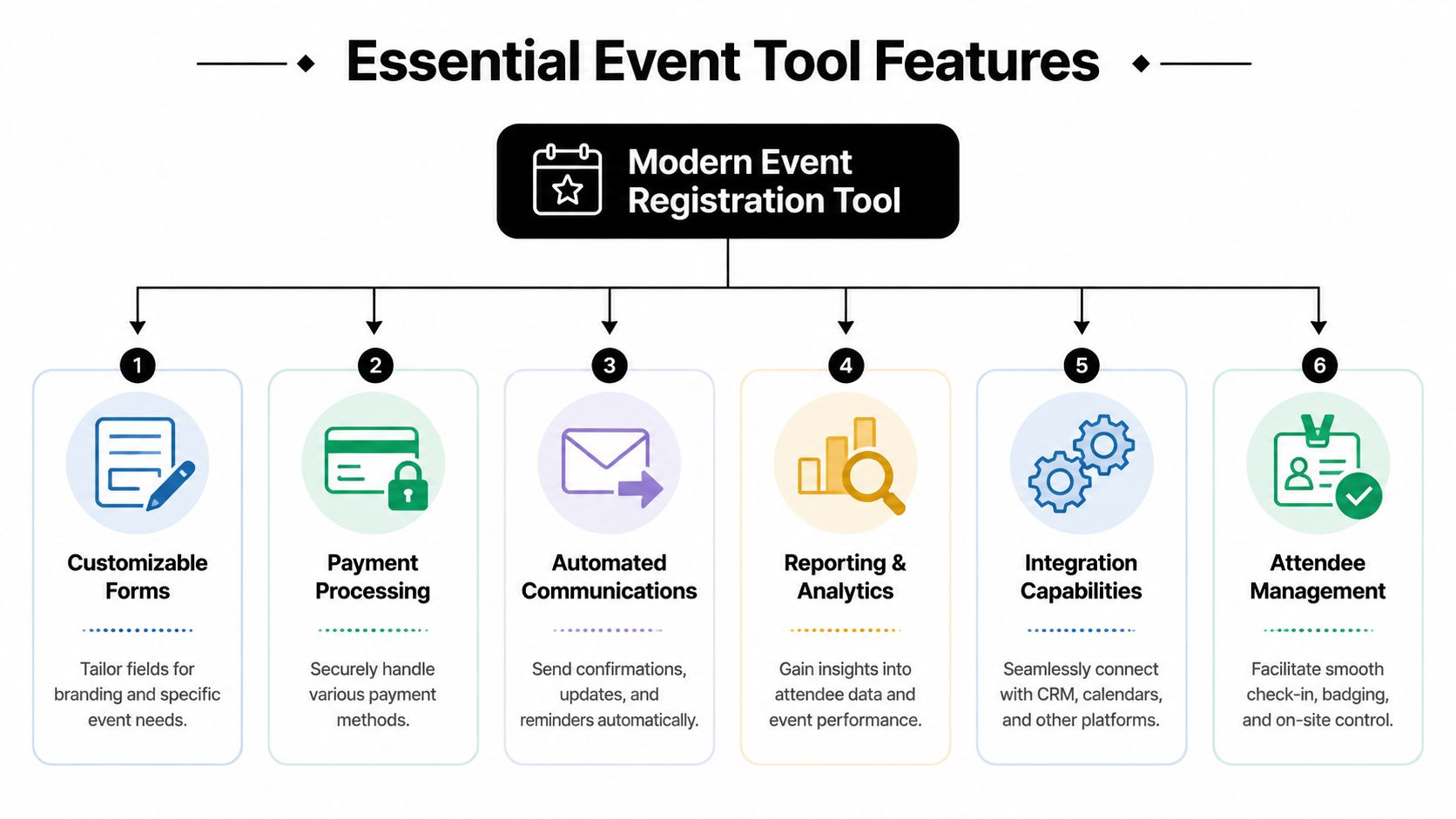
Customizable forms that reduce bad data
Registration starts with data capture. If the form is rigid, you either collect too little or you force people through irrelevant questions. Both create friction.
That's why no-code customization and conditional logic matter. Advanced event registration platforms use conditional form logic to boost conversion rates by 30 to 50% in segmented audiences, according to Jotform's event registration software review. In practice, this means the form shows only the fields a person needs to answer. A student sees student-specific questions. A sponsor sees sponsor fields. A general attendee doesn't get buried under options that don't apply.
Good forms should support:
- Conditional questions that appear only when relevant
- Custom fields for meal preferences, organization, track, zone, or internal notes
- Mobile-friendly layouts so people can register from a phone without pinching and zooming
- Clean exports or sync so responses don't need manual cleanup before event day
QR code ticketing that removes manual lookup
Once someone registers, they should receive a credential your team can verify quickly. QR code tickets are effective because they replace guesswork with a scan.
The benefit isn't the code itself. It's what sits behind it. A ticket should connect directly to the attendee record, not to a disconnected PDF file nobody can update. If a person changes ticket type, gets moved into a session, or is added late by staff, the validation process should still point to the same current record.
Many form-plus-spreadsheet setups begin to break down here. They can send confirmation emails, but credentialing usually becomes manual.
Mobile check-in that works like a door tool
Check-in software should behave like a door tool, not like a desktop admin page squeezed onto a phone. Staff need large buttons, fast search, clear status indicators, and a screen that's readable in poor lighting or crowded entrances.
Look for practical details:
- Fast attendee lookup when someone can't find their ticket
- Clear status display so staff can see checked in, not checked in, or restricted
- Role-based simplicity so door staff see only what they need
- Support for multiple devices without creating duplicate records
One workable example inside Google Workspace is Darkaa, which uses Google Sheets and Forms as the source of attendee data, then adds QR ticket generation, mobile scanning, offline validation, and sync back to Sheets. That kind of setup suits teams that want event functionality without moving their operation into a separate dashboard.
Offline validation for real venues
This is the feature too many buyers treat as optional. It isn't.
At conference centers, school halls, outdoor festivals, and multi-building campuses, internet quality changes by the room, the hour, and the crowd. If your event registration tool needs a constant connection to decide whether a ticket is valid, you're taking on avoidable risk.
A check-in app should continue scanning and validating even when the connection drops, then sync cleanly when service returns. If you want to understand what that looks like in practice, review an offline event check-in workflow before you commit to a tool.
If the system works only in the sales demo with perfect internet, it doesn't work well enough for the venue.
Session and zone access control
Simple guest lists are common. Simple events are not. Many organizers need to control access by day, room, ticket tier, meal entitlement, backstage area, workshop, or invited-only session.
That means the event registration tool should do more than mark “arrived.” It should tell staff whether the attendee is allowed into that specific place at that specific time. Without that, teams fall back to printed lists, colored stickers, or memory. Those methods can work for very small events. They don't scale well once your event has multiple doors or multiple staff teams.
How to Choose the Right Event Registration Tool
The wrong way to choose a tool is to compare feature pages until one looks longer than the others. The right way is to follow your workflow from announcement to check-in and see where the friction is.
That matters because registration sits at the center of event operations. Registration was selected as the top priority by 73% of respondents in Event Tech Forecasts, according to Gevme's analysis of registration data and event tech priorities. Teams focus on it first because every later step depends on the quality of the data and process established there.
Start with workflow, not feature count
Begin with questions your team can answer from experience, not from vendor language.
Do you run mostly free events with invited guests, or paid public events? Do staff already use Google Workspace daily? Will temporary check-in staff need to learn the system quickly? Do you need to scan at one entrance or several? Will your event happen in a place with reliable internet?
Those questions usually narrow the field faster than any product comparison chart.
A few trade-offs show up repeatedly:
- Simple form tools are easy to launch, but they often need manual work for ticketing and check-in.
- Large event suites cover many scenarios, but they can introduce a learning curve your team doesn't need.
- Workflow-friendly tools fit better for repeat use, especially when they sit inside familiar systems like Sheets, Forms, Gmail, and shared drives.
Use a selection checklist before you buy
A shortlist gets sharper when you force every option through the same operational questions.
| Criteria | Question to Ask | Importance |
|---|---|---|
| Workflow fit | Does this tool match how our team already works, especially in Google Workspace? | High |
| Check-in reliability | Can staff verify attendees quickly at the door without extra admin steps? | High |
| Offline capability | What happens if venue internet drops during peak arrival? | High |
| Ease of training | Can temporary staff use it after a short briefing? | High |
| Form flexibility | Can we collect different data for attendees, sponsors, speakers, or sessions? | High |
| Ticket delivery | Can it send clear confirmations and scannable tickets without manual assembly? | High |
| Session control | Can we manage access by day, zone, room, or ticket type? | Medium |
| Reporting | Can we see who registered, who attended, and what changed during the event? | Medium |
| Pricing model | Are we paying for what we use, or for features we won't touch? | Medium |
| Support model | If something breaks close to event day, how do we get help? | Medium |
The pricing point deserves special attention. Some tools make sense for organizations with frequent, complex events and dedicated admins. Others are better for teams that need per-event flexibility and don't want annual software overhead. Neither model is universally better. The mistake is paying enterprise-level complexity for a workflow your team still manages with two spreadsheets and a volunteer at the door.
Choose the tool that removes the most manual coordination, not the one with the most tabs.
A Practical Implementation Workflow
Teams often don't need a dramatic rebuild. They need a better flow using tools they already understand.
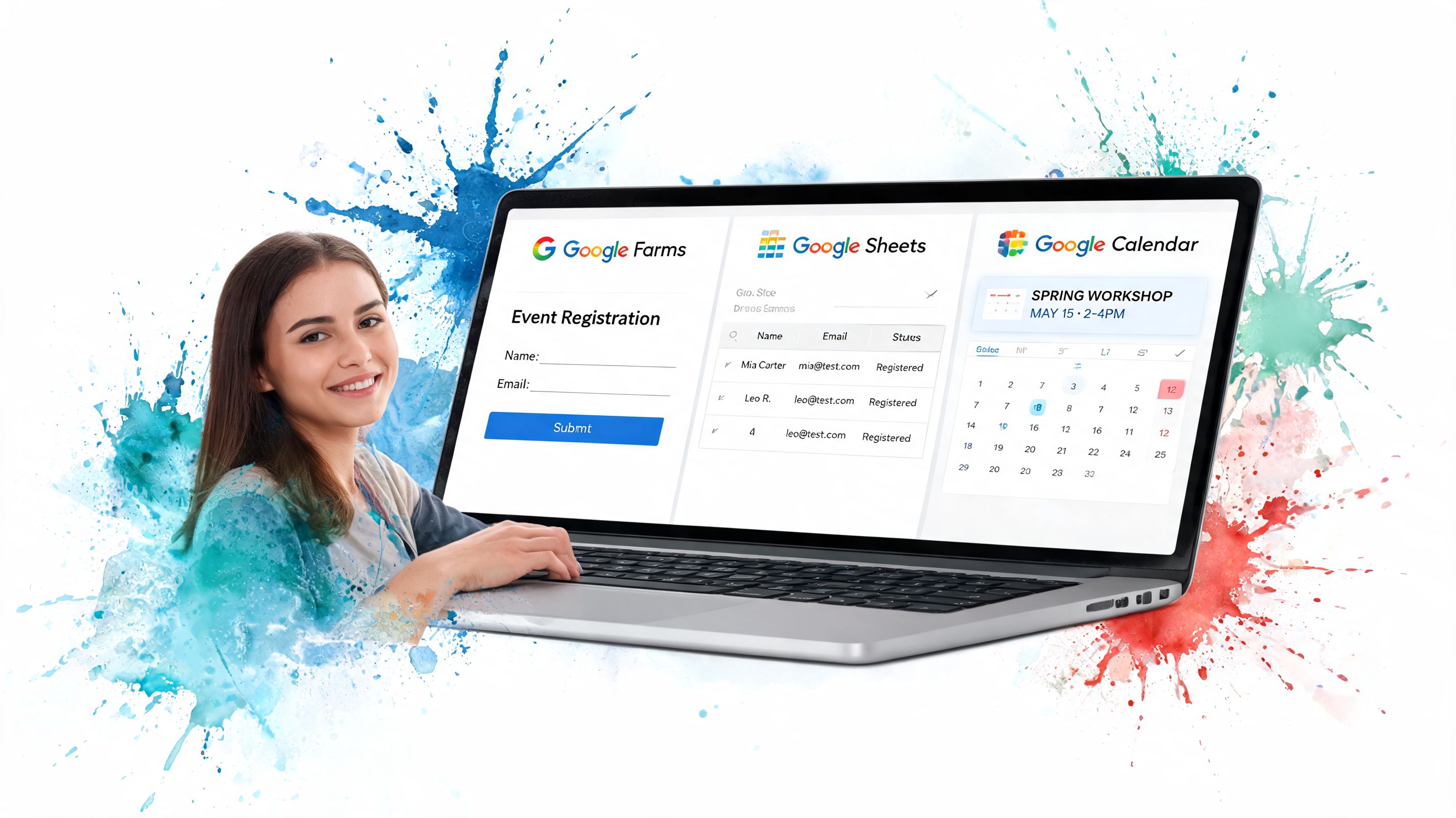
Build the registration flow inside familiar tools
A practical Google Workspace setup usually starts in one of two places. If you're collecting new sign-ups, start with Google Forms. If you already have invitees, sponsors, members, or imported attendees, start with Google Sheets.
Then build the workflow in this order:
Create the registration structure
Set up the fields you need. Name, email, ticket type, day selection, organization, dietary notes, session preference, or internal tags. Keep it short. Long forms don't fail because the questions are hard. They fail because half the questions shouldn't have been asked to that person.Connect the attendee list to ticket generation
Once registrations land in Sheets, use a tool that can generate a unique QR ticket per person and tie that ticket to the attendee row. That keeps the list and the credential connected.Send confirmations from the same workflow
Confirmation emails should pull from the live attendee record. If you change someone's access, resend the latest ticket. Don't create a side process where tickets live in one system and names live in another. If you need a starting point, a structured event registration form template for Google-based workflows can speed up setup.
Set up event-day operations before event day
Most registration problems aren't technical. They're sequencing problems.
Before doors open, test the exact path your staff will use. Scan a valid ticket. Scan the same ticket twice. Search for someone by name. Try a canceled or restricted attendee. Put one device in airplane mode and confirm that your offline plan still works. Assign roles so the front-desk volunteer doesn't see admin settings meant for the event manager.
A strong setup also closes the loop after check-in. Attendance should sync back to your source list so the team handling follow-up, certificates, or post-event outreach isn't guessing who came. In integrated systems, that connection matters beyond operations. Enterprise deployments indicate 40% faster ROI measurement when pre-event registration metrics are correlated with post-event behavior data, according to Bizzabo's discussion of integrated registration systems. Even if you're not running enterprise events, the principle holds. Connected data beats manual reconciliation every time.
Watch the full workflow in action
A video walkthrough helps if you want to see the registration-to-check-in flow without reading setup docs line by line.
The practical advantage of this approach is simple. Your team stays in Sheets and Forms for setup, your guests get clean tickets, and your door staff scan against the same live data the office team sees.
Common Pitfalls and How to Avoid Them
A lot of event software looks reliable in a browser demo. The cracks show up at the venue.
The biggest blind spot is connectivity. Many event registration platforms prioritize cloud-first architecture and fail to address the 40 to 60% of events that occur in locations with unreliable connectivity, as discussed in Double the Donation's review of event registration tools. If your check-in process assumes stable internet, you may not notice the risk until attendees are already queuing.
Buying for demos instead of operations
Some tools win the evaluation because they present well. Beautiful page builder. Strong branding. Lots of automation options. Then event day arrives and the scanning flow is clumsy, the mobile interface is cramped, or the system freezes when the network becomes unstable.
To avoid that mistake, test the tool like an operations team, not like a procurement team.
- Simulate arrival pressure by having multiple people check in at once
- Test failure conditions including weak signal and temporary disconnects
- Use real staff devices rather than assuming the newest phone in the office represents event-day reality
- Check the fallback process for manual lookup, duplicate scans, and late additions
Ignoring privacy and staff handoff
Another common mistake is collecting more data than the event needs. If your form asks for information nobody uses, you create clutter and increase privacy risk. Registration data should be purposeful. The check-in team rarely needs to see every field the planning team collected.
Training is the other neglected piece. Organizers often spend time selecting the platform and almost none rehearsing the handoff to front-of-house staff. A polished registration system can still fail if event-day workers don't know what to do when a guest has no ticket, a name is misspelled, or access needs to be changed at the door.
Keep the event-day interface narrow. Staff should see the attendee, the status, and the next action. They shouldn't need to interpret the whole database.
Overbuying is a quieter pitfall. Plenty of teams pay for broad platforms with hotel modules, exhibitor management, or advanced marketing layers they never use. If your real need is registration, QR ticketing, and dependable check-in, buy for that job first.
Your Next Steps to Flawless Event Registration
A good event registration tool doesn't just collect names. It removes uncertainty from the whole process. Your team knows where registrations live, attendees get a clear confirmation path, and the people at the door can validate access without digging through email chains or outdated spreadsheets.
The practical choice usually comes down to three things. First, solve the risk that causes the most damage on event day, especially offline failure and bad handoffs. Second, pick a tool that fits your team's actual workflow instead of forcing everyone into a new operating model. Third, keep the system simple enough that temporary staff can use it confidently.
If you're still managing sign-ups through forms, inboxes, and a master sheet that only one person fully understands, audit that process before your next launch. Look for every place data gets copied, retyped, or manually confirmed. That's where a better event registration tool will pay for itself in calmer prep, faster check-in, and cleaner attendance records.
If you want to keep registration inside Google Workspace instead of moving into a separate platform, Darkaa is one option to evaluate. It adds QR ticket generation, attendee check-in, offline validation, and sync back to Google Sheets and Forms, which can be a practical fit for teams that already run their event operations in Google Workspace.