Your event is on sale, registrations are coming in, and the ticket format is still undecided. That is not a design question. It is a door-operations question.
The ticket has to do several jobs at once. It needs to confirm the order, show the right event details, reflect the brand, and scan quickly on a cracked phone screen in a crowded entry line. I have seen well-designed tickets fail because the QR code was too small, the naming logic was inconsistent, or the staff could not tell VIP from general admission at a glance.
Buyer expectations have changed too. Attendees expect instant delivery, mobile access, and a check-in process that does not slow them down. For organizers, that means the ticket itself has become part of access control, not just part of the confirmation email. If you need a clearer view of how QR code event ticketing and access control fit together operationally, start there.
The practical part is simpler than many teams assume. You do not need a large ticketing stack to produce usable ticket examples and turn them into a working system. Google Sheets can handle unique IDs, attendee data, ticket tiers, and export-ready fields. Paired with a ticket generator and a disciplined check-in setup, it gives smaller teams a workable path from spreadsheet to scanned ticket.
That is the angle of this guide. It shows what strong event tickets look like, then explains how to build each format in a way a real team can maintain. The trade-offs matter. Some ticket types are easier to deliver but slower at the door. Others scan faster but take more setup. The goal is to help you choose the format that fits your event, then implement it without creating extra work on event day.
If you are still planning the demand side as well, these AONMeetings promotion ideas are a useful companion.
Table of Contents
- 1. Digital QR Code Tickets
- 2. Printable PDF Tickets
- 3. Mobile Wallet Tickets Apple Wallet and Google Pay
- 4. Printable Badges and Wristbands
- 5. Email Confirmation Tickets
- 6. SMS/WhatsApp Text Tickets
- 7. Tiered Access VIP Ticket Templates
- 8. Offline Hybrid Event Printable Lists and Manifests
- 8-Way Event Ticket Comparison
- From Google Sheet to Scanned Ticket Your Next Steps
1. Digital QR Code Tickets
Digital QR tickets are the default choice for a lot of modern events because they're fast to send, easy to update, and simple for door staff to validate. They work well for conferences, concerts, webinars with in-person add-ons, and corporate events where attendees already expect to receive everything on their phone.
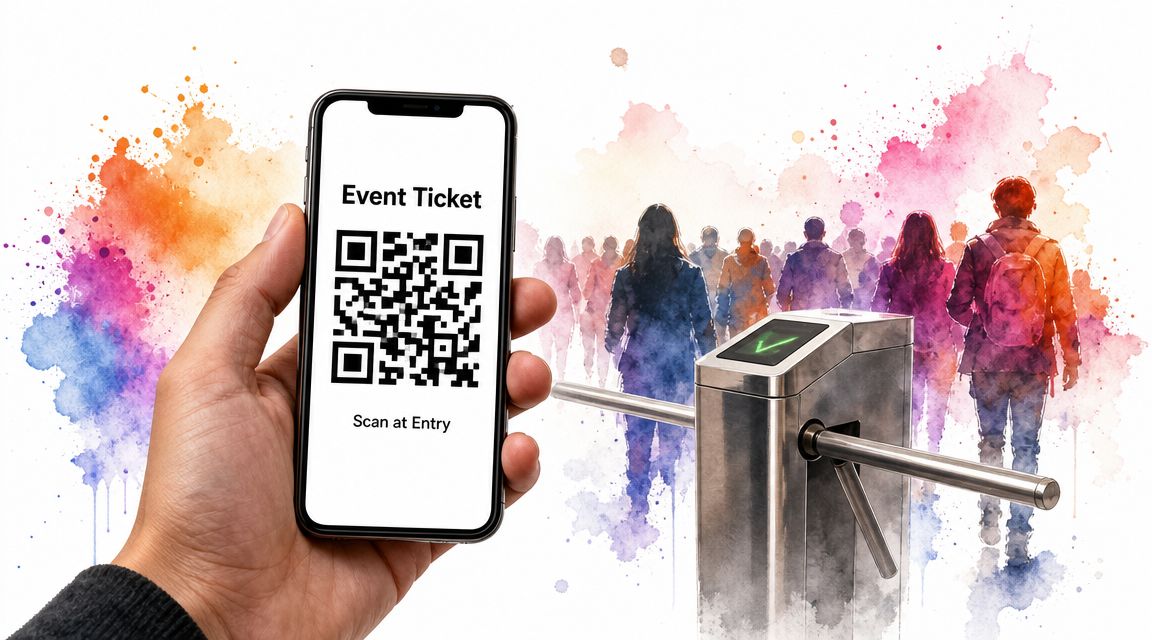
A QR ticket also fits how ticketing operations have evolved. Organizers now track sales, distribution, attendance, promo codes, and ticket types through dashboards, which is part of why modern tickets carry unique identifiers and scannable fields rather than just decorative layouts, as described by NextDayFlyers' guide to event ticket sizes.
Why they work
The biggest advantage is speed. You generate a unique code per attendee, send it by email or text, and let staff scan it at the entrance. No one has to search through stacks of printed tickets or cross-check messy handwritten lists unless the system fails.
They also work well inside a lightweight stack. If your registrations live in a Google Sheet, you can generate one ticket per row, merge the attendee fields into the design, and hand the same data to your check-in team. That's the practical appeal of a QR code event ticketing access control workflow. It keeps ticket creation and door validation tied to the same source of truth.
Practical rule: If the QR code is the star of the ticket, don't shrink it to make room for decorative graphics.
How to build them without overcomplicating things
Use high contrast. Put the event name, date, venue, and attendee name above or beside the code. Keep the code away from busy backgrounds and low-opacity logos.
Also plan for practical situations, not the ideal one. Some people arrive with dead batteries. Some show a screenshot from weeks ago. Some never received the message because their email filter buried it. A QR system works best when you also give staff a searchable attendee list and a backup verification method.
A few operational rules help:
- Train for exception handling: Staff should know what to do with duplicate scans, invalid codes, and attendees who insist they're registered.
- Test offline before doors open: Poor venue connectivity can turn a good system into a bottleneck if you only tested on office Wi-Fi.
- Set up more than one scan point: High-volume arrivals create lines fast, even when the software is fine.
2. Printable PDF Tickets
A parent shows up for a graduation with a printed ticket from a home inkjet. Another guest has the same PDF open on an older phone with a cracked screen. A sponsor arrives with a forwarded copy from an assistant. Printable PDF tickets need to survive all three cases.
That's why PDFs still earn a place in real event operations. They work well for theatre runs, school ceremonies, galas, fundraisers, and any event with a mixed audience where some guests want paper and others want a file they can save. They also give organizers a format that is easy to email, simple to archive, and familiar to front-of-house staff.
Where PDF tickets fit best
PDFs are useful when presentation matters and access still has to be practical. A formal ticket can carry branding, seating details, sponsor placement, terms, and even a detachable stub without forcing every attendee into an app-based flow. They are also forgiving. Guests can print them, forward them, or pull them up from an inbox at the door.
Size still affects usability, even without repeating the sizing source from earlier in the article. Small ticket formats are easier to batch print and hand out. Larger layouts give you room for seat location, donor tier, parking notes, venue instructions, or a cleaner barcode area. The right choice depends on what staff need to read in two seconds under entrance pressure.
What a printable ticket needs to do
A good PDF ticket has one job. Get the guest through the door without creating a conversation.
Include the event name, date, start time, venue, ticket holder name when needed, ticket ID, and the access credential your team will check. If you use reserved seating, put section, row, and seat where both the attendee and the usher can spot them immediately. Do not bury them under logos or decorative type.
Home printing changes design decisions. Thin fonts disappear. Low-contrast gray text turns muddy. A code placed over a textured background scans badly once the ticket is folded or creased. I usually test PDFs in three states before approving them: printed in black and white, shown on a dim phone screen, and opened from a forwarded email attachment.
Standard Letter or A4 usually beats a custom page size for public-facing PDFs because attendees already have printers set up for those formats. If the event team prints in-house, run a full test on the actual stock and printer you plan to use. Margins, scaling, and barcode sharpness can shift enough to create check-in problems.
How to build them from a Google Sheet
This is the practical advantage most organizers miss. A PDF ticket does not need a heavy ticketing stack if your attendee data already lives in Google Sheets.
Set up one row per attendee. Add columns for name, ticket ID, seat, tier, and any access notes your staff need. Then merge those fields into a ticket layout and export one PDF per row, or create print-ready batches for internal distribution. The same sheet can also feed your check-in list, which cuts down on version conflicts between what was issued and what staff see at the door. If you plan to support PDF now and wallet passes later, review this advanced ticket designer workflow for wallet-ready ticket layouts before you lock your field structure.
Security and operational trade-offs
PDFs are easy to distribute. They are also easy to copy.
That does not make them a bad option. It means the design has to match the risk level of the event. For a school performance, a simple numbered PDF may be enough. For a paid gala or limited-capacity show, add controls such as unique IDs, scanable codes, watermarks, issue timestamps, or stubs for visual verification. Those layers help staff catch obvious duplicates quickly, but they do not replace a live check-in process.
If you want a broader view of how PDFs compare with pass-based delivery, Toki's guide to digital wallet passes is useful for weighing retrieval, update handling, and presentation differences.
Good PDF tickets still hold up when they are printed in grayscale, folded into a jacket pocket, or opened from an old email five minutes before curtain.
3. Mobile Wallet Tickets Apple Wallet and Google Pay
Wallet tickets feel polished when they're done well. They're easy for attendees to retrieve, they live in a place people already use, and they reduce the “please search your inbox” delay that slows entry lines.
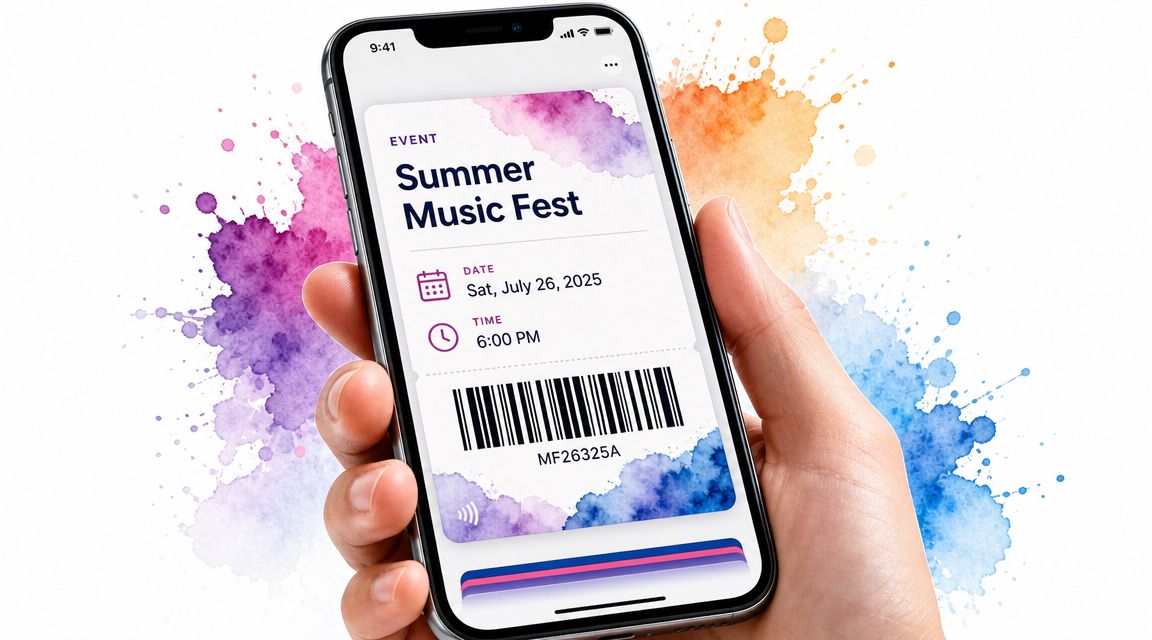
For sports, festivals, and premium conferences, wallet passes often create the smoothest presentation experience. The attendee opens Apple Wallet or Google Pay, raises the screen, and staff scan the barcode or QR code without digging through messages.
Why attendees like them
The convenience is obvious, but the bigger operational benefit is consistency. Attendees present the ticket in roughly the same format every time, which helps door staff move faster. Wallet passes can also reflect updates if your system supports pass management properly.
That makes them especially useful when event details might shift. A gate change, time update, or access adjustment is easier to manage in a wallet-based setup than across a mix of PDFs, screenshots, and email forwards. If you're designing these from a lightweight workflow, a wallet pass ticket designer setup is worth studying before launch.
A broader overview of why event teams adopt passes is covered in Toki's guide to digital wallet passes.
What breaks wallet rollouts
Most wallet problems happen in setup, not at the gate. Teams underestimate device differences, forget fallback instructions, or assume every attendee knows how to add a pass. Some do. Plenty don't.
Keep the pass visually simple. Small screens punish clutter. Put the event name, date, attendee identifier, and code in clear positions. Test the pass on different phone models and brightness settings.
Here's a quick product demo reference before you commit to this format:
If wallet delivery fails, your backup should be immediate. That usually means an email ticket, a plain confirmation code, or a searchable registration record at the desk.
4. Printable Badges and Wristbands
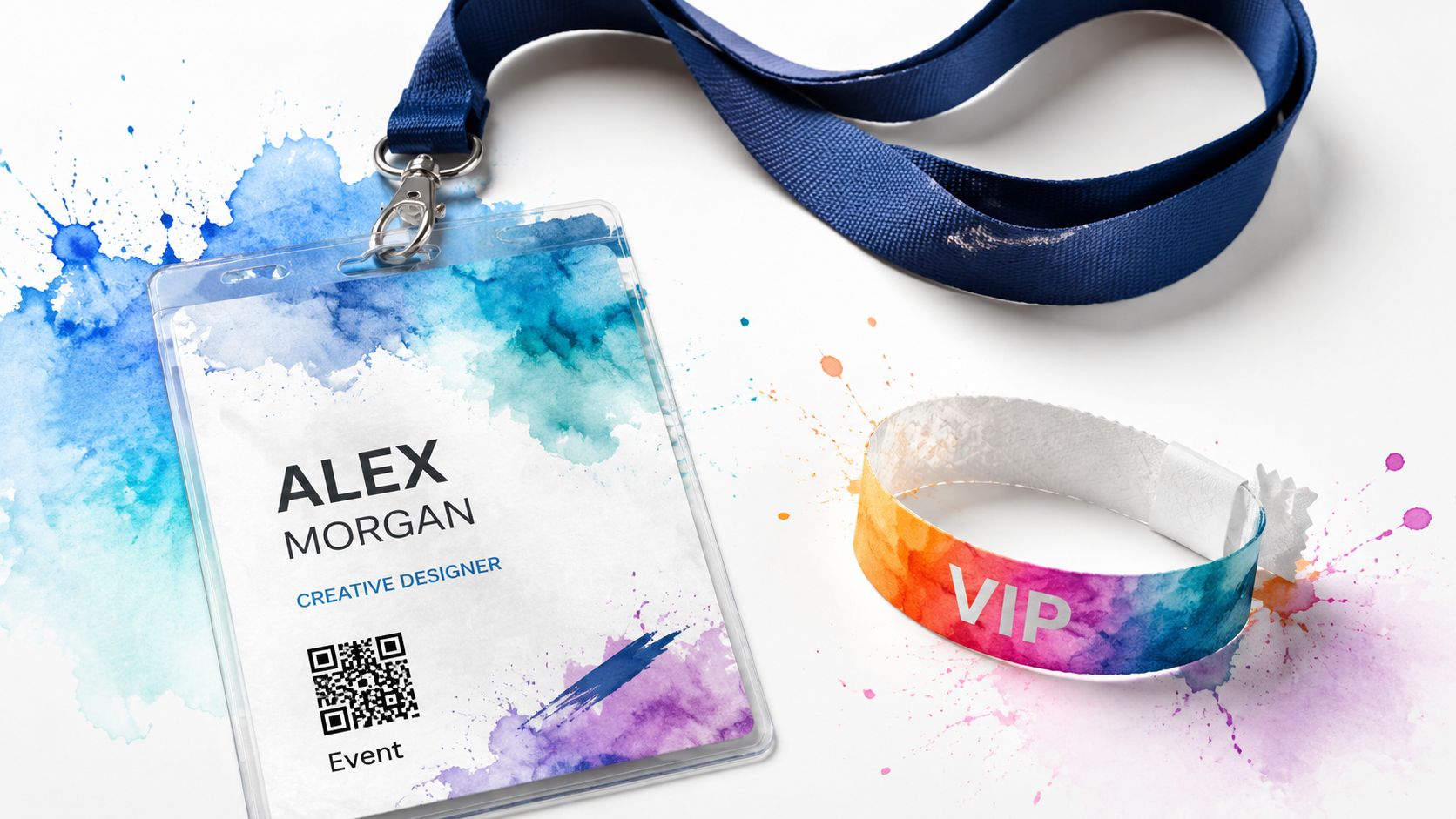
Badges and wristbands aren't just tickets worn on the body. They're access control tools. That distinction matters at conferences, festivals, trade shows, and multi-day events where attendees move through different zones and sessions.
Best fit for multi-day access control
A badge works better than a one-time scan when people need repeated access. A wristband works better than a folded paper ticket when people are outdoors, carrying bags, or passing through several checkpoints. Each format reduces friction in a different way.
CrowdPass case studies show how NFC access control, badge printing, and analytics increasingly sit inside the same event operations layer, rather than acting as separate pieces, as outlined in CrowdPass event technology case studies. This is the main lesson here. The credential is part of identity, not just proof of payment.
How to avoid badge desk chaos
Print samples before the production run. Staff almost always discover readability problems only after they hold the badge at arm's length across a table. Name fields that looked fine on a laptop become useless in a noisy lobby.
For wristbands, use tamper-aware materials for anything with premium or restricted access. For badges, keep fonts large, role labels obvious, and color coding restrained enough that staff can tell tiers apart under indoor and outdoor lighting.
- Separate identity from access if needed: A badge can display who the attendee is, while the scan logic handles which rooms they can enter.
- Plan reprints: Someone will lose a badge. Someone will smudge one. Someone will arrive with the wrong name on theirs.
- Brief your staff visually: Give door teams a one-page cheat sheet with badge colors, wristband meanings, and escalation rules.
At multi-day events, the badge desk isn't a print station. It's a problem-resolution station.
5. Email Confirmation Tickets
Email confirmation tickets are the simplest option that still works well. They're common for workshops, academic registrations, nonprofit events, internal company gatherings, and local venues where the organizer wants low-friction delivery without building a more specialized mobile experience.
The low-friction option
The attraction is obvious. Almost every registration flow already sends an email. If that email carries the ticket details clearly, you've reduced one extra step for both the attendee and the team.
This format also aligns with a useful product strategy lesson. Reforge's Eventbrite case study emphasizes evaluating changes against activation, retention, and revenue impact rather than adding features for the sake of it, as discussed in Reforge's Eventbrite feature strategy case study. That logic applies here. If an email ticket gets people through the door cleanly, you may not need a more complex ticket type.
What makes them usable at the door
Most email tickets fail because the email behaves like a receipt and not like an entry pass. The confirmation number is buried. The QR code is too small. The key event details are spread across multiple paragraphs.
Fix that by making the top of the email scannable by a human before it's scannable by a device. Put the event name, date, venue, ticket holder, and reference code first. Then place the QR code or barcode in a clear block.
A good email ticket should also survive forwarding and printing. That means using a clean HTML layout and including a text fallback code if images don't load. Reminder emails help too, especially for events with early-morning check-in or venue parking complexity.
6. SMS/WhatsApp Text Tickets
Text-based tickets are often the most practical option when email usage is inconsistent, when attendees rely heavily on messaging apps, or when last-minute communication matters more than polished design. They're especially useful for community events, regional festivals, international gatherings, and guest lists managed in fast-moving environments.
Where text delivery works best
A text ticket meets people where they already are. They don't need to hunt for an email, download a PDF, or understand a wallet pass. They just open their messages.
This approach also fits the broader distribution reality of modern event ticket examples. Organizers increasingly need tickets and promotion assets to work across online ticketing, printed collateral, social channels, and at-the-door flows, as described in Eventgroove's event ticket ideas and poster design guidance. In other words, the ticket is part of the attendee journey, not the final step after purchase.
How to keep text tickets practical
The biggest mistake is treating SMS like a tiny email. Keep the message short. Put the event name, date, and a short code or direct ticket link first. If WhatsApp is your main channel, you can afford richer formatting and images, but you still need a plain fallback code.
- Use a durable code format: If the QR image won't load, staff should be able to search the attendee by code or name.
- Send reminders close to arrival: Text is strongest when timing matters, such as a day-before reminder or gate-opening notice.
- Respect consent rules: Make sure people opted in to receive event texts.
If you need message-enabled workflows for distributed teams, some organizers also use services that help them get virtual numbers for account verification, though the ticketing process itself still needs clear attendee permission and support handling.
7. Tiered Access VIP Ticket Templates
Doors open in 20 minutes. A guest walks up with a gold ticket, a volunteer sees "VIP," and the sponsor manager says that pass does not include the lounge. That confusion usually starts long before check-in. The design said one thing. The access rules said another.
Tiered tickets work only when the visual signal and the data model match.
Make the tier obvious at a glance
Attendees should recognize their tier instantly. Staff should recognize it even faster. General Admission, VIP, Sponsor, Exhibitor, Speaker, Staff, and Press need clear separation, not minor style changes that only make sense after someone studies the text.
Use one primary marker for each tier and keep it consistent everywhere. A color band, badge stripe, icon, or large access label works well. Then repeat that same logic across the ticket, badge, wristband, and check-in view. A simple Google Sheets setup proves useful here. If the tier lives in one clean column, you can push the same label into every format instead of recreating it by hand in design files.
Tiering matters because paid access is often tied to real inventory. Reserved seating, early entry, lounge access, premium sessions, and sponsor areas all depend on clear class separation. Once revenue and crowd control depend on those rules, tier design stops being cosmetic.
Build access rules into the sheet, not just the artwork
A VIP layout means very little if the scanner cannot tell what that ticket is allowed to do. Staff should not have to remember whether "Gold Sponsor Guest" includes the afterparty but excludes the speaker prep room.
Field note: If your access rules cannot fit on one staff cheat sheet, the team will start making judgment calls at the door.
In Google Sheets, set up a dedicated tier field first. Then add only the access fields you need, such as lounge, dinner, workshop block, or backstage. That structure gives you two outputs from one source. The attendee sees a clean ticket with a simple tier label. The check-in team gets a scannable record with the rules behind it.
This is also the point where teams should test exceptions. Sponsors often have custom entitlements. Speakers may need green room access but not premium seating. Staff may enter every zone but should never be counted as VIP attendees in reports. If the sheet cannot represent those cases clearly, fix the sheet before you print anything.
For venue teams that need zone enforcement on weak or unstable internet, pair the tier fields with an offline check-in workflow for access validation. That gives staff a way to verify permissions locally instead of relying on memory or paper notes.
For disputed access, train the escalation path in advance. One line lead handles routine mismatches. One supervisor handles upgrades, sponsor exceptions, and guest list overrides. That keeps the queue moving while still protecting paid access.
8. Offline Hybrid Event Printable Lists and Manifests
Every experienced event team eventually learns the same lesson. You need a backup that works when the network doesn't. Outdoor venues, remote sites, overloaded conference centers, and temporary spaces all create conditions where a purely live system can stumble.
The backup that saves events
Printed manifests aren't glamorous, but they save events. They're useful for graduations, nonprofit gatherings, field events, and any situation where legal sign-off, controlled entry, or compliance records matter. They also help when check-in has to continue while devices recharge or sync catches up.
Practical ticket design is tied to scan reliability, and QR codes require sufficient size and white space for reliable scanning. Poor sizing and weak quiet zones can slow scanners and bottleneck entrances, as noted in 4OVER4's event ticket layout guidance. A printed list is your hedge against that kind of failure.
How to run manifests cleanly
A manifest should never be a random export handed to volunteers five minutes before doors open. Sort it in useful ways. Alphabetical is obvious. Registration order, organization, or session assignment may be equally important depending on the event.
If your check-in process includes devices, pair the list with an offline check-in workflow so scans can continue locally and sync later. That gives staff a digital path and a paper fallback instead of forcing them to choose one.
Use clear columns for attendee name, code, ticket type, status, and notes. Assign each list to one staff member where possible. If several people mark the same sheet without a process, the handwriting becomes its own incident report.
A solid manifest setup usually includes:
- Multiple sort orders: One master alphabetical list, plus any operational slices your team needs.
- Post-event reconciliation: Someone has to transfer notes, walk-ups, and manual check-ins back into the system.
- Physical durability: Use sturdy paper, clipboards, and backups for rain, dust, or frantic handling.
8-Way Event Ticket Comparison
| Ticket Type | Implementation Complexity 🔄 | Resource Requirements ⚡ | Expected Outcomes ⭐ / Impact 📊 | Ideal Use Cases 📊 | Key Advantages & Tips 💡 |
|---|---|---|---|---|---|
| Digital QR Code Tickets | Moderate 🔄, QR generation, validation, DB sync | Smartphones, scanners, backend sync; offline cache | High ⭐, fast entry, auditable, fraud reduction | Concerts, conferences, mobile-first events | Cost-effective & eco-friendly; provide backup email/print and multiple scanners |
| Printable PDF Tickets | Low 🔄, design + batch generation/print | Printers, paper, design templates; optional mail distribution | Reliable ⭐, familiar, printable, good branding | Theatres, galas, hybrid events | High-res branding; add security features and test print batches |
| Mobile Wallet Tickets (Apple/Google) | High 🔄, passkit/API integration and backend | Developer resources, PKPass/Google APIs, device OS support | Very high ⭐, seamless native UX, dynamic updates | Airlines, large festivals, premium conferences | Best mobile UX; include fallback flows and test geofencing |
| Printable Badges & Wristbands | Moderate–High 🔄, printing logistics + optional RFID | Badge printers, wristbands, lanyards, RFID readers (optional) | High ⭐, networking, durable access control, reduces fraud | Multi-day conferences, festivals, trade shows | Improves networking; use durable stock, on-site reprints, secure serration |
| Email Confirmation Tickets | Very Low 🔄, email automation or form responses | Email service or form auto-responder; minimal dev | Moderate ⭐, universal reach but lower security | Webinars, community events, nonprofits | Easiest to implement; embed QR and send reminders, include backup codes |
| SMS / WhatsApp Text Tickets | Low–Moderate 🔄, messaging API + consent management | Messaging API, phone numbers, potential per-message cost | High ⭐, immediate delivery, very high open rates | Emerging markets, urgent notifications, international audiences | Great reach; obtain opt-in, include short ticket codes and fallback links |
| Tiered Access / VIP Templates | High 🔄, design + permission logic and enforcement | Access DB, custom designs, trained staff, printing | High ⭐, precise access control and revenue optimization | Conferences, festivals, sponsor/VIP events | Color-code tiers, document access rules, test permission logic and staff training |
| Offline/Hybrid Printable Lists & Manifests | Low–Moderate 🔄, export & organize printable rosters | Paper, printers, staff, durable stock; no internet needed | Moderate ⭐, reliable offline operation, manual overhead | Rural venues, low-connectivity events, contingency planning | Print extras, use cardstock/laminate, assign staff per manifest and photo backups |
From Google Sheet to Scanned Ticket Your Next Steps
The right ticket format depends less on trend and more on venue reality, audience behavior, and the pressure points in your check-in flow. A digital QR ticket is often the fastest all-purpose answer. A PDF works better when attendees need something printable and official-looking. Wallet passes help when you want a polished mobile-first experience. Badges and wristbands earn their place when access control continues long after first entry.
What matters most is consistency between design, distribution, and validation. If the ticket says one thing, the database says another, and the scanner behaves a third way, your team ends up doing manual overrides all day. That's where simple systems often outperform flashy ones. A clean Google Sheet with the right fields can be more useful than a complicated platform no one on the door team understands.
For practical event ticket examples, this is the missing bridge. Most inspiration galleries stop at layout. They show attractive tickets, but not how those tickets get generated from live attendee data, sent through email or WhatsApp, updated when details change, and validated when the internet is unreliable. That implementation layer is where most event problems live.
Start with the fields you need. Attendee name, contact method, ticket type, access level, session or zone if relevant, and a unique identifier. Then choose a ticket format that matches the event. A theatre performance may benefit from printable PDFs. A conference may need QR tickets plus badges. A rural outdoor event may require digital scanning with printed manifests as backup.
Keep the attendee experience boring in the best way. They should know where the ticket is, what time to arrive, and what to show at the entrance. Keep the staff experience even simpler. They should know what valid looks like, what invalid looks like, and who handles exceptions.
If you already work inside Google Workspace, Darkaa is one option that fits this operating model. It uses Google Sheets and Google Forms as the working backend for ticket generation and check-in, supports branded tickets, printable badges, offline validation, and syncing attendance back to Sheets. That's useful when you want to build a ticketing process without moving your team into an entirely separate dashboard.
The best ticket isn't the prettiest one. It's the one your attendees can find, your staff can verify, and your event can trust when the line starts forming.
If you want a practical way to turn Google Sheets into working event tickets, Darkaa gives you a direct path from attendee list to branded QR ticket, check-in, and offline-capable validation without rebuilding your workflow from scratch.