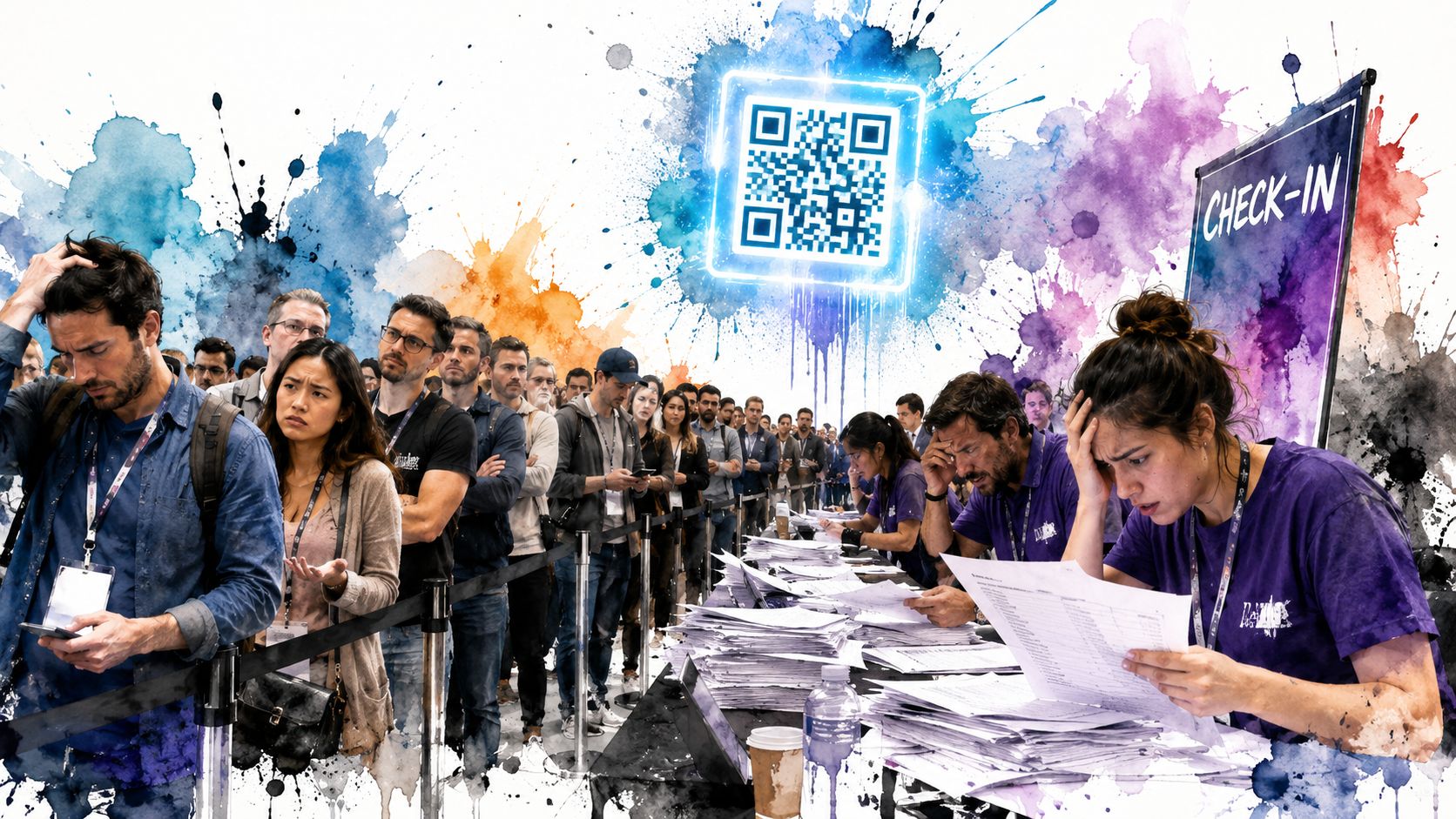
You're probably here because you've seen both versions of event check-in. One has a folding table, a printed guest list, and a line that stalls every time someone gives the wrong email address. The other moves cleanly. Attendees pull up a ticket, staff scan it, and the list updates without anyone shouting names across the lobby.
That difference usually isn't about having a fancier event platform. It's about building a check-in workflow that works under pressure. If you already live in Google Workspace, a solid qr code for event setup can start in Google Sheets, extend through Google Forms, and finish at the door with scanning that still holds up when the venue Wi-Fi doesn't.
Table of Contents
- Why a QR Code for Event Check-In Is Essential
- From Spreadsheet to Secure Tickets in Minutes
- Smart Ticket Distribution and Performance Tracking
- Flawless Check-In Operations at Your Event
- Securing Your Event and Solving Common Issues
- Your Next Event Powered by Smart QR Codes
Why a QR Code for Event Check-In Is Essential
The biggest mistake new planners make is treating the QR code as a graphic asset. It isn't. It's an operational shortcut that replaces name lookups, typed URLs, paper verification, and a surprising amount of front-desk confusion.
QR codes are no longer niche at event touchpoints. A 2026 industry roundup reported that 43% of marketers use QR codes for events, and a 2025 statistics roundup estimated over 2.9 billion people worldwide would use QR codes by 2025, according to Bitly's QR code statistics roundup. For planners, that matters because attendee behavior has already changed. Individuals are largely familiar with how to interact with a code on a ticket, badge, poster, or confirmation email.
The real benefit is operational
Manual check-in breaks down in predictable ways:
- Names don't match exactly because someone registered with a work email and arrived using a personal one
- Printed lists go stale when last-minute signups or substitutions happen
- Staff improvise and create inconsistent rules at the desk
- Queues form in bursts even when total attendance feels manageable
A qr code for event check-in solves the first move in that chain. Staff scan. The right record appears. Attendance status changes immediately. The door team keeps moving.
Most advice online stops at “make a code” and never gets into what happens when several staff members need to process a large arrival wave at once.
That gap matters. The challenge isn't generating the image. The challenge is making sure the whole system survives phone brightness issues, late registrants, multiple scanners, and inconsistent venue internet.
Why Google Sheets is a practical starting point
For many teams, Google Sheets is already where the attendee list lives. That gives you a useful foundation:
| Need at the event | What the sheet handles |
|---|---|
| Attendee roster | One row per person |
| Ticket type | Columns for VIP, general, staff, sponsor |
| Session access | Extra fields for day, room, or zone |
| Live status | Checked in, pending, duplicate attempt, manual override |
A spreadsheet-based setup also forces clarity. You see the columns. You see which data is missing. You catch mistakes before the event instead of at the registration desk.
From Spreadsheet to Secure Tickets in Minutes
A good ticketing workflow starts with structure, not design. If the sheet is messy, every downstream step gets harder. If the sheet is clean, generating tickets is straightforward.
QR codes were developed in 1994 by Denso Wave, and they can store thousands of characters, far more than standard barcodes. That's what makes them useful for event tickets that need to carry unique attendee identifiers, ticket type, and access permissions, as explained in ProGlobalEvents on QR codes for events.
Start with a clean attendee sheet
Take a simple example. You're running a corporate seminar with one main session, a VIP breakfast, and an afternoon workshop. Your Google Sheet doesn't need to be complicated, but it does need consistent columns.
A practical structure looks like this:
Attendee ID
Use a unique internal ID for each person. Don't rely only on name or email.Full name and email
These are still your main communication fields.Ticket type
General, VIP, staff, speaker, sponsor.Access fields
Breakfast access, workshop access, day access, or room permissions.Status fields
Registered, ticket sent, checked in, checked into session, manually approved.
If you're collecting registrations through Forms, map those answers into the sheet so each response becomes a usable attendee row. If you're importing from another registration tool, normalize the column names before generating anything.
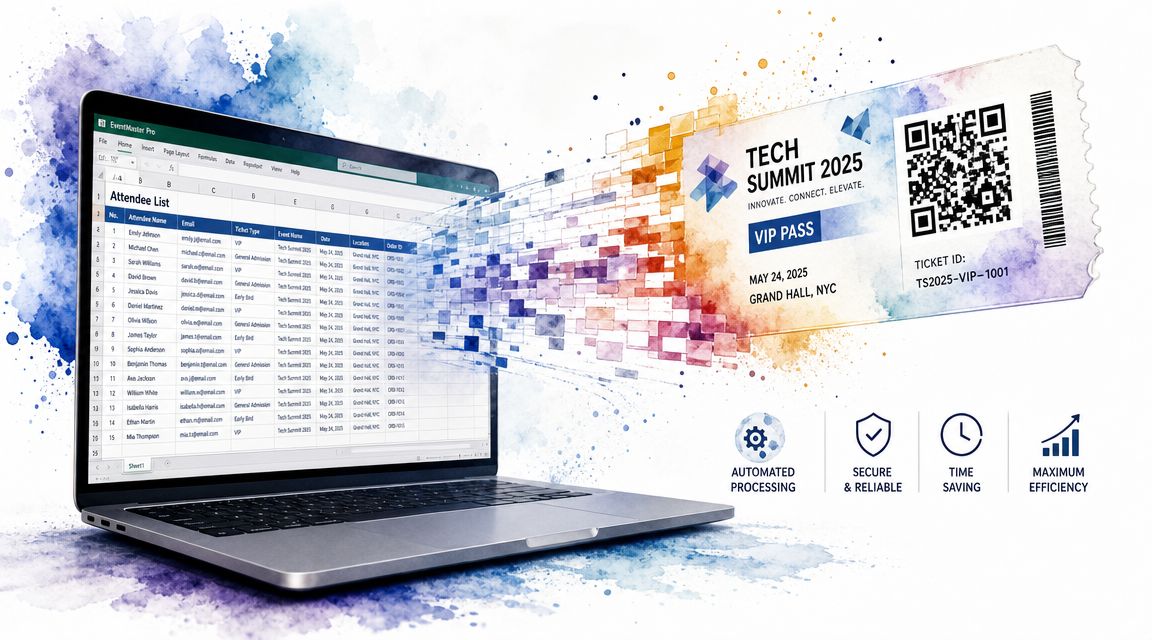
Generate one ticket per row
Many planners overcomplicate things. You do not need a separate design workflow for every attendee. You need one template and one unique QR code per row.
With a tool built for QR code tickets for Google Sheets, the sheet becomes the source of truth. Each row can generate a different ticket automatically using the attendee's own data. That's the right model because updates stay tied to the underlying spreadsheet instead of floating around in separate files.
A practical workflow looks like this:
Prepare the sheet
Confirm each attendee has the required fields and a unique identifier.Connect the ticket generator
Use a Sheets add-on that reads row data and creates a unique QR code ticket for each attendee.Map ticket content
Pull name, ticket type, event date, venue, and access notes from columns.Choose output format
Generate PDF tickets for email delivery or image tickets for mobile-friendly distribution.Store a send status back in the sheet
This helps your team avoid sending duplicates or missing late additions.
Practical rule: One attendee, one row, one unique code. If two people can share the same code, your check-in process is already weaker than it should be.
Design for scanning, not decoration
The best-looking ticket isn't always the easiest one to scan. Event teams often shrink the code too much, place it over a patterned background, or crowd the ticket with branding elements.
Keep the ticket readable first. Brand it second.
Use this quick checklist:
| Ticket element | What works | What causes trouble |
|---|---|---|
| QR placement | Clear area with contrast | Busy background |
| Attendee info | Name and ticket type visible | Tiny text |
| Format | PDF or image sized for phone screens | Oversized layouts that require zooming |
| Access details | Explicit labels like VIP or Workshop | Hidden terms buried in fine print |
For many teams, staying inside Google Workspace is a strong advantage. The attendee list, registration intake, ticket generation, and updates all stay close together. That cuts down on copy-paste errors and makes late changes manageable. If your speaker adds five guests the night before, you edit the sheet, generate their tickets, and move on.
Smart Ticket Distribution and Performance Tracking
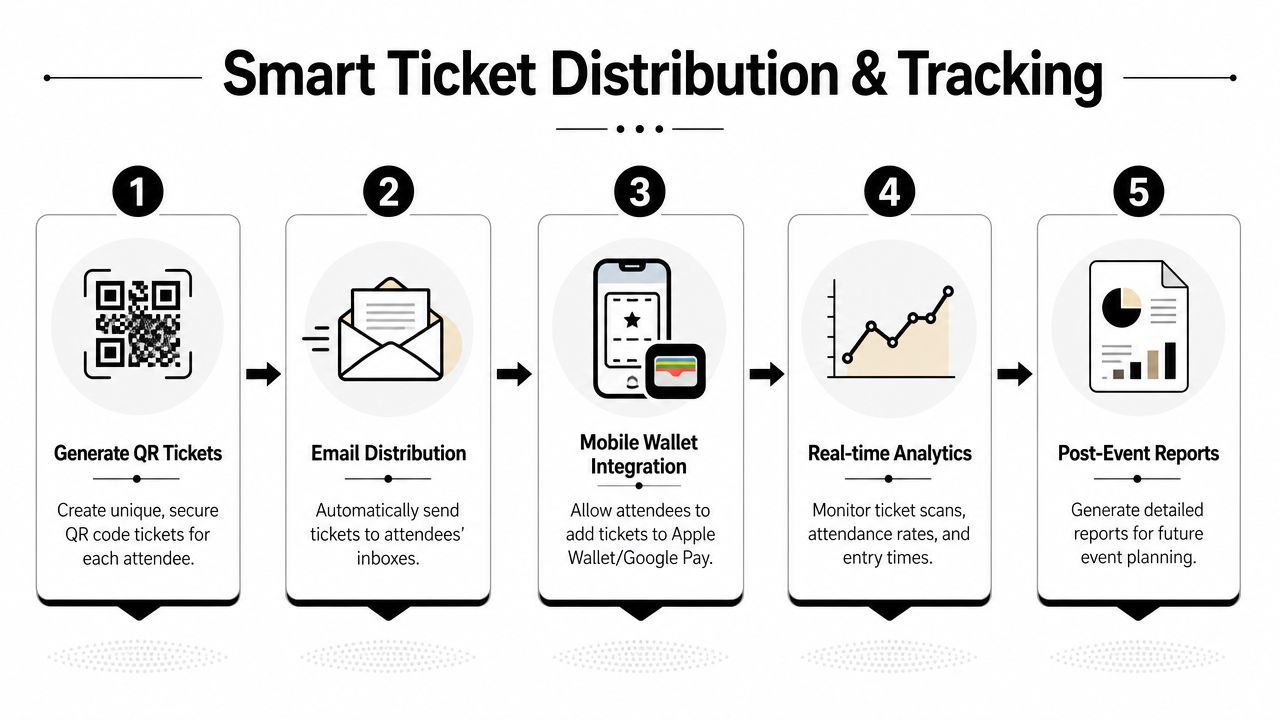
Sending tickets is not just an admin task. It's the start of attendee compliance. A ticket that arrives late, lands in the wrong place, or points to a clumsy registration flow creates problems you'll feel at the door.
Choose distribution based on attendee behavior
For a formal conference, email usually remains the default. For community events, field activations, or internal company events, WhatsApp or direct mobile delivery can be more practical. The point is to match the channel to how attendees in practice retrieve information while standing outside your venue.
If you're collecting registrations through a form, a setup built around QR code attendance for Google Forms can automate the handoff from response to ticket. Someone submits the form, their record lands in Sheets, and the system can issue the corresponding ticket without your team rebuilding the list by hand.
That works best when the registration path is simple:
- Keep forms short so people finish them on mobile
- Send the ticket immediately after successful registration
- Use consistent subject lines or message labels so attendees can find the ticket later
- Include a plain reminder to have the QR code ready on arrival
Track the funnel, not just sends
The strongest QR workflows are measurement-driven. Best practice is to use dynamic QR codes so you can track scan activity, registration conversion, and test landing pages without reprinting signage, according to this guide to event registration QR code measurement.
That advice is useful because distribution problems often hide upstream. A poster may get scans, but the landing page loads slowly. An email may reach inboxes, but the form asks for too much. A code may be placed well, but the registration path underneath it creates drop-off.
A practical tracking model inside your spreadsheet can include:
Placement or campaign source
Email, lobby sign, flyer, partner venue, social post.Registration status
Started, completed, waitlisted, canceled.Ticket delivery status
Sent, bounced, resent, manually delivered.Attendance outcome
Checked in, no-show, duplicate attempt, partial access used.
For teams that want a clearer reporting framework, this overview of attendance statistics for events is useful as a planning reference for what to watch before and after the event.
If you can't tell which distribution path produced a registrant, you can't fix weak spots before the next event.
This is also where one Google-based stack can save time. A form captures the lead. A sheet stores the record. The ticket gets created and sent from the same working environment. That's easier to audit than bouncing between separate email tools, design apps, and registration exports.
Flawless Check-In Operations at Your Event
A QR workflow succeeds or fails at the door. That's where planning gets tested by actual arrival patterns, impatient guests, and staff who need the process to be obvious.
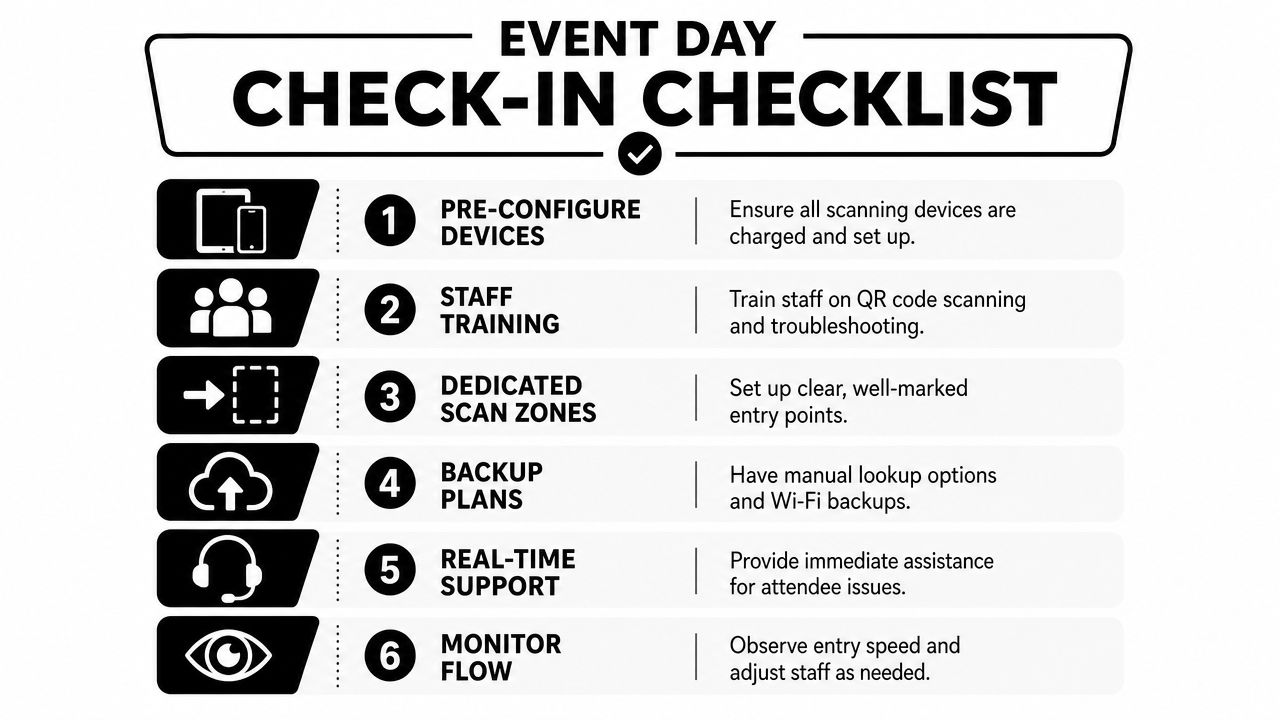
QR code-based check-in is reported to be 84% faster than manual methods, and industry guidance suggests planning for roughly 1 scanning station per 50–75 attendees per hour when scanning is your primary intake method, according to Fielddrive's guide to event QR check-in and registrations.
Size the door correctly
That throughput guidance is useful, but only if you apply it to the actual arrival window. A lot of teams count total attendance and forget that guests don't arrive evenly. They cluster.
If your conference opens at 9:00 and most attendees show up in a tight pre-start window, one scanner won't save you. The QR code isn't the bottleneck. Understaffing is.
Use this planning table before event day:
| Door decision | Better choice | Risky choice |
|---|---|---|
| Device count | Multiple scanning devices ready before doors open | One “main” device with others as backup only |
| Staff roles | Separate greeters from problem-solvers | Every staff member handling every issue |
| Line design | Clear queue and overflow space | One crowded table with no lane control |
| Peak planning | Capacity based on arrival surge | Capacity based on total attendance only |
Build for weak internet and multiple devices
In practice, many generic qr code for event articles stop being useful. Real venues have dead zones. Staff use different phones. One device loses connection while another keeps scanning.
Your setup has to assume those things will happen.
The practical workflow is simple:
- Generate unique attendee-linked codes
- Test them on iOS and Android native cameras
- Test with a third-party scanner
- Run a timed dry run using the actual event devices
- Prepare offline validation and a printed attendee list as backup
If you're running a Sheets-based operation, use a scanner that syncs attendance back to the spreadsheet and also supports offline validation when internet drops. This guide to offline QR code ticket check-in for Sheets is the kind of workflow every door team should review before show day.
A lot of teams also benefit from seeing how guest-facing arrival flows are handled in adjacent hospitality settings. This overview of Nimbio Guestview features is useful because it shows how check-in visibility, guest status, and front-desk coordination can be structured when speed matters.
Here's a short demo of the scanning experience in practice:
Control access without slowing entry
Not every event has one simple front door. Some have VIP zones, workshop rooms, sponsor lounges, staff-only areas, or multi-day credentials. Your ticket system should reflect that in the code and in the sheet, not in verbal instructions passed between staff.
A workable Google Sheets model uses separate columns for access permissions, then lets the scanner validate the attendee against those fields. That way staff don't have to remember who's allowed where. The device checks the ticket against the record.
This is one place where a tool like Darkaa fits naturally for Google-based teams. It turns Google Sheets and Forms into a QR ticketing and check-in system, supports offline validation, syncs scans back to Sheets, and works across multiple iOS and Android devices without moving your team into a separate dashboard.
A smooth door usually comes from boring preparation. Charged devices, tested codes, trained staff, and one fallback path for every failure point.
Securing Your Event and Solving Common Issues
Security at check-in usually comes down to discipline, not complexity. If each attendee gets a unique code tied to a single record, your team can spot duplicate use immediately and decide what to do next. If your process relies on visual inspection alone, duplicate entry becomes much harder to control.
Prevent duplicate use and bad scans
The front-line issues are usually familiar:
The code won't scan off a phone
Ask the attendee to raise brightness and hold the screen flat to reduce glare.The printed ticket is damaged
Search by name, email, or attendee ID in the master list.The code scans but the record looks wrong
Check whether the attendee was imported twice or registered with a second email.The attendee has the confirmation but not the ticket
Use manual lookup, then resend or admit based on your policy.
A secure system should also record the result of each scan. First valid entry is one thing. A repeat scan at the same entrance may be re-entry, or it may be ticket sharing. Your staff needs a clear rule before the doors open.
Give staff a fallback path
Backups aren't optional. They're part of the design.
Keep these in place:
- Printed attendee list for manual search if devices fail
- Offline-capable scanning if venue connectivity drops
- Supervisor override process for edge cases like name changes or transfers
- One issue desk so problem tickets don't block the main line
The weak point in most setups isn't the QR image itself. It's the assumption that everything will be connected, synchronized, and legible all day. Professional teams plan for the opposite and operate calmly when small failures happen.
Your Next Event Powered by Smart QR Codes
A practical qr code for event system doesn't need to start with a giant event platform. For many teams, it starts with the tools they already use every day. A Google Sheet becomes the attendee database. A Google Form becomes the intake layer. The ticket template becomes repeatable. The scanner becomes the bridge between registration and attendance.
That approach works because it keeps the operation understandable. Your team can see the records, update them quickly, and train seasonal staff without introducing an unfamiliar dashboard. It also makes room for the part most guides ignore. The door. Not just the code.
That's an underserved angle in most event advice. Many resources focus on generating the code itself, while giving much less attention to high-volume scanning and unreliable internet, as noted in Vistaprint's guide on using event QR codes. In practice, that's the part attendees remember most.
Small details around the event also matter. If you're managing staff visibility or sponsor presentation on-site, items like branded headwear for corporate events can help guests identify your team faster in crowded venues.
The strongest setup is usually the one your staff can run confidently, your attendees can use without explanation, and your organizers can audit in one place after the event.
If you want to build QR ticketing inside Google Workspace instead of learning a separate event platform, Darkaa lets you create QR code tickets from Google Sheets or Google Forms, send them by email or WhatsApp, and scan attendance with offline-capable check-in that syncs back to your sheet.