
You've got a Google Sheet with names, emails, ticket IDs, or inventory records. What you need next isn't another spreadsheet trick. You need QR codes that work on event day, print cleanly, export without a fight, and still make sense when someone on your team has to update the sheet later.
That's why a QR code generator in Google Sheets is useful. It turns the sheet you already use into the place where QR creation, distribution, and operations stay connected. The problem is that most tutorials stop at the first win. They show a formula, a QR appears in a cell, and that's the end of the story. Real operations start after that point.
If you're handling guest check-in, badges, tickets, membership cards, serialized assets, or classroom attendance, the main question isn't just how to create a code. It's how to manage the whole workflow without introducing fragile steps.
Table of Contents
- Why Generate QR Codes in Google Sheets
- Method 1 The Instant Formula-Based Generator
- Method 2 Automating with Google Apps Script
- Method 3 Professional Workflows with Add-ons
- Tips for Bulk Exporting and Printing
- Troubleshooting Common QR Code Errors
- Frequently Asked Questions
Why Generate QR Codes in Google Sheets
Teams keep returning to Google Sheets for QR workflows because the attendee list, roster, SKU table, or registration log is already there. When the source data lives in the sheet, generating codes beside each row is simpler than exporting everything to a separate platform and trying to keep records in sync.
That's one reason adoption has grown quickly. Native QR code generation in Google Sheets surged by approximately 340% between 2020 and 2024, and in 2022 over 65% of educational institutions and corporate seminar organizers migrated to spreadsheet-based QR solutions to manage guest lists. Those figures are included in the verified data provided for this article.
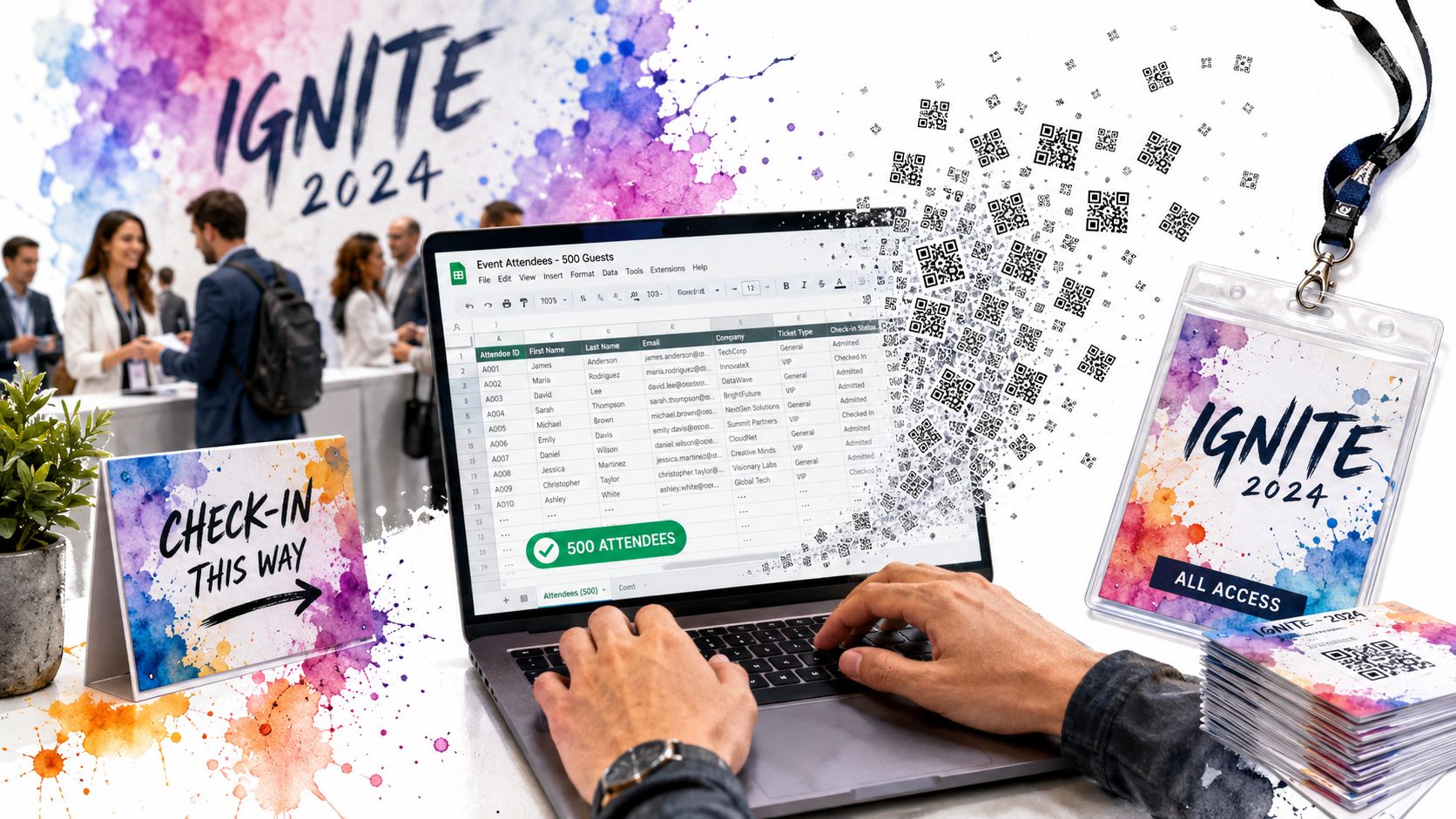
For event operations, that makes sense. You can generate one code per attendee, one per badge, one per seat assignment, or one per inventory item without rebuilding your process. The sheet becomes the operational source of truth.
A similar logic applies outside events. If you're labeling stock, bins, or equipment, Vorby's guide to QR inventory is a useful companion because it focuses on how QR workflows connect to actual inventory handling instead of stopping at code creation.
Three workable paths
There are really three ways people use a QR code generator in Google Sheets:
- Formula method: Fastest to start. Good for one column of payloads and one column of QR images.
- Apps Script method: Better when you need automation, repeatability, and exported image files.
- Add-on workflow: Better when the QR code is only one step inside a larger process like ticketing, badge creation, sending, or check-in.
Practical rule: If your job ends when the QR appears in a cell, formulas are enough. If your job starts there, you'll need more than a formula.
Method 1 The Instant Formula-Based Generator
The formula method is still the quickest way to create a QR code in Google Sheets. It works because Sheets can render an image directly from a URL, and a QR endpoint can generate that image on demand.
The fastest working formula
The classic version uses the Google Charts API:
=IMAGE("https://chart.googleapis.com/chart?chs=150x150&cht=qr&chl="&ENCODEURL(A1))
That formula matters historically because the verified data states that the foundational technology for generating QR codes directly within Google Sheets was established using the Google Charts API, and that this zero-cost, native solution reduced average setup time for generating bulk codes from 45 minutes to less than 2 minutes.
If your payload is in cell A2, place this in B2, then fill down. Each row will render its own QR image based on the value in column A.
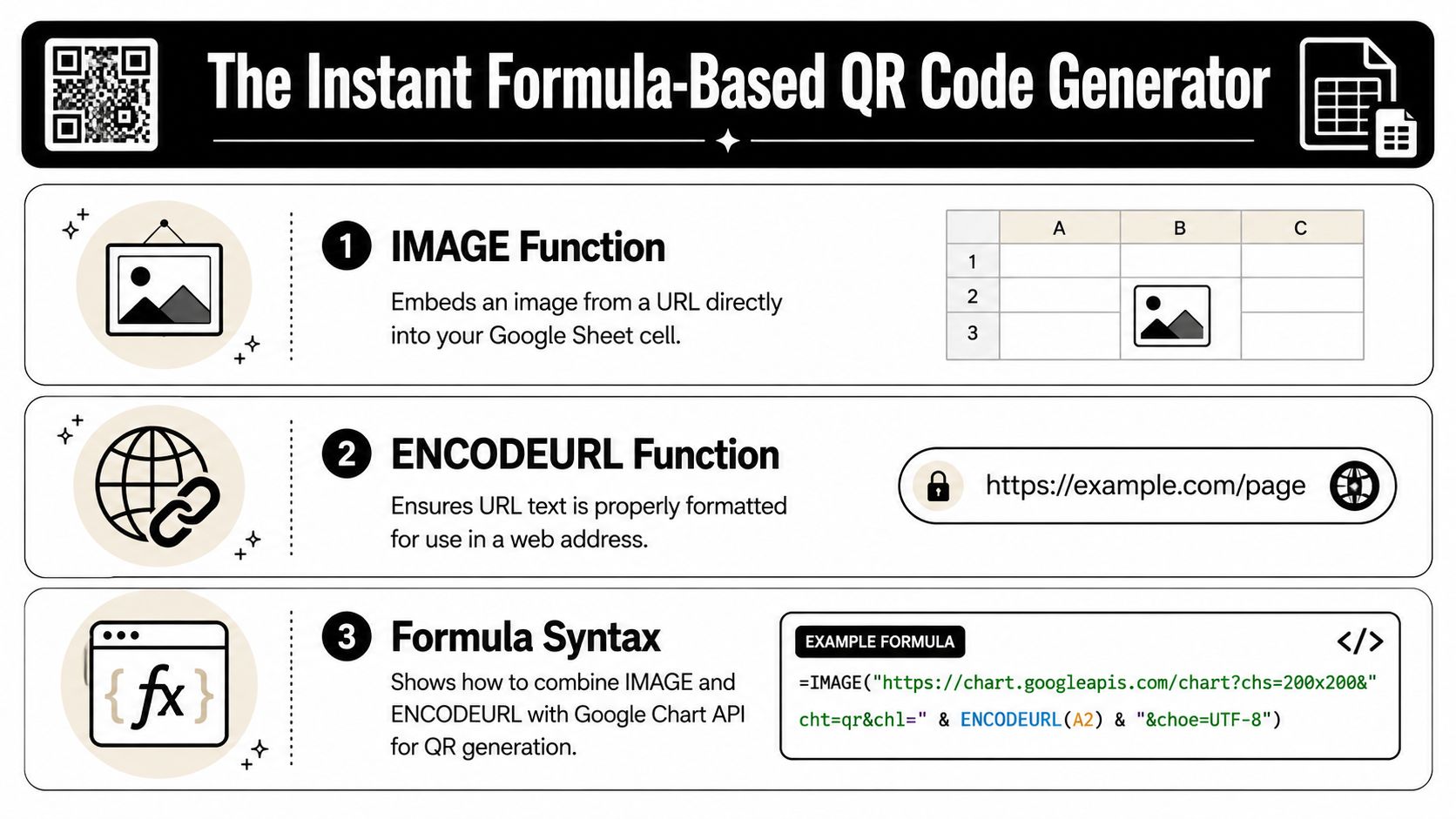
A modern alternative from the verified data is:
=IMAGE("https://quickchart.io/qr?text=" & ENCODEURL(A2))
Two parts matter:
IMAGE()tells Google Sheets to display the remote image inside the cell.ENCODEURL()protects spaces, symbols, and tracking parameters so the request doesn't break.
Where this method holds up
This method is useful when the workflow is straightforward.
- Single-use links: RSVP links, profile URLs, confirmation pages.
- Simple IDs: Membership numbers, attendee IDs, coupon references.
- Pilot projects: Small events where the team needs to prove the process before building something larger.
If your sheet also handles product data, there's a parallel lesson in operational simplicity from MerchLoom's post on how to streamline product image workflow with AI. Different use case, same underlying point. Once assets are tied to rows, the workflow becomes easier to maintain.
For ticketing-style row-based generation, this QR code ticket per row guide for Google Sheets is a practical pattern because it aligns one record with one code instead of trying to manage codes separately from the source sheet.
Where it breaks in live operations
The formula approach looks clean in a demo, but it has weak spots in production.
First, you don't control the rendering service. If the endpoint is slow or unavailable, your image cells won't help much on a print deadline.
Second, exporting is awkward. A QR inside a cell isn't the same thing as a usable PNG for a badge template, email attachment, or ticket artwork.
Third, maintainability slips fast when teams start editing formulas directly across many rows. One broken reference can subtly affect a whole block of records.
The formula method is excellent for generation. It's much less excellent for fulfillment.
If all you need is visible QR images in a sheet, use it. If you need branded assets, file exports, reusable templates, or a stable handoff to registration staff, this method starts to show its limits.
Method 2 Automating with Google Apps Script
Apps Script is the next step when copying formulas down a sheet starts to feel like half a system. It gives you control over generation, naming, export, and storage, which is where many event teams hit their first real bottleneck.
Verified data points to the main issue clearly. Tutorials usually stop at a single-cell formula, but the harder problem is scale and maintainability. SpreadsheetWise notes that advanced scripting options and named-range approaches help support template-driven generation for membership cards, ID cards, and event tickets.
When scripting becomes worth it
Use Apps Script when you need outcomes like these:
- A Drive folder of image files instead of QR images trapped in cells.
- Repeatable runs based on the current state of the sheet.
- Safer structure where logic lives in a script, not in hundreds of hand-edited formulas.
- Consistent file naming tied to attendee IDs, order IDs, or voucher codes.
This is the same reason teams in other operations use automation for repetitive publishing and distribution work. The mechanics are different, but the workflow mindset is similar to how teams effectively automate social media when they want repeatability rather than manual one-off tasks.
A simple export script pattern
A practical script reads each row, builds a QR URL from a payload column, fetches the image, and saves it to Google Drive.
function generateQRCodesToDrive() {
  const sheet = SpreadsheetApp.getActiveSpreadsheet().getActiveSheet();
  const rows = sheet.getDataRange().getValues();
  const folder = DriveApp.getFolderById('YOUR_FOLDER_ID');

  for (let i = 1; i < rows.length; i++) {
    const recordId = rows[i][0];
    const payload = rows[i][1];

    if (!payload) continue;

    const qrUrl = "https://quickchart.io/qr?text=" + encodeURIComponent(payload);
    const response = UrlFetchApp.fetch(qrUrl);
    const blob = response.getBlob().setName(recordId + ".png");
    folder.createFile(blob);
  }
}
This pattern works well because it separates concerns. The sheet stores the data. The script handles generation and export. Your team gets files that can move into print templates, email workflows, or document assembly.
If the payload itself needs to be more structured than a plain URL, this custom QR content documentation shows the kind of row-level content logic teams often need when they move beyond a single static field.
The trade-off you accept
Apps Script gives you more control, but it also gives you more responsibility.
You'll need someone who can maintain the script, update folder references, and test changes before a live batch run. That's manageable for many teams. It's less attractive when event staff need a process they can hand to coordinators without script access.
Scripting solves export well. It doesn't automatically solve design, sending, or scanning.
That's the point where many organizers stop building and start looking for a workflow tool.
Method 3 Professional Workflows with Add-ons
Organizations often don't struggle with making a QR image. They struggle with everything that comes after. The badge has to print correctly. The ticket has to reach the attendee. The door staff has to validate it fast. The attendance result has to go back somewhere useful.
That's where add-ons make more sense than a DIY stack.
The verified data highlights the gap well. The Google Workspace Marketplace listing referenced in the dataset points to the real user need being downstream distribution and print-ready output, including workflows for generating hundreds of codes at once and saving them as PNGs for printable documents like badges and tickets. That matches what operations teams run into in practice.
Why operations teams outgrow DIY methods
A working event workflow usually includes all of this:
- Generation: one code per record
- Design: badge, ticket, pass, or voucher layout
- Distribution: email, downloadable file, or messaging
- Validation: scan at entry or on-site checkpoints
- Sync: write status back to the source list
- Recovery: support reprints, no-shows, duplicates, and offline situations
Formulas solve the first item. Scripts can help with the first two or three if you're willing to build around them. Add-ons exist because the whole chain is frequently needed.
One option in this category is Darkaa, which turns Google Sheets and Google Forms into a workflow for QR code tickets for Google Sheets, QR code attendance for Google Forms, and QR code ticket check-in for Sheets. That matters because the sheet stays central, but the operational pieces around it become usable by event staff rather than only by whoever built the spreadsheet.
QR Code Generation Methods Compared
| Feature | Formula Method | Apps Script Method | Add-on Method (e.g., Darkaa) |
|---|---|---|---|
| Initial setup | Very fast | Moderate | Moderate |
| One QR per row | Yes | Yes | Yes |
| Bulk export as files | Weak workaround | Strong | Built for it |
| Print-ready ticket or badge workflow | Manual | Partial | Strong |
| Template reuse | Fragile in larger sheets | Good if maintained well | Usually built in |
| Non-technical team handoff | Poor | Mixed | Better |
| Check-in and validation workflow | No | Custom build required | Often included |
| Ongoing maintenance | Formula drift risk | Script maintenance | Vendor-managed workflow |
What a complete event workflow looks like
The practical benefit of an add-on isn't just convenience. It's reducing the number of separate tools and handoffs.
A complete workflow often looks like this:
- Collect or import records in Google Sheets or from Google Forms.
- Generate one QR per attendee based on the sheet row.
- Place the QR inside a ticket, badge, or pass layout with name, role, session, or access zone.
- Send the asset by email or another delivery channel.
- Scan on-site using a validation app or mobile workflow.
- Write check-in status back to the source sheet.
That's the missing middle in most articles. QR generation is easy. Operational continuity is the hard part.
A short walkthrough helps here:
For events with multiple sessions, access zones, or different ticket types, the value of an add-on grows because each attendee record often needs more than a simple URL. You need rules, labels, layouts, and scan outcomes that remain understandable after several rounds of edits.
A QR code is not the system. It's one data carrier inside the system.
If you're running a one-day workshop, a formula may be enough. If you're running conferences, school ceremonies, concerts, member access programs, or agency-managed guest lists, add-ons usually win because they reduce the operational surface area where mistakes happen.
Tips for Bulk Exporting and Printing
Printing is where many Google Sheets QR projects become disappointing. The code looks fine on screen, then turns blurry, cramped, or awkwardly positioned once it reaches a badge sheet or ticket layout.
Printing from the sheet versus exporting assets
If you generated QR codes with formulas, the simplest route is to print directly from Google Sheets. That works for rough internal use, small labels, or quick test runs. It's not ideal for attendee-facing materials because spreadsheet cells aren't design tools.
Apps Script improves this by creating separate files that can be inserted into documents, merged into templates, or archived by record ID. That's a much safer workflow when different people handle data prep, design, and print production.
If you're using an add-on built for ticketing or badges, export becomes much cleaner because the QR code is already placed in a print-ready layout. For teams that need to pull assets in batches, this bulk download tickets workflow is the kind of feature that removes a lot of manual assembly work.
A practical print checklist
Before you send anything to a printer, check the workflow rather than just the code itself.
- Test the final artifact: Scan the printed badge or ticket, not only the image in the sheet.
- Keep spacing generous: Crowded layouts make cutting, folding, and quick scans harder.
- Use stable file names: Match exported assets to attendee IDs or order references.
- Prepare reprint logic: Someone will arrive with a damaged printout or an email they can't find.
- Verify contrast: Dark code on a light background is still the safest default.
Print failures usually come from layout and handling, not from QR generation itself.
For live events, always keep a digital fallback. If a badge jams in production or a printer scales the page unexpectedly, a mobile-delivered ticket or staff-side lookup process can save the line.
Troubleshooting Common QR Code Errors
The most common assumption is that if a QR code appears in the sheet, it's ready to use. That isn't true. A visible image can still encode broken data, render inconsistently, or fail once printed.
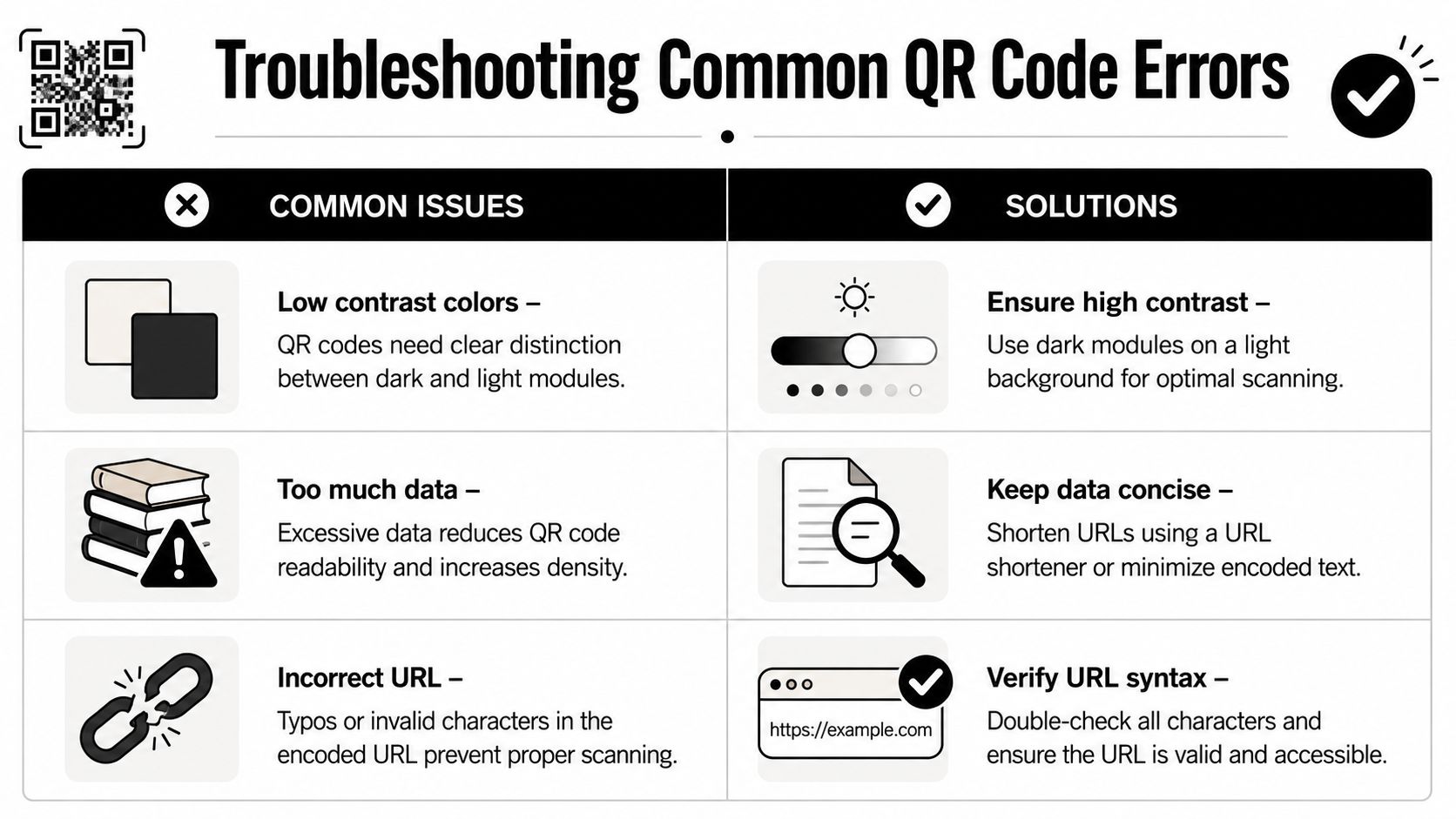
The verified data calls out the biggest reliability issue directly. QuickChart's documentation notes that without ENCODEURL(), special characters can break the QR request, and that third-party endpoints introduce service dependency, which is why teams needing stable output often export generated codes or use a workspace tool that batches them into downloadable files.
The failures that cause real delays
The first failure is bad payload encoding. If your data includes spaces, ampersands, query strings, or campaign tags and you skip ENCODEURL(), the generated image may not represent the payload correctly.
The second is permission or rendering issues inside Sheets. Sometimes image cells don't load immediately because Google Sheets needs approval to fetch external content.
The third is service dependence. If the QR image comes from an external endpoint, your workflow inherits that endpoint's availability. That's manageable for ad hoc use. It's a poor dependency on a print deadline.
Don't trust the first successful scan. Test multiple rows, multiple devices, and the printed version.
A short reliability checklist
Use this when a code fails or scans inconsistently:
- Check the payload cell first: Make sure the source text is complete and not accidentally trimmed.
- Confirm
ENCODEURL()is present: This is the first thing to inspect when links contain symbols. - Open the destination manually: If the QR points to a URL, paste that URL into a browser and verify it loads.
- Retest after export: A code that scans on screen may fail after resizing or low-quality printing.
- Avoid overdesigned codes: Logos, low contrast, and decorative colors raise risk fast.
One more operational habit helps a lot. Keep the encoded payload as concise as possible. Dense codes are harder to scan quickly, especially from paper badges in poor lighting.
Frequently Asked Questions
Can I add a logo to a QR code made from Google Sheets
Yes, but not with the plain formula approach alone in any polished way. Once you start adding logos or visual styling, you increase the chance of scan failures if contrast and spacing aren't handled well. For event use, readability matters more than branding flair.
What should I encode in the QR code
Use the smallest payload that still supports the workflow. In most event operations, that means a unique ID or a short validation link rather than a long block of attendee details. Shorter payloads are easier to manage and generally safer in print.
What size should I print
Use a size that remains easy to scan from the actual badge or ticket format you'll hand out. The right answer depends on viewing distance, paper quality, and scanner device. The operational rule is simple: print samples early and test with the same phones or scanner app your staff will use on-site.
Can Google Sheets track who scanned the code
Not by itself. A QR image in a cell only stores data. It doesn't create attendance logs automatically. If you need scan time, validation status, duplicate detection, or staff-side check-in history, you need a connected check-in workflow rather than just generated images.
Is a formula enough for real events
Sometimes. For a small internal list, yes. For guest entry, badges, multi-session access, or anything where reprints and validation matter, a basic formula usually becomes only one piece of the process.
If your team already runs lists in Google Workspace and needs more than a one-cell QR image, Darkaa is built for that middle ground between spreadsheet flexibility and real event operations. It lets you generate one QR per row, place those codes into tickets or badges, distribute them, and run check-in back against the same Sheets or Forms workflow your team already uses.