Send tickets by email
Use this once your QR codes are generated and you want every guest to receive their ticket.
Step 1
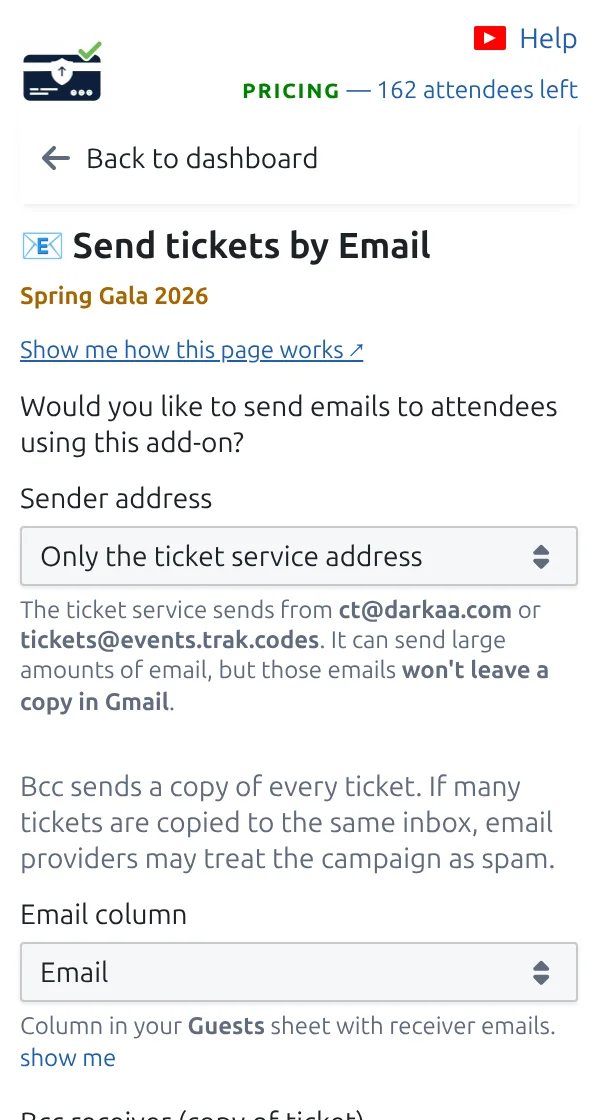
Open Send tickets by Email
In the add-on, open the page named Send tickets by Email. It lists how many guests still need their ticket.
Step 2
Pick the column that holds email addresses
Choose your email column, then write the subject and the message your guests will read.
Step 3
Send to everyone, or to selected rows only
Send a test to yourself first. Then send to all remaining guests, or select rows in the sheet and send only to those.
How it works
Example
The ticket for Ada Mensah is attached as a PDF and sent to the address in Email address.
Watch how it works
Avoid these mistakes
- Send yourself one test ticket before sending to the whole list.
- Google limits how many emails you can send per day, so start early for large lists.
- Changing guest details after sending does not update tickets already delivered.
See it in a real setup
Next step
Ready to get started with QR code tickets?
Create QR code tickets for Google Sheets, Google Forms, Jotform, Tally, Fillout, or WordPress. Pick the workflow you already use, then keep your attendee list in one place.