You've probably got the same setup many lean event teams have right now. A registration form lives in Google Forms, attendee notes sit in a spreadsheet, confirmation emails go out manually, and check-in plans are still half in someone's head. It works for small events until the guest list grows, ticket types multiply, or the venue Wi-Fi drops at the door.
That's where a Google Workspace-native system starts to make sense. You keep the tools your team already knows, but you tighten the workflow so registrations, payments, confirmations, tickets, and attendance all connect in one place. For many events, that's enough to run a professional operation without moving into a heavy standalone platform.
Table of Contents
- Choosing Your Online Registration Workflow
- Designing a High-Converting Registration Form
- Automating Payments, Confirmations, and Ticketing
- Managing On-Site and Offline Event Check-In
- Reporting, Troubleshooting, and Post-Event Analysis
- Your Integrated Registration System Awaits
Choosing Your Online Registration Workflow
The wrong registration setup usually fails for a simple reason. It asks a simple tool to handle a complicated event, or it buries a simple event inside a system nobody wants to maintain.
Start with the event, not the tool
Use complexity as the deciding factor. Free lunch-and-learns, internal training sessions, and small community meetups usually need speed more than deep infrastructure. Multi-ticket conferences, paid workshops, and hybrid programs need cleaner data handling from day one.
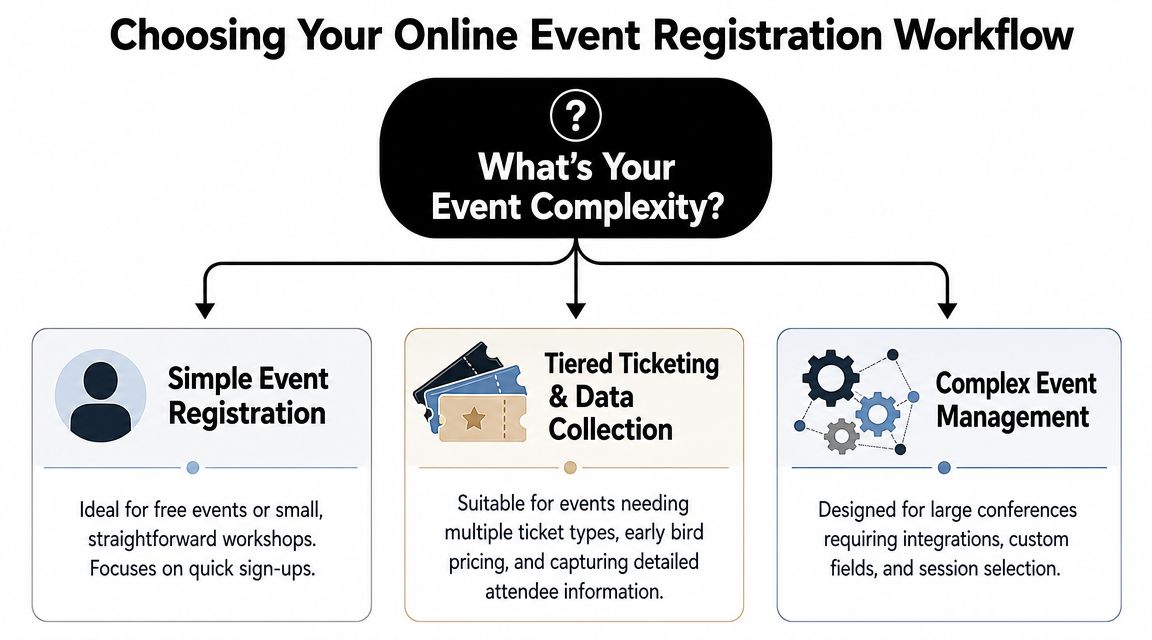
A useful way to choose is to ask four questions:
- How many paths can a registrant take? One RSVP path is simple. Multiple ticket types, add-ons, or session choices push you toward a sheet-driven backend.
- Do you need payment status tied to attendance status? If yes, keep your registration records centralized.
- Will staff need to filter lists on-site? VIPs, speakers, sponsors, and volunteers usually need separate handling.
- Is the event hybrid? If in-person and virtual guests need different instructions, links, or access rules, treat them as separate flows early.
Practical rule: If your team will edit the attendee list by hand more than once a day, the workflow needs a stronger backend.
Three workable models
Model 1. Standalone Google Form RSVP
This works for free events with one attendance path and minimal data needs. The form collects name, email, and maybe one operational detail such as dietary needs. Responses land in Sheets, and the organizer handles reminders and check-in from that list.
Its strengths are speed and low setup effort. Its weaknesses show up fast when people cancel, bring guests, or need different communications.
Model 2. Form plus payment gateway
This fits paid events where the registration form captures attendee details and a separate payment step confirms the booking. It can work, but only if the payment status gets reconciled back into the main sheet. If payments and registrations live in different places, finance and operations start comparing lists instead of running the event.
Model 3. Google Sheet as the central event database
This is the model I'd use for anything with multiple ticket types, approval logic, guest categories, badge data, or check-in needs. The form is only the front end. The sheet becomes the system of record for attendee status, communications, ticket delivery, and door operations.
If you want to see where this spreadsheet-first approach fits across different event types, the EventUploader use cases page is a practical reference. For a broader comparison of what counts as a lightweight or more capable stack, this guide to an event registration tool is also useful.
Hybrid events need a split by design
Hybrid registration often breaks because teams treat it as one audience with one form. In practice, it's two attendance experiences sharing one event brand. Guidance on hybrid events emphasizes serving both audiences intentionally, and notes that registration architecture often gets less attention than logistics or engagement in hybrid planning, according to CIC's hybrid event planning guidance.
That means your form should decide key routing questions early. Are they attending in person or virtually? Do they need physical access details or streaming access details? Should they receive parking instructions or platform login reminders?
A clean hybrid workflow usually does this:
- Splits attendance mode early so later questions stay relevant
- Stores both groups in one master sheet so reporting stays clean
- Triggers different emails for in-person versus virtual registrants
- Uses separate check-in logic for door scanning and online participation reconciliation
Designing a High-Converting Registration Form
Most event registration online problems start with a form that asks too much, too early, in the wrong order. People don't abandon because they dislike your event. They abandon because the form feels like work.
Keep the form short enough to finish
The most common technical failure in online registration is avoidable form friction. Guidance recommends reducing form fields, enabling one-click social sign-in, and keeping page load time under 3 seconds to improve conversion, especially on mobile, according to GEVME's event registration guidance.
That advice matters even in a Google Workspace setup. You may not control every front-end behavior in the same way a dedicated platform does, but you do control field count, field order, and whether a question is essential.
A solid form does three things well:
- Collects only what operations will use
- Shows only relevant fields
- Finishes quickly on a phone
The easiest mistake is treating the registration form like a CRM import template. Your attendee doesn't care that marketing wants company size, job seniority, referral source, and three preference fields. If the event team won't act on that data before the event, leave it out.
Ask for the minimum needed to admit the person, contact them, and deliver the right experience.
Recommended registration form fields by event type
Below is a practical baseline. “Optional” still means you should have a reason to ask.
| Field | Corporate Conference | Workshop/Training | Community Gala/Fundraiser |
|---|---|---|---|
| Full name | Essential | Essential | Essential |
| Email address | Essential | Essential | Essential |
| Phone number | Optional | Optional | Optional |
| Ticket type | Essential | Essential | Essential |
| Company or organization | Usually useful | Sometimes useful | Optional |
| Job title | Useful if networking matters | Optional | Rarely needed |
| Session selection | If applicable | If applicable | Rarely needed |
| Dietary needs | If catering is provided | If food is provided | Often useful |
| Accessibility needs | Ask if you can support it | Ask if you can support it | Ask if you can support it |
| Guest name | Only if tickets allow transfer or plus-ones | Rarely needed | Often useful for tables |
| Billing details | Needed for paid registration workflows | Needed for paid registration workflows | Needed for paid registration workflows |
| Consent to event policies | Essential | Essential | Essential |
A good field order is simple:
- Identity first with name and email
- Attendance choice second with ticket or mode
- Operational details third such as session, meal, or access needs
- Consent last so the form ends on confirmation, not interruption
For practical layouts and examples, this event registration form template is a good starting point.
Inclusive data collection without extra drag
Inclusive forms matter, but they need discipline. Guidance on inclusive registration recommends asking for pronouns, gender identity, and accessibility information only when necessary, and using the data to adapt the event experience, according to BizBash's advice on inclusive online registration forms.
That creates a straightforward rule for form design:
- Ask only if someone on your team will act on the answer
- Make sensitive fields optional unless they're operationally required
- Explain why you're asking when the reason isn't obvious
A few examples:
- Pronouns: Useful if badges, introductions, or facilitated networking will use them
- Accessibility needs: Important when venue access, seating, interpretation, or materials can be adjusted
- Dietary restrictions: Necessary only if catering decisions will be made from the data
What doesn't work is collecting identity data because it “might be useful later.” That increases friction and weakens trust. Good event registration online design respects both conversion and attendee dignity.
Automating Payments, Confirmations, and Ticketing
Manual follow-up feels manageable until registrations start arriving outside working hours. Then the gaps appear. One attendee pays but gets no ticket. Another submits the form twice. Someone else gets a welcome email before finance confirms payment.
Build the sequence after submit
The launch period matters more than many teams realize. 53% of event registrations occur within the first 30 days after an event is announced, and 51% of attendees decide to register after receiving an engaging email, according to Swoogo's event registration statistics. That's why automation can't be an afterthought. It needs to catch interest immediately.
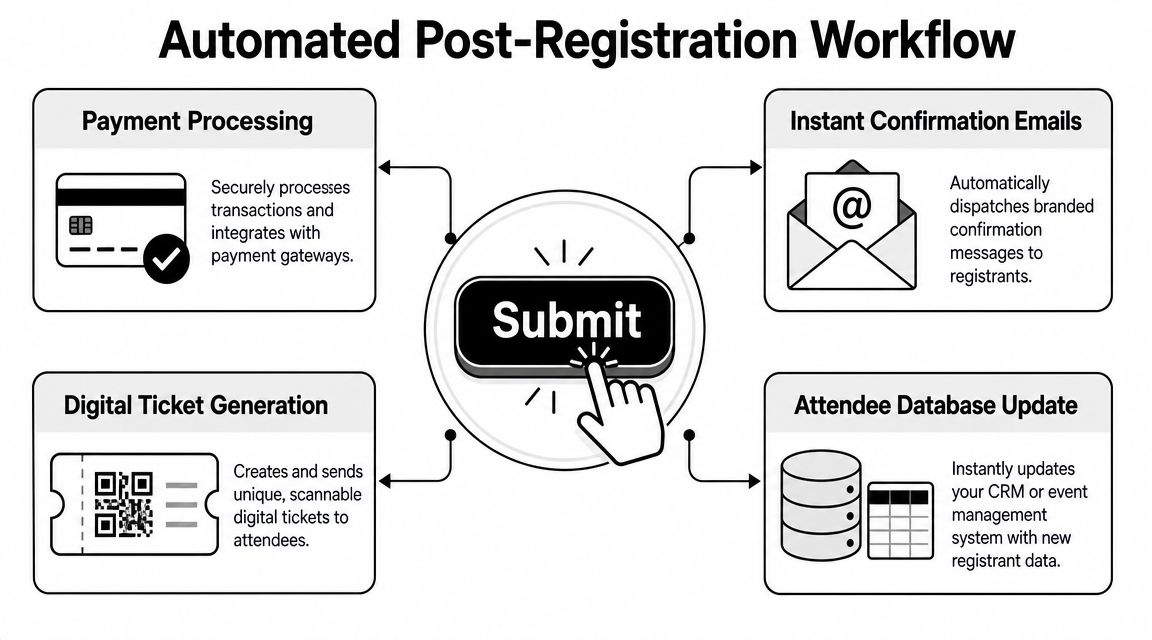
A reliable sequence looks like this:
- Submission enters the sheet with timestamp, ticket type, and source
- Payment status gets checked if the event is paid
- Confirmation email sends automatically with the right message for that attendee type
- Ticket record is created with a unique identifier
- The attendee stays in one master list that operations and check-in staff can trust
For paid events, don't mark someone fully confirmed until payment is verified. In Sheets, that usually means a status column such as Pending, Paid, Comped, Cancelled, or Waitlist. That one column prevents a lot of confusion later.
What the sheet should do automatically
The sheet is doing more than storing responses. It should drive decisions.
A well-structured attendee sheet usually includes:
- Registrant ID for a stable internal reference
- Ticket status so staff know who is cleared
- Communication status to track whether confirmation and reminder emails were sent
- Check-in status so the same record follows the attendee from signup to arrival
- Tags or segments such as VIP, speaker, sponsor, student, virtual, or staff
If you skip these columns, people start building side spreadsheets. That's when duplicates, old exports, and conflicting lists multiply.
The moment two teams use different attendee lists, registration stops being a system and becomes a guessing exercise.
Ticketing inside Google Workspace
For many teams, the practical move is to generate tickets directly from the attendee sheet. That avoids re-exporting data into a separate design tool every time the list changes.
A Google Workspace-native setup can work like this:
- A Google Form writes each registration to Sheets.
- Payment or approval updates a status field.
- A Sheets add-on generates a personalized QR ticket.
- The system emails that ticket as a PDF or image.
- Door staff scan the code and sync attendance back to the same sheet.
Tools built for QR code tickets for Google Sheets become useful. Darkaa is one option that turns Google Sheets and Google Forms into a QR ticketing and check-in workflow, including branded ticket generation, bulk sending, and attendance syncing inside Google Workspace.
The operational benefit isn't just convenience. It's consistency. Registrations, ticket delivery, and check-in all point back to the same row in the same sheet.
A few details make this work better in practice:
- Keep the confirmation email short. Date, time, location or access link, ticket attachment, and support contact are enough.
- Use conditional templates. Speakers shouldn't get the same message as paid attendees.
- Separate registration from reminder messaging. The first email confirms. Later emails prepare.
- Don't generate final tickets for unpaid registrations. Hold the ticket until the status is valid.
Managing On-Site and Offline Event Check-In
Check-in is where attendees decide whether your event feels organized. They don't see your sheet structure or automation logic. They see a line, a scanner, and whether staff can help them in seconds or keep them waiting.
What calm check-in looks like
A good setup is quiet. Staff open a phone, scan a ticket, and the attendee moves forward. If someone forgot the email, the team searches by name. If a guest was added late, the master sheet already has the record.
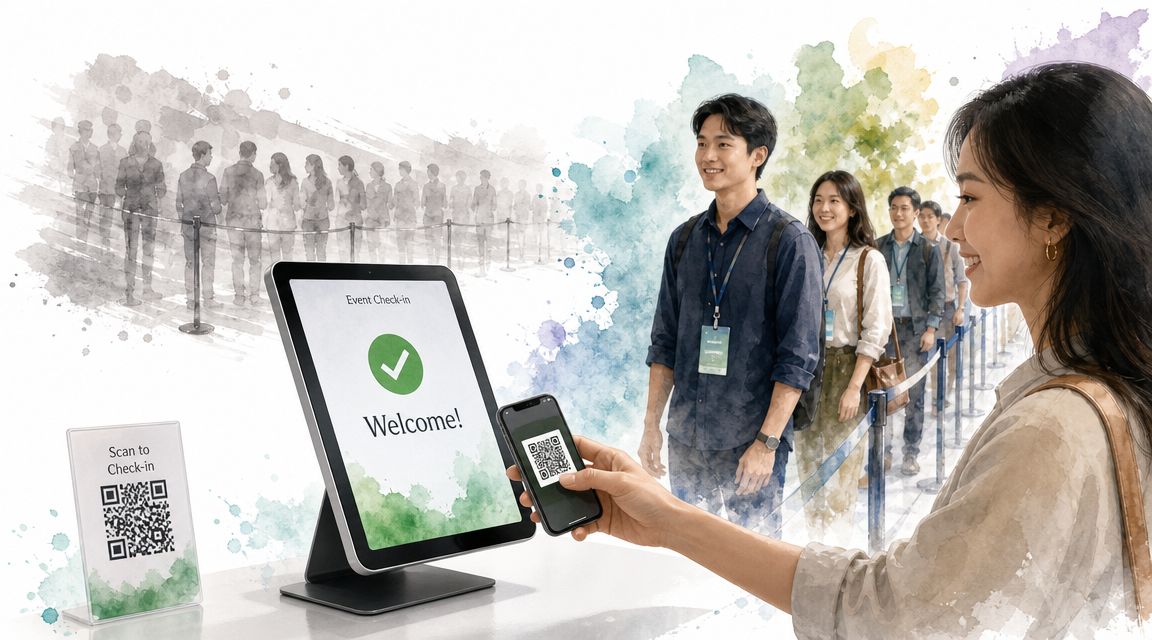
A bad setup looks different. One volunteer scans from an outdated list. Another is checking names in a printed export. Someone else is texting the organizer to ask whether a sponsor guest should be admitted. That chaos usually started days earlier when the registration system wasn't built around a single source of truth.
For smartphone-based QR code ticket check-in for Sheets, keep the process simple:
- One master attendee sheet
- One check-in method for the team
- One fallback path for manual lookups
- One clear rule for duplicates or invalid tickets
That last point matters. Decide before doors open what staff should do when a ticket is already marked checked in, when a guest arrives under a different name, or when a walk-in wants to pay on site.
Prepare for bad internet and walk-ins
Offline capability isn't a nice extra. Some venues have weak signals at the entrance, basement, or loading area. If your scanner needs constant connectivity, your line speed is only as good as the room's internet.
Use a check-in setup that supports offline operation and then syncs back to your sheet. This guide to offline QR code ticket check-in shows the kind of workflow you want: local validation in the moment, then reconciliation when connectivity returns.
A few day-of practices help more than any app feature:
- Print a filtered guest list for VIPs, speakers, and problem-solving
- Create a walk-in intake form instead of writing names on paper
- Assign one person to exceptions so scanners keep moving
- Brief staff on ticket states such as valid, used, cancelled, and comp
If your check-in line depends on one staff member who “knows the list,” you don't have a check-in system yet.
For social events, the same logic applies. Even smaller guest-based formats benefit from scannable invites and name-based lookup. If you handle private celebrations too, these Wedding QR codes show how QR-based entry can stay simple without turning into a complicated event-tech stack.
Reporting, Troubleshooting, and Post-Event Analysis
After the event, the sheet stops being a live operations tool and becomes evidence. It shows where registrations came from, who finished the process, who arrived, and where the workflow broke.
Measure attendance, not just registrations
The most useful metric here is the registration-to-participation rate. Industry guidance recommends measuring registrations against actual in-person or virtual participants, and notes that free events can see no-show rates as high as 50%, while paid events are often closer to 10%, according to CX App's hybrid event KPI guidance. That's the difference between interest and real attendance.

In practical terms, track four stages in your sheet:
| Funnel stage | What to record |
|---|---|
| Page visitor | Source or campaign if available |
| Registration start | Partial or initiated form entry if your workflow supports it |
| Completed registration | Submitted and valid registration |
| Attendance | Checked in on site or verified as virtual participant |
Then split those records by channel, audience, or ticket type. A campaign can generate lots of registrations and still produce weak attendance. Without check-in reconciliation, that problem stays hidden.
Common sheet problems after the event
Most post-event reporting issues are operational, not analytical.
Duplicates usually come from people registering twice with different emails or a second name spelling. Mark one row as primary and one as duplicate rather than deleting immediately.
Status drift happens when cancellations, refunds, and comps weren't updated in the main sheet. Fix that before reporting, or your attendance numbers won't mean much.
Broken source tracking shows up when campaigns use inconsistent tags or staff manually add attendees without noting origin. If source matters, make it a required internal field for manual entries.
A quick cleanup checklist helps:
- Freeze the final attendee sheet so nobody keeps editing historical records
- Create a reporting tab instead of working from raw rows
- Separate registrants from attendees in your summaries
- Document exception categories such as staff, sponsors, test entries, and walk-ins
Use the next event to fix this one
The value of reporting isn't the dashboard. It's the next decision.
If one ticket type had strong registration but weak attendance, look at reminder timing and commitment level. If virtual attendees registered smoothly but rarely joined, the problem may be in access emails rather than the form. If free RSVPs greatly exceeded actual arrivals, adjust your capacity assumptions and communication plan next time.
What I'd review first after any event registration online workflow is this:
- Where did people stop? Discovery, form completion, payment, or attendance
- Which audience segments behaved differently? Paid versus free, virtual versus in-person, email-driven versus social-driven
- Which manual fixes happened more than once? Those are the next automation candidates
Good reporting doesn't just justify what happened. It removes recurring friction from the next launch.
Your Integrated Registration System Awaits
A solid registration system doesn't require a big platform rollout. It requires clear workflow design, one dependable sheet, and disciplined automation around it. That's why Google Workspace works so well for many event teams. The tools are familiar, collaborative, and flexible enough to support both simple RSVPs and more structured ticketing operations.
The key is to stop treating the form, attendee list, ticket email, and check-in app as separate jobs. They're one system. When each step writes back to the same record, your team spends less time reconciling data and more time running the event.
That approach also scales better than people expect. A small workshop can start with a clean Google Form and a response sheet. A conference can add ticket statuses, QR delivery, segmented emails, session fields, and phone-based scanning without forcing the team into an unfamiliar dashboard. The operating model stays the same even as the event grows.
For event teams that want control without unnecessary complexity, that's the advantage of event registration online inside Google Workspace. You keep ownership of your data, reduce training overhead, and build a process your staff can repeat.
If you want to turn Google Sheets and Forms into a working registration and check-in system, Darkaa gives you QR code tickets for Google Sheets, QR code attendance for Google Forms, branded ticket delivery, and smartphone check-in that syncs back to your sheet. It's a practical fit when you want a professional workflow without leaving Google Workspace.