
You've got the rights, the cast has learned the choreography, and parents are already asking when tickets for Footloose go on sale. That's usually the moment a school drama advisor realizes the show itself isn't the hard part anymore. The hard part is selling seats cleanly, sending the right ticket to the right person, and getting everyone through the door without a lobby backup five minutes before curtain.
For a first big musical, production teams often don't need a bulky ticketing platform. They need a system they can understand by rehearsal break, hand off to volunteers, and run from tools they already use. Google Sheets and Google Forms are often enough if you set them up with the right structure and connect them to QR code ticketing and check-in.
Table of Contents
- Your Guide to a Sold-Out Footloose Production
- Build Your Guest List in Google Sheets or Forms
- Design and Configure Your Footloose Tickets
- Distribute Tickets via Email and WhatsApp
- Run a Flawless Check-In on Opening Night
- Advanced Tips for a Sold-Out Show
- Frequently Asked Questions
- Can I sell tickets for Footloose without assigned seats?
- What if a family buys several tickets under one email address?
- Should we accept printed tickets and phone tickets?
- What if someone says they never got the ticket?
- How early should we test the system?
- Can volunteers handle this without much training?
Your Guide to a Sold-Out Footloose Production
Footloose is one of those titles that sells on recognition before you hang the first poster. Families know it. Alumni know it. Students know the energy they're signing up for. That's why ticketing mistakes stand out so sharply on this show. If people are excited to come, your system has to keep up.
The appeal isn't guesswork. The original Footloose film had an $8.2 million production budget and earned $80,000,000 in domestic box office revenue, according to The Numbers' Footloose release data). That same listing notes it opened in the U.S. on February 17, 1984, played in 1,384 theaters, and earned $8,556,935 on opening weekend, which was 10.7% of its domestic total. A school or community production rides that same built-in familiarity, which is exactly why your ticket process needs to feel organized from day one.
I've seen first-time organizers make the same mistake over and over. They treat ticketing as an admin task they'll sort out after costumes, lights, and programs. Then the sales window opens, inboxes fill up with seat questions, somebody creates three versions of the patron list, and opening night starts with a volunteer holding a highlighter over a printed spreadsheet.
Practical rule: If your cast list is more organized than your audience list, you're not ready to sell.
A cleaner approach is to run the show from one live spreadsheet. Names, email addresses, ticket types, performance dates, access notes, and check-in status all belong in the same operating file. That gives your team one source of truth, not a chain of forwarded attachments.
For tickets for Footloose, that matters more than people expect. You're often juggling student tickets, family comps, sponsor seats, multiple performances, and last-minute changes. A simple Google Workspace setup can handle that without forcing your volunteers to learn a new dashboard under pressure.
Build Your Guest List in Google Sheets or Forms
A good ticketing system starts with a boring thing done well. Your attendee list has to be clean.
Most school productions should keep one master Google Sheet and resist the urge to maintain separate files for online buyers, cast families, comps, and door sales. Separate lists feel tidy at first, but they create duplicate names, missing updates, and check-in confusion later.
Start with one clean master sheet
If you're building the list directly in Sheets, start with columns that your front-of-house team will use. Keep the first version simple:
- Full Name for the attendee or lead buyer
- Email for ticket delivery
- Phone if your team uses text or WhatsApp follow-up
- Ticket Type such as Student, Adult, Premium, Comp
- Performance Date if you have more than one show
- Seat or Section if you're assigning locations
- Access Notes for anything special at entry
- Check-In Status so the door team sees what's already been used
For advisors who want a better starting layout, Tooling Studio's contacts guide is a useful reference because it shows how to structure a contact sheet so sorting and filtering stay manageable as names pile up.
Once the columns are stable, connect a tool such as QR code attendance for Google Forms or QR code tickets for Google Sheets so each row becomes something operational, not just a name on a list. That's the difference between “we have registrations” and “we can send and scan tickets.”
This is what the setup typically looks like in practice:
Use Google Forms when sales are public
If buyers are entering their own details, use Google Forms and let responses flow into the sheet automatically. This is cleaner than collecting payments one way and attendee names another way.
Your form should ask only what you need to deliver and validate the ticket. Don't turn a ticket purchase into a scholarship application. Name, email, ticket type, date selection, and any required access note are usually enough.
A good workflow looks like this:
- Build the form around choices. Use dropdowns or multiple choice for performance dates and ticket categories so entries stay standardized.
- Send responses to Sheets. That creates your live attendee database.
- Generate one ticket per response. Each submitted row should produce one unique ticket record.
- Review exceptions daily. Watch for duplicate orders, family bookings under one email, and incomplete accessibility notes.
If you want a starting point for the intake side, this event registration template for Google Workspace is a practical model because it mirrors how real event teams collect attendee information before ticket generation.
A messy form creates a messy lobby. Clean field choices upstream save volunteer time at the door.
Teams sometimes ask whether they should start in Forms or Sheets. The answer is simple. If the public is buying or registering, start with Forms. If your list already exists, or you're loading invited guests and internal allocations, start in Sheets. Either way, the end state should be the same: one master spreadsheet that runs the whole show.
Design and Configure Your Footloose Tickets
Your ticket doesn't need to look expensive. It needs to look intentional.
For a musical like Footloose, the ticket is part admission pass and part keepsake. If the artwork, show title, date, and access details are clear, buyers trust it. If it looks like a plain spreadsheet export, they start emailing questions you don't have time to answer.
Make the ticket look like the show
Use QR code tickets for Google Sheets to create a ticket layout that matches the tone of your production. Add the school logo or production mark, use the same colors as your poster, and make the event details readable without pinching and zooming on a phone.
Keep these design rules in mind:
- Lead with the show identity. “Footloose” should be obvious at a glance.
- Make the date and time large. The most common buyer mistake is arriving for the wrong performance.
- Don't hide the QR code. It should scan easily from a phone screen or a printed page.
- Include practical text. Venue, section, and ticket type matter more than decorative copy.
If your team doesn't have a visual system yet, a short guide on how to create brand guidelines can help you lock down colors, type choices, and logo usage before you generate a full batch of tickets.
Some schools also mock up ticket art in Docs before finalizing the automated version. If you want a quick design reference, this Google Docs ticket template guide is a helpful bridge between poster-style design and automated ticket production.
Set ticket rules before you sell anything
Configuration matters more than artwork. A sharp-looking ticket that sends people to the wrong night is still a bad ticket.
Current market listings for Footloose show a wide range of prices that planners can use for benchmarking. SeatGeek lists tickets as low as $69, and another live inventory page shows prices starting at $57 with an average of $79, while noting that prices vary by time of purchase, venue, and seat location, according to SeatGeek's Footloose ticket listings. For a school show, the practical lesson isn't to copy those prices. It's to use them as a frame for relative positioning when you decide what counts as student, general admission, or premium in your own market.
Here's a simple way to configure the sheet.
| Ticket Type | Price | Access Rules | Notes |
|---|---|---|---|
| Student | Set by your school policy | Valid for selected performance only | Good for school buyers and youth audiences |
| General Admission | Set by your sales plan | Main seating area for selected performance | Default public ticket |
| Premium | Set by your sales plan | Preferred seating or added access | Useful for fundraising bundles |
| Comp | No public sale | Manual approval only | Sponsors, staff, press, or special guests |
The important part is the Access Rules column. That's where you define what the QR code authorizes. One night only. One section only. One special add-on only. If you skip that setup, your check-in team has to improvise policy at the door, and that's where trouble starts.
Distribute Tickets via Email and WhatsApp
Ticket delivery is where manual work subtly wrecks good planning. You can have a perfect attendee sheet and still create problems if someone has to download, rename, and send every ticket by hand.
Bulk sending fixes that. Each row in the sheet maps to one person, one ticket, and one delivery action. No guessing which PDF belongs to which parent. No forwarding the same attachment twice. No late-night “please ignore my previous email” cleanup.
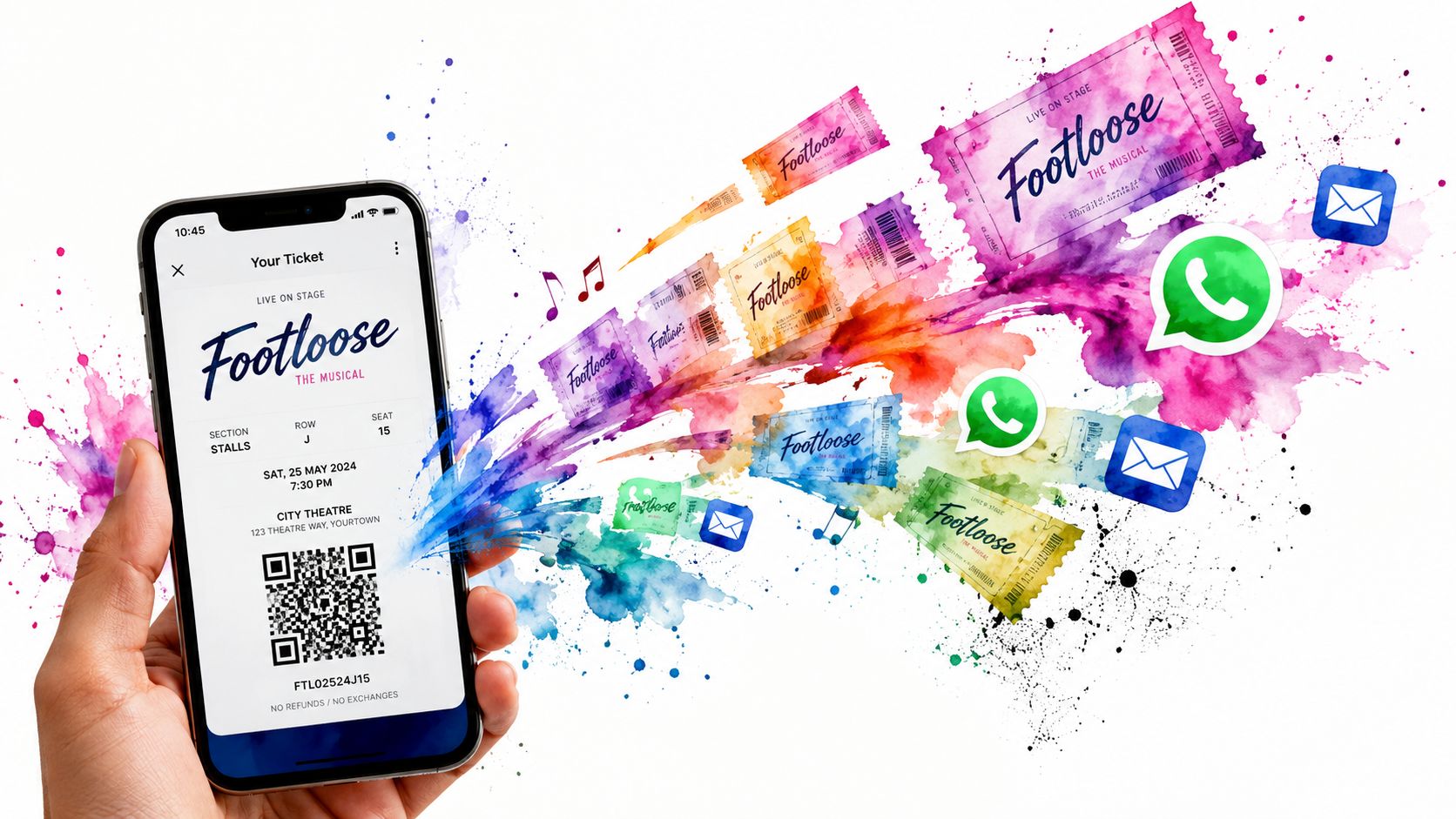
Why bulk sending beats manual attachments
When teams email tickets one at a time, the failure points multiply fast. Someone types the wrong address. A family buys for multiple people but only gets one file. A volunteer sends an outdated version after a seating change.
Automated distribution is safer because the system pulls directly from the sheet. The attendee name, ticket type, performance date, and QR code all come from the same record that the check-in team will later scan.
That gives you three practical advantages:
- Fewer mismatches because the sending record and validation record stay tied together
- Better tracking because your team can see what was sent and what still needs attention
- Less volunteer training because nobody needs to learn a separate mailing workflow
One option for this workflow is Darkaa, which connects Google Sheets and Forms to QR ticket generation, bulk delivery, and scan-based check-in without moving your event data into a separate dashboard.
When WhatsApp works better than email
Email is still the default for public buyers. But for cast families, student groups, booster clubs, and internal crews, WhatsApp can be the faster channel because people look at it before they leave home.
Use WhatsApp when your audience is mobile-first and already communicating there. It's especially useful for last-minute re-sends on show day, or for buyers who say they never found the email attachment.
If your team wants to decide between direct send options, the WhatsApp ticket sending modes documentation lays out the practical differences between common sending approaches.
Send the ticket through the channel your audience already checks in the parking lot.
The rule I use is simple. Public sale, default to email. Group coordination and same-day rescue, use WhatsApp. Keep both tied back to the same sheet so your record stays intact.
Run a Flawless Check-In on Opening Night
Opening night tells you whether your system was built for real people or just for planning meetings.
A parent walks up with a phone at half brightness. Another guest has a printed ticket folded in a coat pocket. A grandparent gives their family name instead of the buyer's name. Two volunteers are working separate doors. That's normal. Your check-in process has to handle it calmly.
What the volunteer at the door needs
The volunteer doesn't need a speech. They need a scanner, a clear result, and a fast fallback.
With QR code ticket check-in for Sheets, the front-of-house team can scan the QR code from a phone or printout and validate it against the live spreadsheet. Once scanned, the attendee record updates so other door staff can see that the ticket has already been used.
This is the kind of interface that keeps the line moving:
Three things matter most at the door:
- Instant validation so volunteers don't have to interpret raw data
- Name lookup for guests who forgot the ticket but are still on the list
- Shared sync so two entrances don't admit the same ticket twice
If your venue has weak reception, offline-friendly operation matters too. School auditoriums and community theatre lobbies aren't famous for perfect Wi-Fi. The safer setup is to prepare devices in advance, test the scanner where you will stand, and make sure the team knows how to fall back to name search if a screen won't cooperate.
How to avoid the usual front-of-house problems
The first issue is almost always brightness. Ask volunteers to politely tell guests to raise screen brightness before scanning. It sounds minor, but it saves time.
The second issue is role confusion. Don't put one person in charge of scanning, seating questions, comp approvals, and walk-up sales. Split those jobs. One scanner should scan. Another volunteer should handle exceptions.
Keep a separate “problem-solving” station a few steps away from the line. That protects flow at the main door.
The third issue is list drift. If your producer updates a comp list on paper while your scanner uses yesterday's spreadsheet, you've created your own conflict. Final updates should happen in the same sheet that powers check-in. One file. One truth.
When that's in place, opening night feels surprisingly controlled. The lobby moves, volunteers look prepared, and you know exactly who's inside without guessing from torn stubs or scribbled margins.
Advanced Tips for a Sold-Out Show
Once the basics work, small refinements make a big difference. Tickets for Footloose often get complicated when you add multiple performances, special access, exchange requests, and accessibility needs. Those aren't edge cases. They're normal production realities.
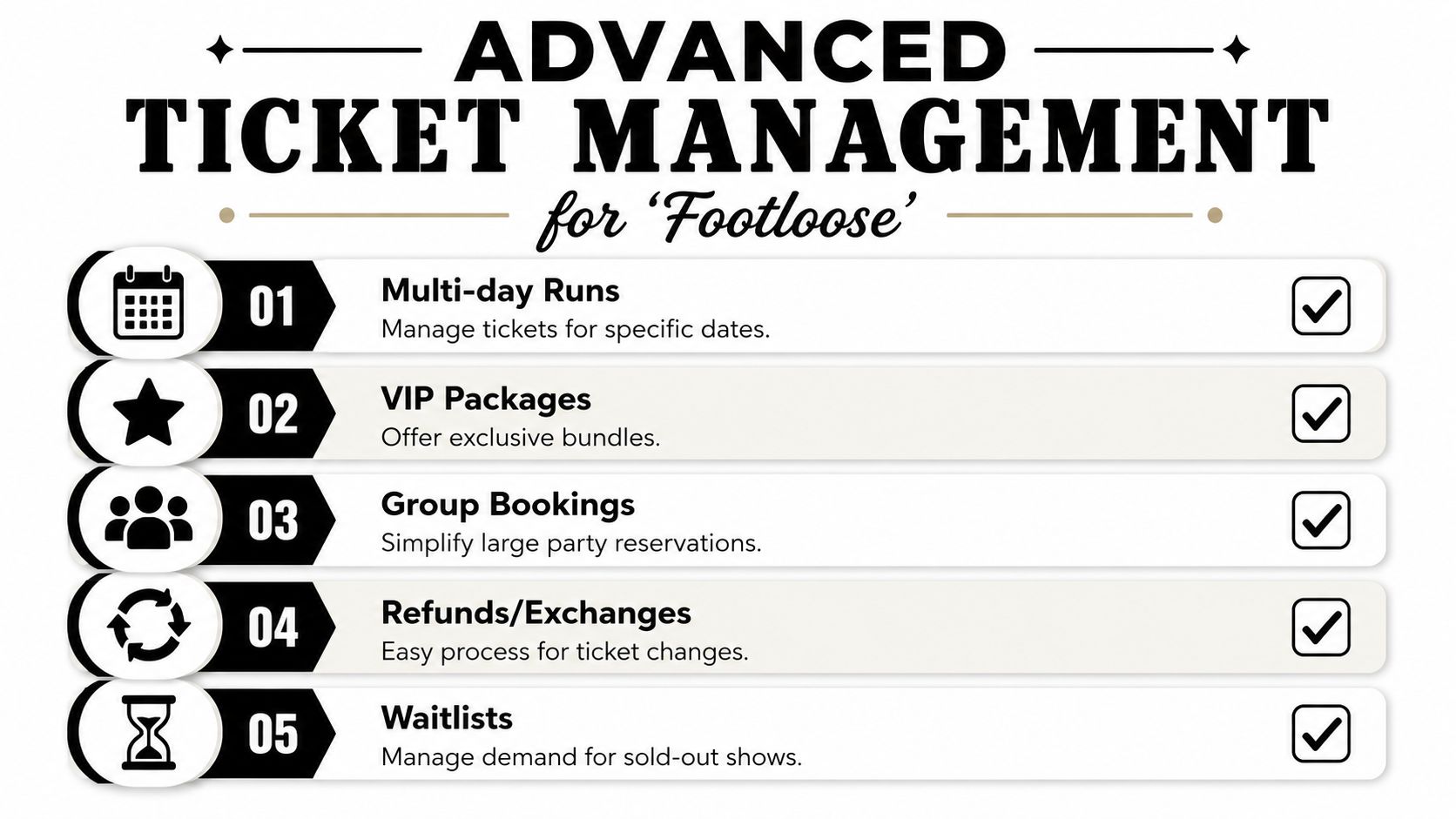
Control date-specific and zone-specific access
For a multi-day run, don't create one generic ticket and hope volunteers catch the wrong date manually. Put the performance date in its own field and make validation depend on that field. The same idea applies to seating zones, backstage tours, donor receptions, or any premium package.
A few useful setups:
- Friday and Saturday separation. Each ticket validates only for its assigned performance.
- VIP add-ons. Mark extra access in a field the scanner can display.
- Group bookings. Keep one buyer record if needed, but make sure each attendee who enters has a scannable ticket or a clear roster entry.
- Waitlists and exchanges. Use status columns so your team knows which sale is active and which one has been released.
If you're promoting multiple dates and need fast creative variations for social posts, teasers, or parent-facing video reminders, ShortGenius automated ad generation can help a small team produce those materials without turning the ticketing spreadsheet into a marketing project.
Track accessibility inside the same sheet
Accessibility is where many ticketing setups fall apart. Theatre sites often bury the process and require separate contact routes for seating tied to sign language interpreter sightlines, as shown on Roundabout Theatre's performance access information. The practical takeaway is clear. Don't force buyers with access needs into a side channel if your main attendee sheet can hold that information directly.
Add fields such as:
- Accessibility request
- Seat visibility note
- Mobility consideration
- Companion seating
- Entry assistance needed
That lets your box office, house team, and check-in volunteers work from the same record. It also helps answer a question buyers often struggle with: the cheapest ticket isn't always the best value if sightlines, location, exchange limits, or entry conditions don't fit their needs.
The strongest systems don't treat accessibility as an exception. They treat it as part of ticket configuration.
Frequently Asked Questions
Can I sell tickets for Footloose without assigned seats?
Yes. General admission is often the easiest model for a first school production. Put the ticket type and performance date on the ticket, and train ushers to manage seating flow inside the house. If you do reserve sections, keep section names simple so volunteers can direct people quickly.
What if a family buys several tickets under one email address?
That's common. The cleanest method is one ticket per attendee or per admission unit you plan to scan. If you only send one buyer confirmation for a whole group, the door team has less control and duplicate-use problems become harder to catch.
Should we accept printed tickets and phone tickets?
Yes. You'll get both. Design the QR code and event details so they remain readable on paper and on a phone screen. Your volunteers should treat both formats the same way at check-in.
What if someone says they never got the ticket?
Search by name in the master sheet first. If their record is there and the sale is valid, resend the ticket through your chosen delivery channel. This is much easier when email and WhatsApp sending both start from the same attendee record.
How early should we test the system?
Run a live test before the first audience arrives. Use a few sample tickets, scan them on the devices your volunteers will use, and check the exact lobby or door area if possible. Testing in a classroom doesn't always reveal what happens in the theatre entrance.
Can volunteers handle this without much training?
Usually, yes, if you keep roles narrow. One person scans. One handles exceptions. One answers seating questions. Simple assignments beat long volunteer briefings every time.
If you want to run tickets for Footloose from tools your team already knows, Darkaa lets you generate QR code tickets from Google Sheets or Forms, send them by email or WhatsApp, and check guests in from a phone-based scanner tied back to the same sheet. It's a practical fit for school productions that need control without a complicated box office platform.