The doors open in 20 minutes. One volunteer has a printed guest list. Another is checking names on a phone. A third person is answering messages from attendees who can't find their confirmation email. A few guests walk straight in because nobody wants to create a line at the entrance.
That's the moment when attendance verification stops being a boring admin task and starts affecting the whole event. Entry slows down. Staff get flustered. Your final attendance list becomes unreliable. If you need proof of who showed up, you're left cleaning up bad data after the room is already full.
Attendance verification is the process of confirming that a specific person was present. Done well, it gives you clean records, faster check-in, and a much calmer front desk. Done badly, it creates disputes, missing names, duplicate records, and no useful audit trail.
A lot of teams already understand the problem. What they don't need is another generic list of methods. They need a practical setup they can use with tools they already know. If you work in Google Workspace, that setup is very achievable. A solid companion read on the broader operations side is Pebb's attendance tracking guide, which helps frame attendance as an operational workflow rather than just a list.
Table of Contents
- Introduction What Is Attendance Verification Anyway
- Why Accurate Verification Is a Strategic Advantage
- Comparing Popular Attendance Verification Methods
- How to Create a QR Code Check-In System with Google
- Best Practices for a Flawless Check-In Experience
- Measuring Success and Troubleshooting Common Issues
- Conclusion Your Next Step to Smarter Events
Introduction What Is Attendance Verification Anyway
At a small training event, manual check-in can look fine right up until the first rush. One attendee says they already registered. Another gives a nickname instead of the name on the form. Someone else joins as a walk-in, and now the paper list has handwritten edits in three different colors. By the end, nobody fully trusts the record.
That's why attendance verification matters. It isn't just “taking attendance.” It's a controlled way to confirm who entered, when they entered, and whether that record is reliable enough to use later for reporting, compliance, or follow-up.
For a school, that record can affect funding rules. For a conference team, it can shape session planning. For a nonprofit, it can be the difference between a clean report and a messy one. The same basic question sits underneath all of them: Can you prove presence at the individual level?
Practical rule: If your process can't answer “who checked in, when, and by whom” without manual cleanup, it isn't really attendance verification.
Most organizers don't need enterprise hardware to get this right. They need a system that staff can learn fast, attendees can use without instruction, and managers can audit later without chasing screenshots and spreadsheets. That's where QR-based check-in with Google Forms and Google Sheets becomes useful. It's affordable, familiar, and strong enough for many real events when it's set up properly.
Why Accurate Verification Is a Strategic Advantage
Accurate attendance verification changes how an event runs and how its results are trusted. Teams often treat it as a front-desk task. In practice, it affects finance, staffing, security, and post-event reporting.

It protects money, not just records
In some sectors, weak verification creates direct financial exposure. In education, rigorous attendance verification is mandated by systems like the 60% rule in the U.S. and the COSA process in the U.K. Failure to prove individual student presence can lead to the forced return of student financial aid and tuition revenue, turning verification into a critical financial control mechanism (attendance verification and university funding rules).
Even outside education, the same logic applies. If you run paid workshops, member programs, certification events, or sponsor-funded sessions, bad attendance data weakens your reporting. You can't confidently confirm turnout, session usage, or actual participation. That makes renewals, budgeting, and staffing decisions harder than they need to be.
Teams that manage recurring learning programs often see this early. If you're running classes or structured support services, tools built for tutoring center software can be useful to study because they treat attendance as part of scheduling, communication, and accountability rather than a separate checklist.
It improves planning and on-site control
Reliable check-in data also helps with plain operational questions:
- Arrival patterns: You can see when the queue built up and when it cleared.
- Session demand: You can compare registrations against actual room usage.
- Staff deployment: You can tell whether one entrance lane was enough.
- Follow-up quality: You know who attended, not just who signed up.
That matters because registration data and attendance data are not the same thing. Registration shows intent. Verification shows presence.
A room may feel full, but event teams still need records they can defend later.
There's also a risk angle. If your staff need to know who is on site during an incident, a handwritten sheet with half-legible names won't help much. A proper attendance log gives you a more dependable view of who entered and who may still be inside.
Comparing Popular Attendance Verification Methods
Most attendance systems fail for one of two reasons. They're too loose to trust, or too complicated for the team running the door. The right method is usually the one that your staff can execute consistently under pressure.
The old methods still exist for a reason
Paper sign-in sheets are still common because they're simple. They don't need setup, batteries, or training. But they also allow duplicate names, unreadable handwriting, and easy proxy sign-ins. If someone signs for a friend, you usually won't know.
Manual clickers solve a different problem. They count bodies fast, but they don't verify identity. If your only goal is room occupancy, they can help. If you need an attendee-level record, they're not enough.
Basic barcode systems are better, but they depend on how they're issued and scanned. If codes are static and easy to forward, you can still get misuse. NFC and RFID can be smooth in controlled venues, but they often require extra hardware, badge prep, and tighter logistics.
Why QR codes usually win the middle ground
QR code attendance verification fits most organizers because it balances cost, speed, and accessibility. Attendees already know how to use QR-based tickets. Staff can scan them from their own phones. You can connect the whole process to Google Forms and Google Sheets without deploying a separate event management stack.
High-security environments may need more. AI-enhanced facial recognition systems can achieve over 95% accuracy and improve attendance data reliability by up to 85% compared to traditional methods, but come with significant privacy and consent considerations that must be managed (facial recognition attendance research).
That's powerful technology, but it's not a casual choice. You need clear consent practices, secure biometric handling, and a reason strong enough to justify the complexity. For many events, QR codes are the practical answer because they raise reliability without creating a privacy project.
If you want a broader operational view of how event teams structure digital check-in, this overview of an attendance tracking system is a useful reference point.
Attendance Verification Method Comparison
| Method | Cost | Security | Speed | Data Richness |
|---|---|---|---|---|
| Paper sign-in sheet | Low | Low | Slow in rush periods | Low |
| Manual clicker | Low | Very low for identity verification | Fast | Very low |
| Static barcode or static QR | Low to medium | Moderate | Fast | Medium |
| Dynamic QR code system | Low to medium | High for most event use cases | Fast | High |
| NFC or RFID badges | Medium to high | High | Very fast | High |
| Facial recognition | High | High in controlled setups, with privacy trade-offs | Fast | High |
A simple rule works well here:
- Choose paper only if the event is tiny and the record doesn't matter later.
- Choose clickers if you only need a headcount.
- Choose QR codes if you need identity-linked verification without heavy hardware.
- Choose biometrics only when the security requirement is real and the privacy process is mature.
How to Create a QR Code Check-In System with Google
A good Google-based setup has four parts: registration, ticket generation, a live sheet, and a scanning workflow at the door. If you keep each part clean, the whole system stays manageable.
Start with the registration form
Create a Google Form for attendee registration. Keep it short. Ask only for fields you'll use at check-in and in reporting.
A practical form usually includes:
- Full name as you want it shown on the attendance list
- Email address for ticket delivery
- Ticket type or session choice if access differs
- Organization or role if your staff needs context at the door
- Special notes only if they affect entry
Avoid collecting extra details just because the form can hold them. Every unnecessary field creates another place for mismatches and typos.
Once the form is connected to Google Sheets, every response lands in a master sheet. That sheet becomes the source of truth for your event.
Generate a unique QR code for each attendee
This is the point where many DIY systems break. Organizers often create one generic QR code that links to a form or webpage. That is not attendance verification. It's only a shortcut.
Each attendee needs a unique code tied to their own row. In Google Workspace, that's where tools such as QR code attendance for Google Forms or QR code tickets for Google Sheets become useful. They generate a unique QR image for each response or row, then send it out as a ticket.
One practical example is using a Google Forms add-on that creates a ticket after submission, emails it to the registrant, and stores the related data in Sheets. Another is using a Google Sheets add-on to generate tickets for imported guest lists. If you want to see how teams use QR codes at the event level, this guide on a QR code for event registration and check-in is worth reviewing.
For teams already working in Google Workspace, Darkaa offers QR code attendance for Google Forms and QR code ticket check-in for Sheets, which means the registration, ticket creation, and scan results can stay inside Forms and Sheets instead of moving to a separate dashboard.
If the QR code is not unique per attendee, you're not verifying attendance. You're only recording that someone scanned something.
Use Google Sheets as the live attendance register
The connected sheet should do more than store form responses. It should act as the live control panel for check-in.
Set up columns that clearly separate:
- Registration data from the form
- Ticket ID or QR value
- Attendance status
- Check-in timestamp
- Check-in station or staff member if your tool supports it
- Notes for exceptions such as duplicate scan or manual override
A useful part of this setup is the audit trail. QR code attendance systems integrated with Google Sheets can log an automatic, un-editable timestamp upon each scan, recording data such as "22/03/23 15:56:35 | Attendee Name" directly into a response sheet, providing verifiable proof of presence for any audit (QR code timestamps in Google Sheets).
That automatic timestamp matters more than people think. It helps you answer common questions after the event. Did the attendee arrive? Did they scan twice? Did staff manually mark them in later?
Run check-in from staff phones
At the venue, staff don't need laptops at every lane. A cleaner setup is to use their smartphones as scanners with a QR code ticket check-in for Sheets web app or mobile-friendly scanning page.
The workflow is simple:
- Staff open the scanning tool.
- The attendee presents their QR code on paper or phone.
- Staff scan it.
- The matching row in Sheets updates in real time.
- Duplicate or invalid scans are flagged immediately.
This works well because it reduces verbal name matching. Instead of asking every guest to spell their surname over lobby noise, staff confirm the scan result on screen and keep the line moving.
A short demo helps if your team hasn't seen this kind of workflow before:
Handle weak internet before it becomes a crisis
Internet issues don't ruin events by themselves. Unplanned internet issues do.
If your venue signal is unstable, prepare the sheet and scanner workflow for offline or low-connectivity use. One common Google Sheets-based approach is to allow the sheet to update attendance markers directly. Guidance on this kind of setup notes that offline validation in Google Sheets often depends on permission design, including setting access so attendees or devices can update status fields like changing "NA" to "A" in real time when the sheet is locally cached (offline-capable Google Sheets attendance setup).
In practice, I'd keep the operating rule simple:
- Primary path: Scan and sync live.
- Fallback path: Scan or mark locally, then sync once the connection stabilizes.
- Last resort: Search by name or email, manually mark, and note who made the change.
Don't wait until guests are in line to decide which fallback you'll use.
Best Practices for a Flawless Check-In Experience
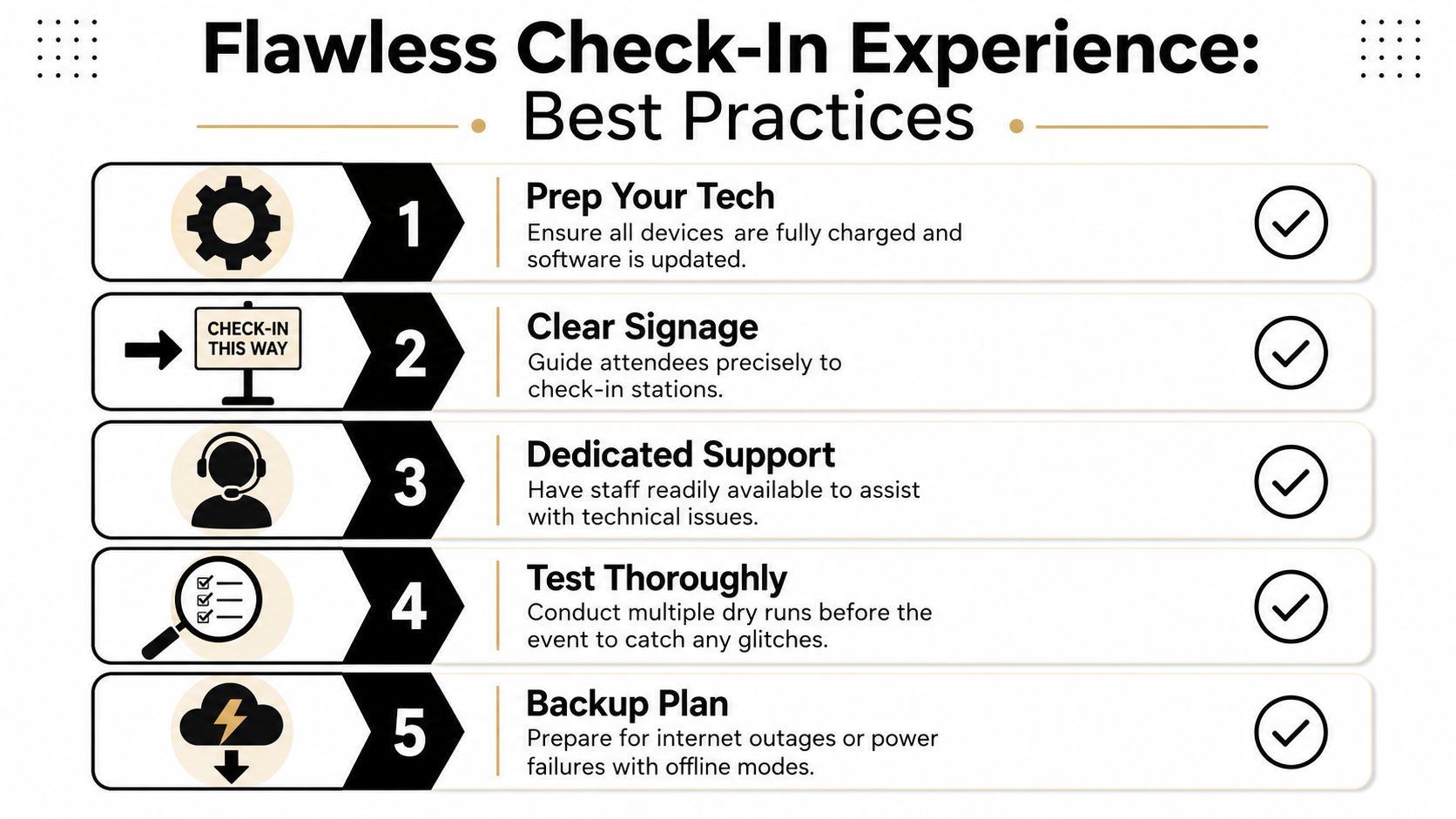
The tool matters, but the check-in experience is mostly about preparation. A strong system can still feel clumsy if attendees don't know what to show, staff don't know what to do, or the entrance layout forces everyone into one bottleneck.
Prepare attendees before they arrive
Your confirmation message should do one job well. It should tell people exactly how to find and present their QR code.
Keep that message plain:
- State where the ticket is in the email or message thread
- Tell them screenshots are acceptable if your workflow allows it
- Ask them to increase screen brightness before reaching the desk
- Tell them what to do if they can't find the code, such as showing the registration email and ID
This sounds small, but it removes a surprising amount of friction.
Design the entrance for speed
A good check-in lane is visible, bright, and staffed by people who know the exception path. Staff shouldn't need to invent solutions while the queue watches.
Use a setup like this:
- One clear entry line: Don't make attendees guess which desk handles them.
- A problem-resolution point: Pull exceptions aside so the main lane keeps moving.
- Readable signage: “Have your QR code ready” works better than decorative welcome boards.
- Charged devices and spare power: Phones used for scanning drain faster than teams expect.
For recurring community or youth programs, many of the same operational habits appear in youth sports attendance best practices, especially the emphasis on reminders, clarity, and predictable routines.
Train staff for exceptions, not just the happy path
Most check-ins go fine. The key test is how your team handles the odd cases.
Field note: Train the team on the five failures that actually happen, not the fifty that probably won't.
Those common failures are usually:
- Forgotten ticket
- Cracked or dim phone screen
- Name mismatch between registration and attendee
- Duplicate scan warning
- Weak internet at the entrance
If fraud is a concern, move beyond static codes. Modern systems use dynamic QR codes that change every 3–5 seconds to prevent sharing. Studies show this method can reduce false attendance records by up to 92% compared to static QR codes (dynamic QR attendance research). That's especially useful for classrooms, paid sessions, and controlled-access environments where forwarded screenshots are a real risk.
Measuring Success and Troubleshooting Common Issues
Once the event ends, the sheet becomes more than a list. It becomes evidence. Good attendance verification gives you a clean way to review what happened and improve the next run.
What to measure after the event
You don't need a complicated dashboard. Start with a few useful checks:
- Registration versus verified attendance: This shows the gap between intent and actual presence.
- Arrival waves: Review timestamps to see when the desk was under pressure.
- Manual overrides: Count how many people staff had to check in without scanning.
- Duplicate or invalid scans: These point to process issues, code sharing, or confused attendees.
If you want ideas for what attendance data can reveal more broadly, this summary of attendance statistics and planning signals is a helpful starting point.
Common problems and calm fixes
If the internet drops, switch to your preplanned fallback and keep the line moving. Don't pause the whole desk while staff troubleshoot live.
If a guest forgot their ticket, search by name or email, verify against the registration list, and manually mark the row with a note. If a QR code won't scan, first try more light and higher screen brightness. If it still fails, use the attendee record rather than making them step out of line repeatedly.
The important part is consistency. Every exception should leave a trace in the sheet so the final attendance record still makes sense later.
Conclusion Your Next Step to Smarter Events
Attendance verification works best when it's treated as part of event operations, not an afterthought at the door. You need a method that confirms presence clearly, gives staff a simple process, and leaves behind records you can trust.
For most organizers, QR codes with Google Forms and Google Sheets hit that balance well. The setup is accessible. The workflow is familiar. The result is much stronger than paper lists or manual guessing. You get faster entry, cleaner records, and a better way to review what happened.
Keep the first version simple. Build the form. Create one unique QR code per attendee. Connect your sheet. Test the scan flow on real phones. Decide your fallback process before the event starts. Then run one live event and review the data afterward.
That's enough to move from improvised check-in to a real attendance verification system.
If you want to implement this workflow inside Google Workspace, Darkaa gives you a practical way to create QR code tickets for Google Sheets, send them from Google Forms responses, and run QR code ticket check-in for Sheets from staff phones without moving your team into a new dashboard.