
You're probably sitting in the middle of the same mess I used to accept as normal. Registrations live in one spreadsheet, ticket emails go out from another tool, check-in happens in a separate app, and somebody always exports the wrong CSV right before doors open. Staff then arrive onsite asking which dashboard they're supposed to use, while attendees are already lining up.
That's why I changed how I create an event. I stopped building the process around yet another event platform and started building it around Google Workspace, tools many teams are already familiar with. When Google Sheets becomes the source of truth, and add-ons handle ticket generation and scanning, the workflow gets simpler, faster, and much easier to control.
Table of Contents
- Why Create an Event in Google Sheets
- Plan Your Attendee Data Like a Pro
- Generate Branded Tickets with QR Codes
- Distribute Tickets Seamlessly to Attendees
- Execute Flawless On-Site Check-Ins
- Manage Complex Access and Troubleshoot Issues
- Conclusion Your New Event Management Hub
Why Create an Event in Google Sheets
The old way usually breaks in small, expensive ways. Someone updates an attendee name in Excel, but the ticketing system still has the old version. A VIP list gets emailed around as an attachment, then another person edits a newer copy. At check-in, staff have to jump between inboxes, PDFs, and a dashboard they barely know.

Google Sheets fixes a lot of that because it gives the whole team one live document. Operations can update attendee records, marketing can review registration status, and front-of-house can rely on the same source instead of waiting for a fresh export. You're not teaching people a whole new operating model. You're tightening the one they already use every day.
The timing matters. The global online event ticketing market reached USD 61.08 billion in 2026, and over 68% of global ticket purchases occurred via smartphones as of 2025, which shows how firmly attendees have moved toward mobile-first ticketing according to online event ticketing market data from Business Research Insights. When people buy, receive, and present tickets on their phones, your backend process has to support speed and simplicity.
A practical shift that reduces friction
What works is keeping planning, ticket generation, attendee updates, and check-in status close together. What doesn't work is splitting these jobs across disconnected systems unless you have a technical team ready to maintain those handoffs.
Practical rule: If your staff needs a training session just to find attendee status, your workflow is too fragmented.
I've found that Sheets-based event operations are especially useful for internal events, graduations, nonprofit gatherings, conferences, and multi-session programs where the attendee list changes often. In those settings, the primary problem usually isn't ticket design. It's coordination.
Plan Your Attendee Data Like a Pro
A clean event starts with a clean sheet. Most ticketing problems aren't ticketing problems at all. They're data structure problems that show up later as duplicate records, missing access rights, wrong names on tickets, or broken filters at the door.
If your registrations are still in Excel, move them early. Teams that convert Excel files to Google Sheets to access add-ons see a 40% faster setup time for event check-in systems, because they avoid separate dashboards and get real-time attendance sync in the same spreadsheet, according to this Google Docs Editors Help thread.
Build one sheet that runs the whole event
Start with one master tab. Each row should represent one attendee, not one order and not one company. That sounds obvious, but a lot of check-in trouble comes from mixing attendee-level and order-level data in the same row.
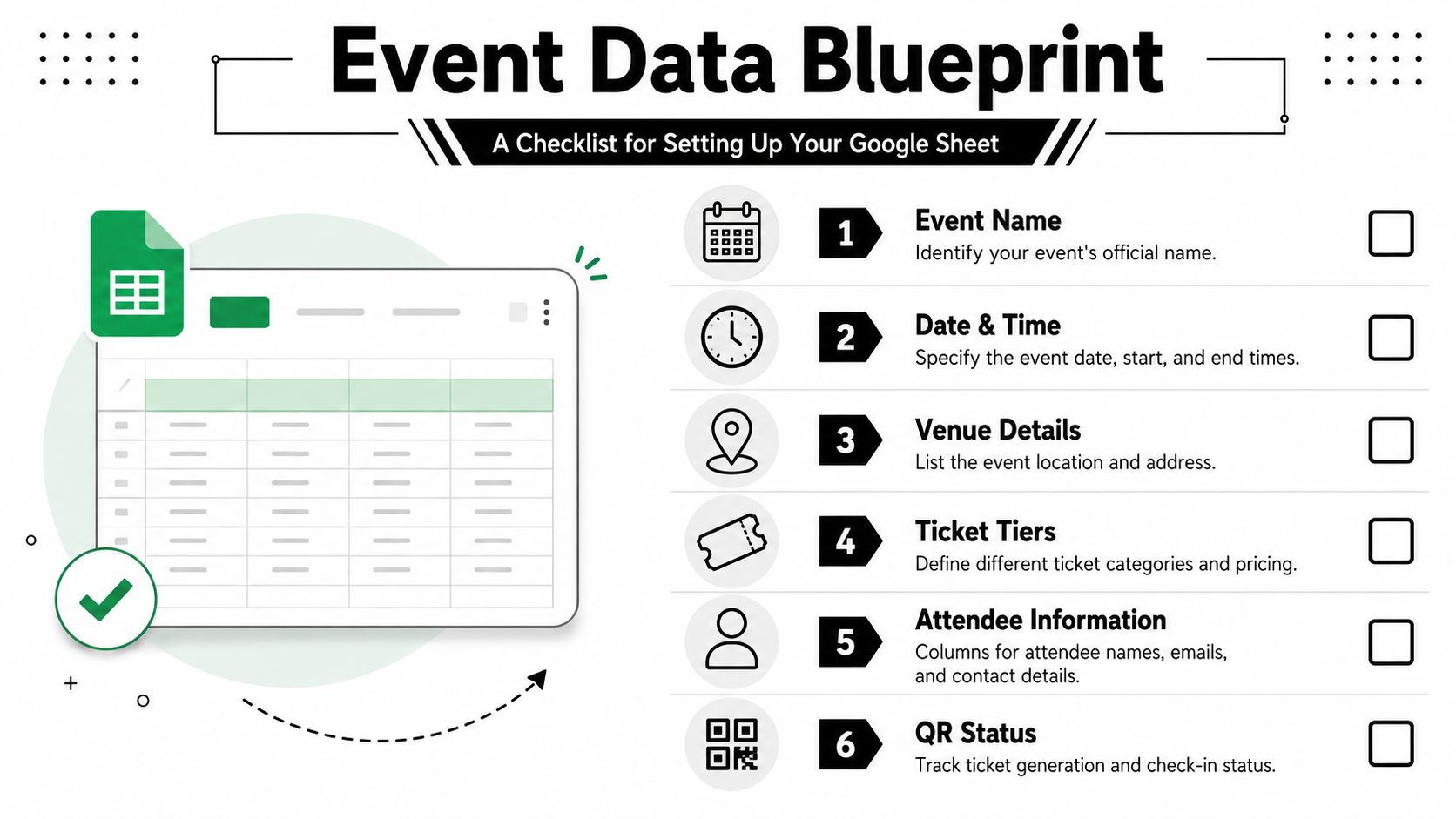
A strong starting structure looks like this:
| Column | Why it matters |
|---|---|
| Unique ID | Gives each attendee a stable reference even if their name changes |
| Full Name | Prints on tickets, badges, and search views |
| Needed for delivery and resend workflows | |
| Ticket Type | Separates VIP, general, student, staff, or sponsor access |
| Event Name | Useful when one workbook handles more than one event |
| Date or Day | Critical for multi-day access control |
| Session Access | Lets you control workshops or breakouts |
| Zone Access | Useful for backstage, premium areas, or restricted rooms |
| Company or Organization | Helpful for B2B events and seating lists |
| QR Status | Shows whether a ticket has been generated |
| Check-In Status | Confirms arrival at the venue |
Don't add columns because they seem nice to have. Add them because someone will use them. If nobody will act on dietary preference, don't collect it. If zone access affects entry, put it in its own column instead of burying it in notes.
Use forms and imports without breaking your data
Google Forms is a practical way to collect registrations into Sheets automatically. The main discipline is field consistency. If attendees self-select ticket types, keep the choices standardized so the data lands in the sheet exactly as your ticket and check-in logic expects.
For imported contacts, clean your source file before it enters the sheet. If your attendee list begins in another system, a tool that helps you import CSV data into contacts can save time when you need to align outreach lists with event records. That's especially useful when sales, partnerships, or alumni teams supply guest lists from different places.
For a solid structure reference, I like using an attendee summary format for Google Sheets ticketing because it forces the right question early: what does staff need to see at a glance on event day?
A messy registration sheet always becomes an onsite problem. It just waits until the busiest hour to reveal itself.
Generate Branded Tickets with QR Codes
Once your sheet is clean, ticket generation becomes mechanical instead of stressful. That's the turning point. You stop designing one ticket at a time and start building a repeatable ticket system that pulls from live attendee data.
Near the start of the setup, it helps to see what the workflow looks like inside the tool.
Event planners using QR code ticket add-ons for Google Sheets can generate unique, secure QR codes for every attendee in a single spreadsheet, with each ticket delivered as a branded PDF, as described in the Google Workspace Marketplace listing for QR code tickets for Google Sheets. That matters because the ticket isn't just proof of registration. It's the identity record your door team will trust.
Start with the sheet, not the design
A lot of organizers open the designer first. I don't recommend that. Start by checking your merge fields and access fields in the spreadsheet. If the data is wrong, your polished ticket will still be wrong.
A practical sequence looks like this:
- Confirm your key columns. Name, email, ticket type, and any access fields should already be final.
- Install a Google Sheets add-on for QR ticket creation from the Marketplace.
- Map the fields you want printed on the ticket, such as attendee name, event date, seat, zone, or session.
- Generate one test batch for internal review before sending the full list.
- Check scan behavior before approving production.
One option in this category is Darkaa, which turns Google Sheets rows into QR-code tickets and check-in records without moving your event into a separate dashboard. That setup suits teams that already operate in Workspace and want planning, sending, and scanning tied to one spreadsheet.
Make the ticket look professional without overbuilding it
Branding helps, but clarity matters more. The best event tickets are easy to read on a phone screen, easy to verify by staff, and hard to confuse with someone else's pass.
Use the design space for essentials:
- Logo and event identity should sit at the top where attendees recognize it instantly.
- Attendee name needs enough space so it doesn't wrap awkwardly.
- Access details should be plain language, not internal codes.
- QR code area must stay clear of visual clutter.
- File format should match the use case. PDF works well for formal delivery, while lighter image formats may help with quick mobile viewing.
A simple way to think about layout is this: if a staff member can't understand the pass in two seconds, the design is doing too much.
For extra workflow ideas, this guide to a QR code generator workflow in Google Sheets is useful because it frames ticket generation as a spreadsheet operation, not a separate production project.
Later in the process, a short product walkthrough can help teams train themselves faster:
Keep the ticket human-readable even if the QR code is the main validator. When phones crack, brightness drops, or a guest opens the wrong attachment, your staff still need visual cues.
Distribute Tickets Seamlessly to Attendees
Ticket delivery is where manual work eats hours. If you're downloading files, renaming them, and attaching them one by one, the process won't scale. It also creates too many chances to send the wrong ticket to the wrong person.
Choose the right sending channel
Email is still the default for most professional events because it leaves a searchable record and works well for branded PDFs. It's the right choice for conferences, education events, internal company programs, and events where attendees may need to forward a pass to an assistant or print it later.
WhatsApp is useful when your audience is strongly mobile-first and expects event communication on their phone. That often fits community events, local activations, field teams, or guest lists where email open behavior is inconsistent. The key decision isn't which channel is better. It's which one matches how your attendees retrieve information on event day.
If you need to refine email personalization logic or support broader communications, this practical guide to mail merge using Google Sheets is a good companion resource.
Keep distribution tied to your sheet
The smoothest setup keeps sending status in the same spreadsheet as attendee status. That way, your team can filter by “ticket generated but not sent,” “sent but bounced,” or “needs resend” without exporting anything.
A reliable sending workflow usually includes:
- Test messages first with internal email addresses and a few different phone models.
- Use personalized fields so attendees see their own name, ticket type, and event details.
- Track send status in a column rather than relying on memory or inbox search.
- Reserve a resend workflow for VIPs, speakers, or late registrations.
- Write the email body for retrieval. Tell attendees to save the ticket on their phone before arrival.
What doesn't work is treating delivery as an afterthought. If the message is vague, the attachment naming is inconsistent, or the attendee can't tell whether they received the final version, your front desk will absorb that confusion later.
Execute Flawless On-Site Check-Ins
The door is where all your planning gets judged. Guests don't care how many systems you connected behind the scenes. They care whether entry is fast, clear, and calm. Staff care about the same thing.
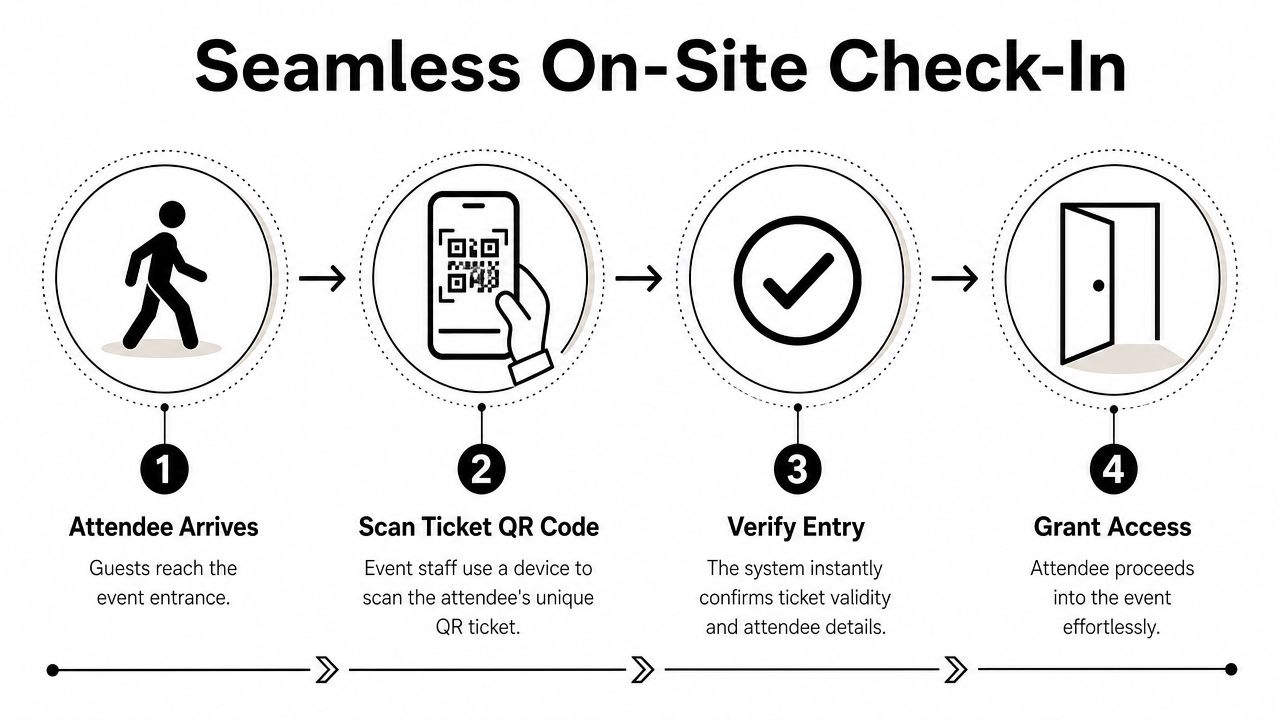
The reason I like Google Workspace-based operations here is simple. The attendee list that powered registration and ticket creation is the same list that records arrival. Google Sheets add-ons can automate workflows such as generating QR codes per row for check-in, reducing manual data entry and increasing attendance tracking accuracy by up to 95% in large-scale events, according to Google Workspace documentation on Sheets add-ons.
Prepare the door like an operations system
A good check-in setup isn't only about scanners. It's about lane design, staff roles, and fallback decisions.
I usually split check-in preparation into four practical checks:
- Device readiness means every staff member opens the scanner in advance, tests camera permissions, and knows what a successful scan looks like.
- Lane planning means deciding whether you need one line, multiple entrances, or separate desks for VIP, staff, and problem resolution.
- Lookup readiness means keeping attendee search available by name or email in case someone can't find the original ticket.
- Role clarity means one person scans, one person handles exceptions, and one supervisor watches flow.
That last point matters more than people think. When scanners stop scanning to solve support issues, the line slows immediately.
Use offline scanning as your fallback plan
Wi-Fi failures are common enough that they shouldn't count as surprises. If your process depends on perfect venue internet, it isn't ready yet. I strongly prefer systems that let staff scan through a mobile web app and continue validating attendance even when connectivity drops.
The operational value is straightforward:
| Scenario | What staff needs |
|---|---|
| Stable internet | Real-time sync and instant status updates |
| Weak venue signal | Continued scanning without stopping the line |
| Multi-entry venue | Shared attendee status across entry points when sync resumes |
| Last-minute edits | A master sheet that updates centrally |
For events where signal is unpredictable, I keep this offline check-in setup guide for Google Sheets ticket scanning handy during prep so staff understand what happens before, during, and after a connection drop.
Your check-in plan should assume the network will fail at the busiest moment. If the process still works, you're ready.
A final habit makes a big difference. Run a live rehearsal with real devices, real sample tickets, and at least one “bad” scenario. Test a duplicate scan, a guest with no ticket open, and a device with poor signal. The teams that do this arrive calmer and solve issues faster because nothing feels new at the front door.
Manage Complex Access and Troubleshoot Issues
Simple guest lists are easy. Most professional events aren't simple. They have workshops, sponsor lounges, backstage areas, meal sessions, multi-day passes, or staff-only zones. That's where your sheet design starts paying off.
Control access with columns, not chaos
The flexibility comes from structured fields. QR code ticket add-ons for Google Sheets support unlimited custom attendee fields, email-based distribution, and offline-check scanning via mobile web apps, which makes them suitable for events with multiple zones, sessions, and large concurrent attendance, according to this overview of QR code ticket check-in for Sheets.
That means you can control entry with plain spreadsheet columns such as:
- Day access for Day 1, Day 2, or full-event passes
- Zone access for VIP, speaker green room, sponsor lounge, or general admission
- Session rights for workshops that require pre-registration
- Role tags for staff, vendor, media, or performer entry
A lot of teams overcomplicate this with separate lists for each access area. I'd rather keep one master sheet and use clean filters plus ticket rules. One record per attendee is easier to audit and easier to trust.
Fix common problems fast
Onsite issues usually fall into predictable categories:
- Forgotten ticket. Search by name or email, confirm identity, then resend or admit based on your policy.
- Cracked screen or unreadable QR code. Use the attendee lookup rather than forcing repeated scans.
- Duplicate entry alert. Pause and verify whether the guest already entered through another door.
- Wrong access level. Check the source columns first, not the ticket artwork.
- Walk-in change. Update the row, regenerate if needed, and keep the edit in the main sheet.
The fastest troubleshooting teams don't improvise policy at the entrance. They decide exception rules before doors open.
Conclusion Your New Event Management Hub
If you need to create an event without adding another complicated platform to your stack, Google Sheets is a practical place to build from. It gives you one live attendee record, one familiar workspace, and a cleaner path from registration to delivery to check-in.
That's the part many teams miss. The win isn't only QR tickets. It's operational continuity. Your staff already knows Sheets. Your attendee data stays editable. Your check-in status comes back to the same place your planning team works from.
This approach also leaves room for the parts of event execution that still need specialist support. For example, if your venue or audience profile calls for a dedicated physical security plan, reviewing options like Overton Security event solutions can help you round out the operational side beyond ticketing.
You don't need to learn a new dashboard to run a professional event. You need a reliable system your team will use under pressure.
If you want to keep your next event inside Google Workspace, Darkaa lets you turn Google Sheets and Google Forms into a QR ticketing and check-in workflow with branded tickets, bulk delivery, and live attendance tracking.