
You're probably dealing with one of two situations right now. Either you have a Google Form ready for registration, attendance, feedback, or RSVPs, and you need a fast way to get people into it without making them type a messy URL. Or you already printed signage, badges, or table cards, and you're realizing a basic QR code setup might not survive last-minute form edits.
That's where a field-tested approach matters. Creating a QR code for a Google Form is easy at the basic level. What's harder is making sure it still works when staff are under pressure, attendees are arriving in waves, lighting is bad, and somebody updates the form after materials are already printed.
A QR code solves the first problem. A dynamic QR workflow solves the second.
Table of Contents
- From Clunky Links to Seamless Scans
- Four Ways to Generate a Google Form QR Code
- The Pro Move Using Dynamic QR Codes for Flexibility
- Best Practices for Printing Scanning and Distribution
- Level Up Prefills Analytics and Full Check-In Systems
- Frequently Asked Questions
From Clunky Links to Seamless Scans
At a busy registration desk, long links create small delays that pile up fast. One attendee mistypes a character. Another switches between apps trying to copy the URL. A third gives up and asks staff for help. What should have been a smooth self-check-in turns into a line.
That's why QR codes became standard in practical event work. Creating a QR code for a Google Form enables 90% of mobile users to access the form instantly, as scanning rates have reached 85% globally. Data shows 78% of event organizers and educators use this method, reducing form link abandonment by 62% compared to text-based sharing.
Those numbers match what operators see in the field. If someone can scan and land directly on the form, the interaction feels simple. If they have to type, paste, or search, completion drops and staff get pulled into support.
Practical rule: If the form is meant to be opened while standing, walking, or waiting in line, use a QR code.
This matters for more than check-in. The same setup works for classroom attendance, workshop sign-ins, post-session feedback, waiver collection, vendor applications, and table-by-table lead capture at expos. Google Forms is familiar, quick to edit, and easy to connect to Sheets. The QR layer removes the friction that usually slows it down.
The mistake I see most often is stopping there and assuming any QR code is good enough. It isn't. A quick static code is fine for a one-off flyer. It's not enough for multi-day registration, versioned forms, reused signage, or anything that needs to keep working after changes.
That's where the professional setup begins.
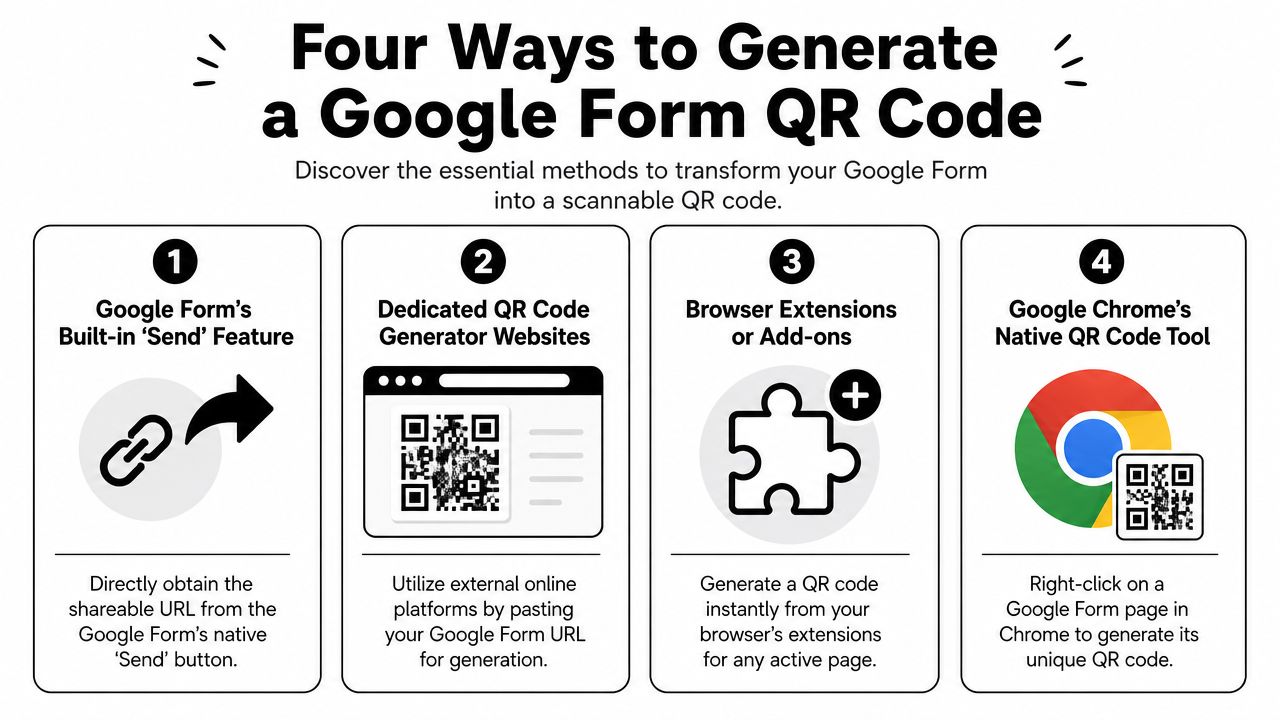
Four Ways to Generate a Google Form QR Code
Start with the correct Google Form link
Before you generate anything, get the right link. To generate a QR code for a Google Form, users must first create a shareable published link by clicking the "Send" button, then selecting the link icon and copying the URL. This step is mandatory before pasting into any QR generator to ensure the code redirects correctly, as outlined in this Google Form QR code guide.
If you skip that step and copy the wrong browser URL, you can end up with a code that opens an edit page, a restricted page, or a broken route for attendees.
There's one more optimization worth doing before any method below. Shorten the form link inside Google Forms if that option is available in the Send > Link flow. The published guidance on shortening a Google Form URL before encoding it notes that long source URLs can hurt scan reliability on older devices, while the shortened version reduces character count and produces a cleaner QR pattern.
Method one using a dedicated QR generator
This is the standard method. Copy the published Google Form link, paste it into a web-based QR generator, export the code as a PNG or SVG, and place it on signage, slides, flyers, badges, or printed cards.
Use this route when you need:
- A clean downloadable asset for print or presentation
- Basic customization such as frame text or color
- A file you can hand to design teams without extra explanation
The trade-off is simple. It's fast, but many tools push users toward static codes by default. That's fine for short-lived use. It's risky for event assets that may outlive the first form version.
If you're comparing Google Forms with alternatives for non-Google workflows, form handling solutions for static sites are also worth reviewing, especially when the form destination sits outside Workspace.
Method two using Google Chrome
Chrome has a native QR feature that's useful when speed matters more than customization. Open the live form page in Chrome, use the browser's QR sharing option, and download the code.
This is one of the quickest paths for internal events, classrooms, and small sign-in flows. It works well when a coordinator needs a code immediately and doesn't need branding, tracking, or redirect control.
What it doesn't do well is lifecycle management. You'll get a code fast, but you won't get much flexibility around link changes or campaign structure.
The fastest way to make a QR code isn't always the safest way to deploy one.
Method three using a browser extension or add-on
Browser extensions sit between the simplicity of Chrome and the flexibility of dedicated generators. They're useful for teams that create codes repeatedly throughout the week and want a one-click workflow from the toolbar.
Good use cases include:
- Classroom operations where instructors post new form links often
- Internal admin flows for room check-ins or shift logs
- Agency teams producing many QR assets across clients
The downside is inconsistency. Extension quality varies, export options can be limited, and some tools add friction when another team member needs to reproduce the exact same asset later.
Method four generating codes in Google Sheets workflows
Moving into practical applications, if your Google Form feeds a Sheet, or your registration process already lives in Sheets, you can move beyond one QR code and start creating QR codes in bulk for workflows tied to rows, attendees, sessions, or response records.
That's useful when one code opens a general registration form, while another code is tied to a specific session, table, or access path. Teams handling more complex registration setups usually end up here because Sheets gives them a structured place to manage links, labels, and distribution logic. A practical reference is this guide to a QR code generator for Google Sheets.
A simple comparison looks like this:
| Method | Best for | Main limitation |
|---|---|---|
| Dedicated QR generator | Print-ready event assets | Often static by default |
| Google Chrome | Fast one-off creation | Limited control |
| Browser extension or add-on | Repeated internal use | Harder to standardize |
| Google Sheets workflow | Bulk and operational use | More setup discipline needed |
For many, the consideration isn't about code generation capability. All four can. The crucial question is whether the workflow will still hold up after edits, reprints, delegated staff work, and last-minute event changes.
The Pro Move Using Dynamic QR Codes for Flexibility
Why static codes fail in real operations
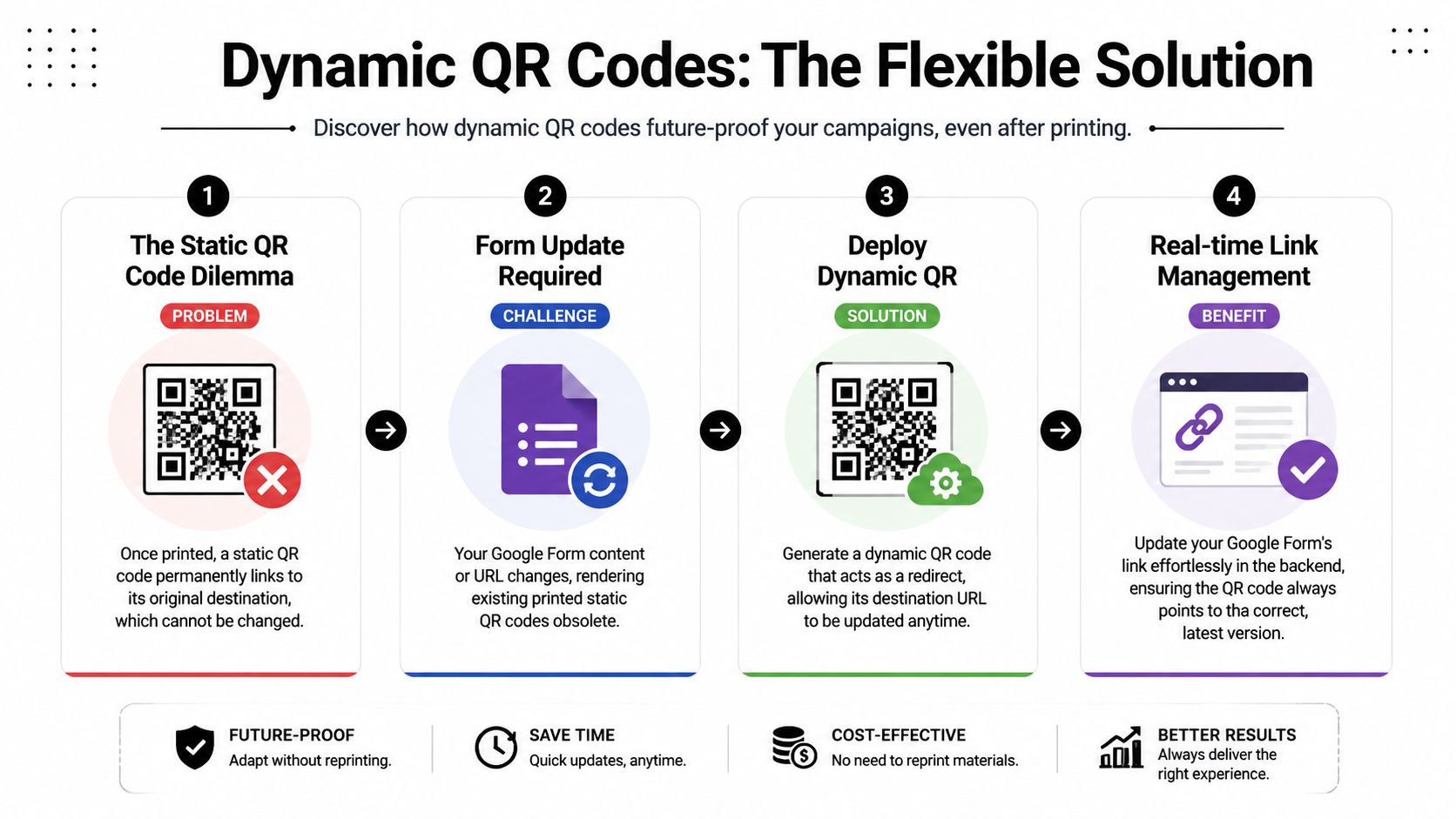
The biggest weakness in most advice about creating a QR code for a Google Form is that it assumes the form URL will never change. That's not how events work. Forms get revised. Questions get cleaned up. Session choices change. A team duplicates a form for day two and forgets the old printed code still points to day one.
That gap shows up clearly in this discussion of dynamic QR codes for Google Forms. The article points out a major issue most guides miss: static codes break if the form URL changes, while a dynamic QR code remains stable even if the destination changes, which prevents scanning failures and operational friction.
If you've already printed lobby signage, seat cards, badges, or window decals, a static code locks you into that original destination. Any change after that creates manual work, confusion, or a reprint.
How to make a dynamic setup work
The simplest professional approach is to place a stable redirect layer between the QR code and the Google Form. Instead of encoding the raw Google Form URL directly, encode a managed short link. Then, if the form destination changes, you update the short link target rather than replacing the QR code itself.
That setup matters most when:
- The form may be duplicated or versioned
- Printed materials are expensive or already distributed
- The same code will be reused across multiple sessions or days
- Several staff members might update the form without touching design assets
For teams that already automate event tasks inside Workspace, this broader idea fits neatly with Google Workspace automation for event operations. The QR code becomes one stable entry point inside a larger process, not a fragile standalone asset.
Here's the decision rule I use:
If the code will live longer than the current draft of the form, make it dynamic.
A static code still has a place. It's fine for a lunch poll, a temporary classroom prompt, or a same-day feedback form you won't touch again. But if the code appears on anything printed in volume, or anything reused over time, static becomes a gamble.
A short demo helps if you want to see the concept in action:
When dynamic is worth the extra step
People sometimes hesitate because dynamic sounds more technical. In practice, it's just better risk management.
A static code is cheaper in effort at the start. A dynamic code is cheaper when something changes. In event work, something usually changes.
That's why I treat dynamic QR codes as the professional default for registration, attendance, and public-facing form access. They absorb revisions without forcing the rest of the operation to stop.
Best Practices for Printing Scanning and Distribution
Print specs that hold up on event day
A QR code that works on your laptop screen can still fail on a foam board, badge insert, or glossy poster. Print changes everything. Size, contrast, export quality, and placement all affect whether attendees scan smoothly or ask staff for help.
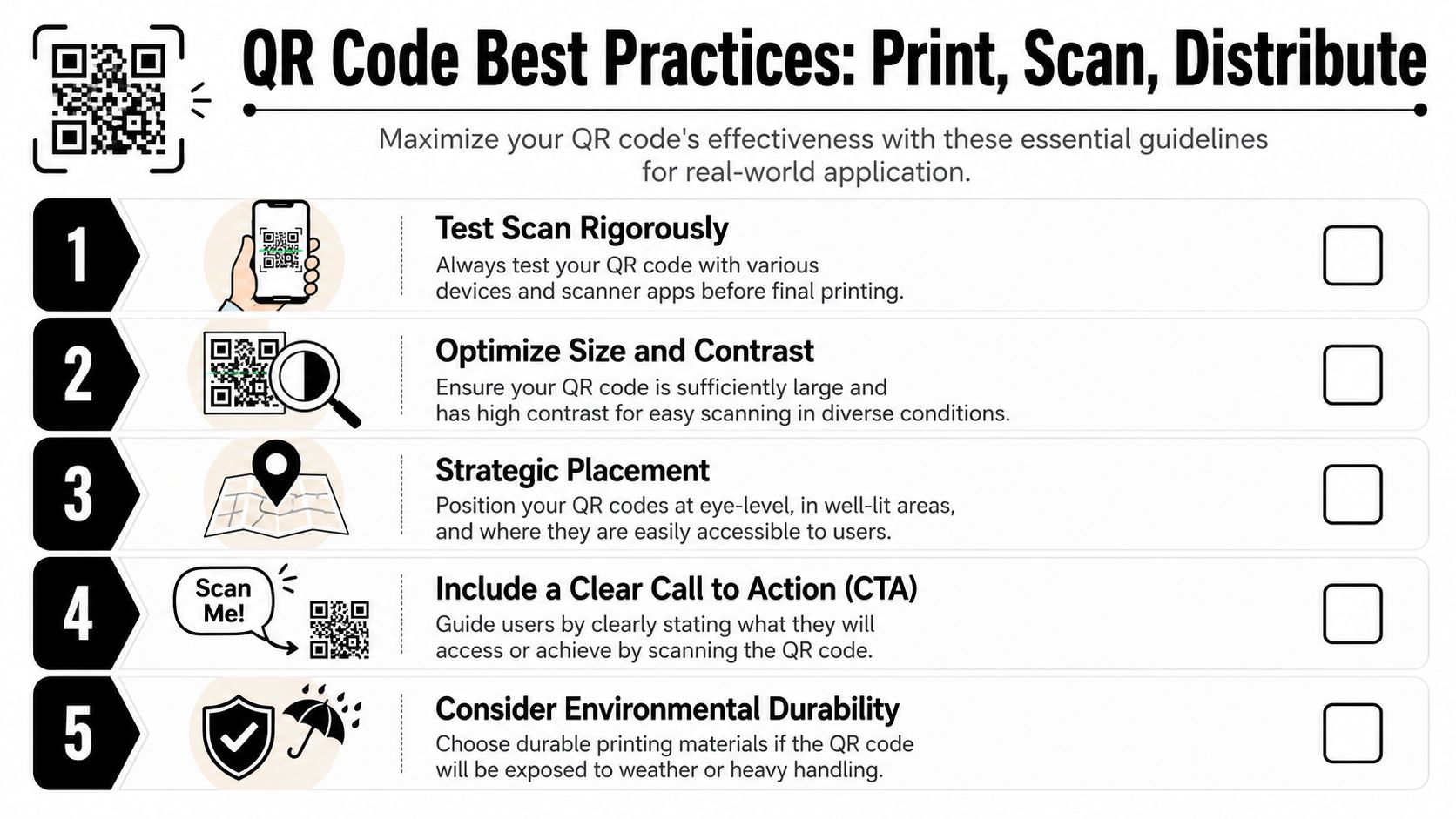
For reliable scanning, the published guidance on QR code sizing and validation for Google Form use states that the minimum physical size should be 2 x 2 cm for dynamic codes and 3 x 3 cm for static codes. That's the floor, not the design target. If people will scan from a distance, give the code more space.
A practical print checklist looks like this:
- Keep contrast high: Black on white is still the safest choice for signage and handouts.
- Export clean files: Use high-resolution PNG or SVG when the generator supports it.
- Avoid decorative backgrounds: Patterns, photos, and gradients behind the code create scan issues.
- Place it where people pause: Registration desks, queue entry points, program slides, and table tents work better than crowded corners of posters.
The scan test that saves you from chaos
The most expensive QR mistake is assuming a generated file is ready for the venue. It isn't ready until it's been tested on real devices, under realistic conditions.
That same guidance notes that neglecting post-generation validation testing on multiple devices leads to a 20 to 30 percent failure rate in real-world distribution scenarios. That's a brutal failure rate for something meant to speed up entry.
Test like an operator, not a designer:
- Use more than one phone: Scan with both iPhone and Android if possible.
- Test distance and angle: Don't only test from straight on at arm's length.
- Print a sample first: Screen performance doesn't guarantee print performance.
- Check the final destination: Make sure the code opens the correct live form, not an edit view or retired version.
A QR code passes when strangers can scan it without instructions.
One more field habit helps. Put a short call to action next to the code. “Scan to register,” “Scan for attendance,” or “Scan to submit feedback” removes hesitation and tells people what happens next. QR adoption improves when the next step is obvious.
Distribution also matters. If the same code appears on a slide, a wall sign, and a printed card, keep the destination consistent. Mixed versions across materials create support headaches because attendees won't know which one is correct, and staff won't either.
Level Up Prefills Analytics and Full Check-In Systems
A basic QR code gets people into a form. A stronger workflow reduces typing, captures better data, and turns the form into part of a proper check-in system.
That's where this topic gets more interesting for operators. The adoption of QR code-linked Google Forms has grown 400% since 2020, with 65% of corporate conference organizers using them for real-time validation. This method can reduce event setup time by 70%, enabling deployment for 10,000+ attendees in under 15 minutes. The shift isn't just about convenience. It's about using familiar tools in a way that supports real operations.
Use prefills to reduce friction
Google Forms supports prefilled links. That means you can prepare a form URL with some fields already completed before turning it into a QR code.
In practice, that helps when:
- A session code should already be filled in
- A location or booth identifier should be fixed
- A staff form should open with a department value preselected
This removes repetitive typing and reduces response errors. It also makes one form more reusable because the QR code itself can carry context.
Track what the basic QR code can't tell you
A raw Google Form link doesn't tell you much about scans by itself. If you need visibility into which placements are working, use separate QR destinations for separate contexts or route through a managed redirect with analytics.
That gives you practical answers to questions like:
- Which poster placement drove more scans
- Whether lobby signage outperformed slide decks
- Which day or session version of the same form was used
The QR code becomes more than a shortcut. It becomes a traceable entry point into your event flow.
Move from forms to operational check-in
Once the form and QR layer are working, many teams outgrow generic sharing and move toward a check-in workflow tied directly to Google Sheets. That's especially true when you need attendance validation, ticket issuance, session access control, or staff scanning at the door.
A useful next step is looking at a dedicated attendance tracking system built around Google Sheets and Forms. The idea is straightforward: the form collects or confirms the attendee data, the sheet becomes the operational source of truth, and scanning handles entry validation.
One example in this category is Darkaa, which uses Google Sheets and Google Forms add-ons for QR code tickets for Google Sheets, QR code attendance for Google Forms, and QR code ticket check-in for Sheets. That kind of setup fits teams that want ticket generation, bulk distribution, and scanning without moving the whole operation into a separate event platform.
The upgrade path is simple. Start with one QR code for one form. Then connect that form to the rest of your event workflow.
Frequently Asked Questions
Can I update my Google Form after creating the QR code?
Yes, but the answer depends on what changed. If you only edit the form's questions and the live form URL stays the same, the code should still work. If the destination URL changes, a static code can break. That's why dynamic QR setups are safer for anything printed or reused.
Should I use a static or dynamic QR code?
Use static for short-lived, low-risk cases. Use dynamic when the code may stay in circulation while the form changes, or when different staff members may revise the workflow over time.
What file format should I download?
For print, PNG or SVG is the safer choice when available. Avoid low-quality exports and don't compress the file carelessly before sending it to design or print.
Can I track who scanned the QR code?
Not directly from the QR image alone in most basic setups. If you need scan visibility, use separate destinations, prefilled links, or a redirect layer with analytics.
Why does a QR code scan on screen but fail in print?
Common causes are poor contrast, small size, glossy placement, low-resolution export, or a code that was never tested after printing.
What's the safest workflow for event registration?
Use the published Google Form link, create a managed QR code, test it on multiple devices, and keep one source of truth for the final live destination.
If your process is moving beyond a single form and into actual event operations, Darkaa is built for that Google Workspace workflow. It turns Google Sheets and Google Forms into a working system for QR code ticket check-in for Sheets, QR code attendance for Google Forms, ticket distribution by email or WhatsApp, and offline-capable scanning tied back to your live data.