You're probably already feeling the pain that pushes teams toward Google Workspace automation. Registrations land in a Google Form, finance keeps a separate spreadsheet, the venue manager wants a CSV, and your check-in team ends up using a different app at the door. By the time the event opens, nobody fully trusts the attendee list.
That setup works for a small internal lunch. It breaks down fast for conferences, graduations, fundraisers, and multi-session events. Staff need one source of truth, tickets need to go out automatically, and the check-in process has to keep working when the venue Wi-Fi doesn't.
A practical fix is to keep the whole ticketing workflow inside Google Workspace. Google Forms collects registrations. Google Sheets becomes the master attendee database. Add-ons handle ticket creation, distribution, and attendance tracking. That gives you a system your team already understands, without forcing everyone into yet another dashboard. If you're still mapping the overall registration flow, this guide on how to create an event in Google Workspace is a useful starting point.
Table of Contents
- Why Your Event Ticketing Should Live in Google Workspace
- Building Your Attendee Foundation in Sheets and Forms
- Choosing Your Automation Engine and Generating Tickets
- Automating Bulk Ticket Distribution
- Managing On-Site Check-In with Real-Time Sync
- Best Practices for Scalable and Secure Workflows
Why Your Event Ticketing Should Live in Google Workspace
Most event problems aren't ticket design problems. They're coordination problems.
One tool collects registrations. Another sends confirmation emails. A third handles QR codes. Then somebody exports a file the night before the event and hopes nothing changed after the export. That's where duplicate records, missed updates, and slow check-in lines come from.
Google Workspace automation works well when the process starts and ends in the same environment. Your form responses flow into Sheets. Your attendee data stays in one live file. Your staff updates one system instead of chasing versions across inboxes and apps. That matters more than flashy features.
There's also a practical limit to what the newer built-in no-code tools can handle for live event operations. A LinkedIn analysis from 2025 noted that Google Flows and Workspace Studio weren't yet ready for team-wide deployment or complex process automation, and highlighted a gap for workflows that need unlimited concurrent devices and offline sync, which Studio and Flows explicitly lack, according to this analysis of Google Flows and workspace automation readiness.
Practical rule: If the event depends on multiple staff checking people in at the same time, treat offline validation and shared live data as core requirements, not nice extras.
That's why a Sheets and Forms based system is so useful for professional events. It gives you a familiar operating layer, but it can still support registration, ticket generation, bulk sending, and attendance tracking in one place.
The main advantage isn't that everything is “automated.” It's that your team can see what's happening. When a VIP gets added, a name is corrected, or a ticket needs to be resent, staff update the row and keep moving. They don't rebuild a flow or wait for a developer.
Building Your Attendee Foundation in Sheets and Forms
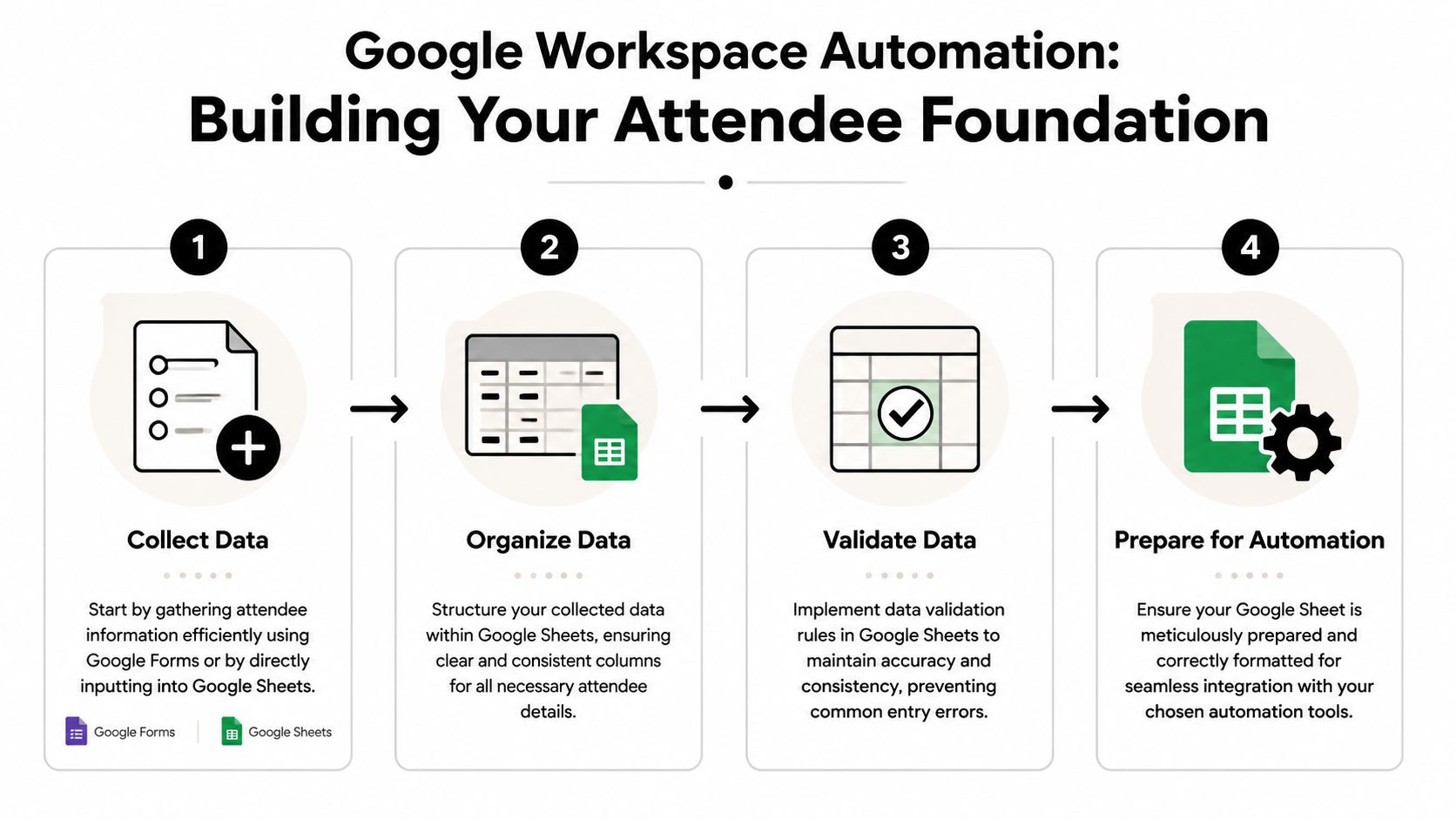
A stable ticketing workflow starts with a clean sheet. If the data structure is messy, every later step gets harder. Tickets pull the wrong fields, emails merge badly, and check-in teams can't trust what they see.
The simplest structure is also the most durable. Use Google Forms for fresh registrations, or import an existing attendee list into Google Sheets. Then make that spreadsheet the only master record.
Start with one master sheet
Create columns for the fields you know you'll use at three stages: registration, ticket delivery, and check-in.
A practical attendee sheet often includes:
- Identity fields: First name, last name, email, phone, company, and role.
- Event logic fields: Ticket type, session, access zone, day, dietary notes, and RSVP status.
- Operational fields: Ticket generated, ticket link, email sent, checked in, check-in time, and notes.
Keep the column names human-readable. The person fixing a record at 6:30 a.m. on event day shouldn't have to decode internal labels.
If you're collecting data through Google Forms, match your form questions to your spreadsheet columns as closely as possible. If you're importing from another system, clean the headings first before you start adding automation. This saves time later because your ticket template, message merges, and attendance logic all depend on consistent field names. If you want a faster starting point, an event registration template for Google Sheets helps teams avoid rebuilding the structure from scratch.
Install the right add-on early
Google Workspace add-ons matter because they extend Sheets beyond spreadsheet work. Google's developer documentation states that add-ons extend Sheets by connecting to third-party systems and integrating data with other Google applications like Slides, which lets event planners automate RSVP collection, ticket generation, and attendance reporting entirely within the Google ecosystem through Google Workspace add-ons for Sheets.
That's the bridge many teams miss. Sheets is the database. The add-on provides the event-specific behavior.
To install one, go to Extensions → Add-ons → Get add-ons in Google Sheets, then search the Google Workspace Marketplace, select the tool you need, and approve permissions such as read and write access to cells and email sending capabilities, as described in this guide to installing Google Sheets add-ons.
After installation, do a small data check before you automate anything:
- Fill test rows first: Add a few internal names and emails before using live attendee data.
- Validate required fields: Make sure email addresses, ticket types, and session values are consistently formatted.
- Protect key columns: Lock formula or status columns so nobody overwrites them during list cleanup.
Bad data doesn't just create ugly spreadsheets. It creates failed sends, broken tickets, and check-in delays.
Teams often rush into QR generation before they've settled the sheet structure. That's backwards. The spreadsheet is the operating system for the event. Build it carefully once, and the rest of your Google Workspace automation becomes much easier to manage.
Choosing Your Automation Engine and Generating Tickets
There are three realistic ways to automate event ticketing in Google Workspace. You can use a marketplace add-on, build your own logic in Google Apps Script, or try the newer Google Workspace Studio approach.
All three can automate something. They don't create the same operational risk.
What actually works for event ticketing
Historically, Google Workspace automation leaned on Google Apps Script. That worked, but it often meant static, hardcoded macros that required technical skill and broke when small changes hit the workflow. The newer shift toward AI-native tooling introduced what one analysis described as an “Agentic Era,” where automation moves from user-written scripts to AI-generated logic that can reason across steps, detailed in this review of next-generation Google Workspace automation.
Workspace Studio pushes that shift further. According to an overview of Google Workspace Studio and its workflow limits, Google Workspace Studio launched in December 2025 as the successor to Google Workspace Flows, is included at no extra cost with Google Workspace Business and Enterprise plans, and offers a default limit of approximately 400 workflow runs per month for the Business Standard tier. The same source says it lets users describe automations in plain English and uses Gemini's agentic capabilities for multi-step processes.
That's useful for internal approvals, document routing, and inbox work. It's less convincing for event ticketing operations where staff need direct ticket generation and check-in behavior tied to Sheets.
Here's the practical comparison.
| Method | Ease of Use | Maintenance | Best For |
|---|---|---|---|
| Marketplace add-on | High | Low to moderate | Ticket generation, QR workflows, and check-in tied directly to Google Sheets |
| Google Apps Script | Moderate to low | High | Highly custom internal logic when you have technical ownership |
| Google Workspace Studio | High for simple AI tasks | Moderate | General no-code automation and agent-driven office workflows |
If you're comparing broader no-code options outside Google's native stack, Zenfox.ai reviews free automation tools in a way that helps frame where general automation platforms fit and where event-specific workflows usually need something more specialized.
Choose the tool that matches the job. Event ticketing needs repeatability more than novelty.
Set up QR code tickets in Google Sheets
For this use case, the add-on route is usually the fastest and most reliable. The Google Workspace Marketplace listing for QR code tickets for Google Sheets states that the add-on generates a unique e-ticket with a secure QR code for each attendee in the spreadsheet, automatically creates branded PDF tickets, and enables scanning for check-in validation without external dashboards.
A solid setup process looks like this:
Connect the add-on to your attendee sheet
Start with your cleaned spreadsheet. Confirm that each attendee occupies one row and that the key fields are complete.Design the ticket around operational needs
Branding matters, but function matters more. Include attendee name, event name, date, venue, and the QR code in a layout that still scans well on a dim phone screen.Map the ticket fields Match the template placeholders to your sheet columns. Here, a clear sheet structure pays off.
Generate per-row tickets
The add-on creates a unique ticket for each row rather than one generic file. That keeps every attendee tied to a specific record in the sheet.Store the output back in the spreadsheet
Save ticket links, file references, or generation status in dedicated columns so your team can sort and troubleshoot quickly.
Two common mistakes show up here. First, teams overdesign the ticket and make the QR code too small or visually crowded. Second, they forget to reserve status columns for generation and delivery, which makes resend workflows messy.
A better approach is to treat the ticket like an operational artifact, not a poster. It should be branded, but it should also be easy to scan, easy to resend, and easy to track from the row level.
Automating Bulk Ticket Distribution
Once the tickets exist, your spreadsheet becomes a sending console. That's where Google Workspace automation starts feeling useful to event teams, because the same row that generated the ticket can also drive delivery.

Build the send flow around the sheet
Keep distribution simple. Each row should contain the attendee's contact details, ticket link or attachment reference, and a send-status field. That way you can filter unsent records, resend failed ones, and confirm delivery batches before the event.
A practical message flow includes:
- A clear subject line: Use the event name so attendees can find it later.
- A direct opening: Tell them their ticket is attached or linked.
- One action: Bring this ticket to the event, either on phone or print.
- Support info: Include a contact path for name corrections or access issues.
For teams that also distribute through messaging channels, it helps to keep one communication column per channel. Don't mix email status and message-app status in the same field.
Use simple personalization
Personalized bulk sends don't need to be complicated. Merge tags such as {{First Name}} and {{Ticket Link}} are enough for most events.
A simple template might look like this:
Hi {{First Name}}, Your ticket for {{Event Name}} is ready.
You can access it here: {{Ticket Link}}
Please keep it available on your phone for check-in.
That works because it's readable and operationally clear. Fancy copy doesn't help if the attendee can't find the ticket.
Track sending status inside the sheet as you go. Add columns for sent, bounced, resent, or manual follow-up needed. That gives your team a live work queue instead of a pile of assumptions. It also helps when a guest claims they never received their ticket and your staff needs an immediate answer.
Managing On-Site Check-In with Real-Time Sync
Event day is where a ticketing system either proves itself or falls apart.
The attendee walks up with a phone screen. A staff member scans the QR code. The system should validate the ticket quickly, record the attendance status, and let the line keep moving. It shouldn't require staff to switch apps, reload exports, or ask a supervisor whether the person was already admitted.
How the door workflow should feel
A good check-in flow feels boring. That's the goal.
One staff member is scanning at the main entrance. Another is checking guests into a VIP room. A third is handling late arrivals at a side desk. All of them need to work from the same live attendee record, and they need the system to keep functioning even if connectivity gets weak in one part of the venue.
That's where purpose-built QR code attendance inside the Google ecosystem solves a real problem that generic office automation tools don't. For events, the question isn't just “can this be automated?” It's “can several people run it at once under venue conditions?”
If you're planning around weak venue connectivity, it helps to understand the operational side of offline QR code ticket check-in for event teams. Offline support changes staffing decisions, device prep, and how much risk you're carrying into the day.
Smooth entry isn't about speed alone. It's about staff confidence. When the team trusts the scanner and the sheet, lines move faster.
For organizers, the master spreadsheet becomes a live attendance dashboard. You can see who has arrived, which entrance is active, and where exceptions are happening. That kind of visibility is why many event teams care so much about real-time systems in the first place. If you want a general primer on the operating value of live updates, insights from Waymap on real-time data are worth reading.
What powers the sync
One implementation detail matters here. When using QR code ticket add-ons with Google Forms and Sheets, check-in data can be synced by copying a formula into an empty column, which triggers a server request to load attendance records, and then using the IMAGE function with the QR image link to render scannable QR codes for each form response, as shown in this walkthrough of QR code attendance sync in Google Sheets.
You don't need every check-in staff member to understand that mechanism. But you do need one operations owner who knows where the sync column lives, which fields drive validation, and how to verify that attendance updates are landing in the correct rows.
At the door, exceptions still happen. A guest shows an old ticket. Someone registered with a nickname instead of a legal name. A sponsor sends a replacement attendee ten minutes before start time. That's why keeping check-in tied back to the live sheet matters. Staff can search, validate, and update the record without breaking the audit trail.
Best Practices for Scalable and Secure Workflows
Getting a workflow running is easy. Keeping it dependable across multiple events is the harder part.
The weak point usually isn't the QR code or the email template. It's ownership. One person builds the sheet, knows the formulas, manages the add-ons, and gradually becomes the only person who understands the system. If that person leaves, the workflow turns fragile overnight.
Research focused on Google Workspace Studio risks describes this as the Bus Factor problem. It identifies a structural vulnerability where critical automations can collapse without the original creator and argues that many guides ignore the governance layer needed for durability, outlined in this analysis of Google Workspace Studio automation risks.
Build for handoff, not heroics
A strong event workflow needs shared ownership from day one.
One practical framework comes from an event ticketing methodology that calls for 4 crucial steps: strategic planning, centralized script management, clear documentation, and security controls, with the advice to “build for exceptions, not just perfect paths” in this guide to robust Google Workspace automation for event ticketing.
That advice matters because event workflows always hit exceptions. Late additions. Duplicate names. Last-minute access changes. Device issues. The system should have fallback states, not just happy-path logic.
Use these handoff rules:
- Shared ownership: Keep the sheet, supporting assets, and operational notes in shared team-controlled locations.
- Named status columns: Label fields so a non-builder can understand what “generated,” “sent,” and “checked in” mean.
- Runbooks: Write a short operating guide for pre-event setup, event-day checks, and post-event export or cleanup.
“Build for exceptions, not just perfect paths.”
Use a professional operating checklist
Security and scale show up in small decisions. Who can edit attendee records? Who can send bulk messages? Who can change formulas? Which staff need edit access, and which only need scan access?
A practical checklist looks like this:
- Permission discipline: Grant the least access needed for each role. Keep edit rights narrow.
- Test with realistic scenarios: Use internal test attendees, duplicate scans, last-minute changes, and poor-connectivity simulations before the event opens.
- Protect key logic: Lock formula columns and status fields that drive ticket generation or attendance sync.
- Document fallback actions: Decide in advance how staff handle manual entry, duplicate attempts, and replacement guests.
- Review security basics: For broader operational hygiene around access and sensitive attendee data, Hyperleap AI's data security tips are a useful companion read.
The teams that scale well don't chase the most advanced automation. They standardize the boring parts. One sheet structure. One ticket template model. One check-in process. One documentation habit. That's what lets a workflow grow from a small private event into a larger, more demanding operation without becoming brittle.
If you want to run ticketing and attendance entirely inside Google Workspace, Darkaa is built for that exact model. It turns Google Sheets and Google Forms into a QR code ticketing and check-in system, so your team can create attendee lists, generate branded tickets, send them in bulk, and validate entry with real-time sync and offline support, without learning a separate event platform.