
About 90% of consumers text every day, and most check texts more than 10 times per day, according to industry reporting cited by SimpleTexting on text message invitations. That changes how event invites should be handled. A text isn't just a reminder channel anymore. It can be the front door to your RSVP system, your ticket delivery workflow, and your check-in operation.
The mistake I see most often is treating text invites as a standalone blast. Teams send a short message, drop in a generic registration link, and hope for the best. Professional event operations work differently. The cleanest setup starts with a spreadsheet, routes replies back into Google Workspace, and ends with a check-in process that still works when venue connectivity doesn't.
Table of Contents
- The Blueprint Planning Your Text Invite Strategy
- Building Your Master Guest List in Google Sheets
- Writing Text Invites That Get a Yes
- Sending Automating and Tracking RSVPs
- Integrating Tickets and Managing Event Check-In
- Post-Event Analysis and Deliverability Tips
The Blueprint Planning Your Text Invite Strategy
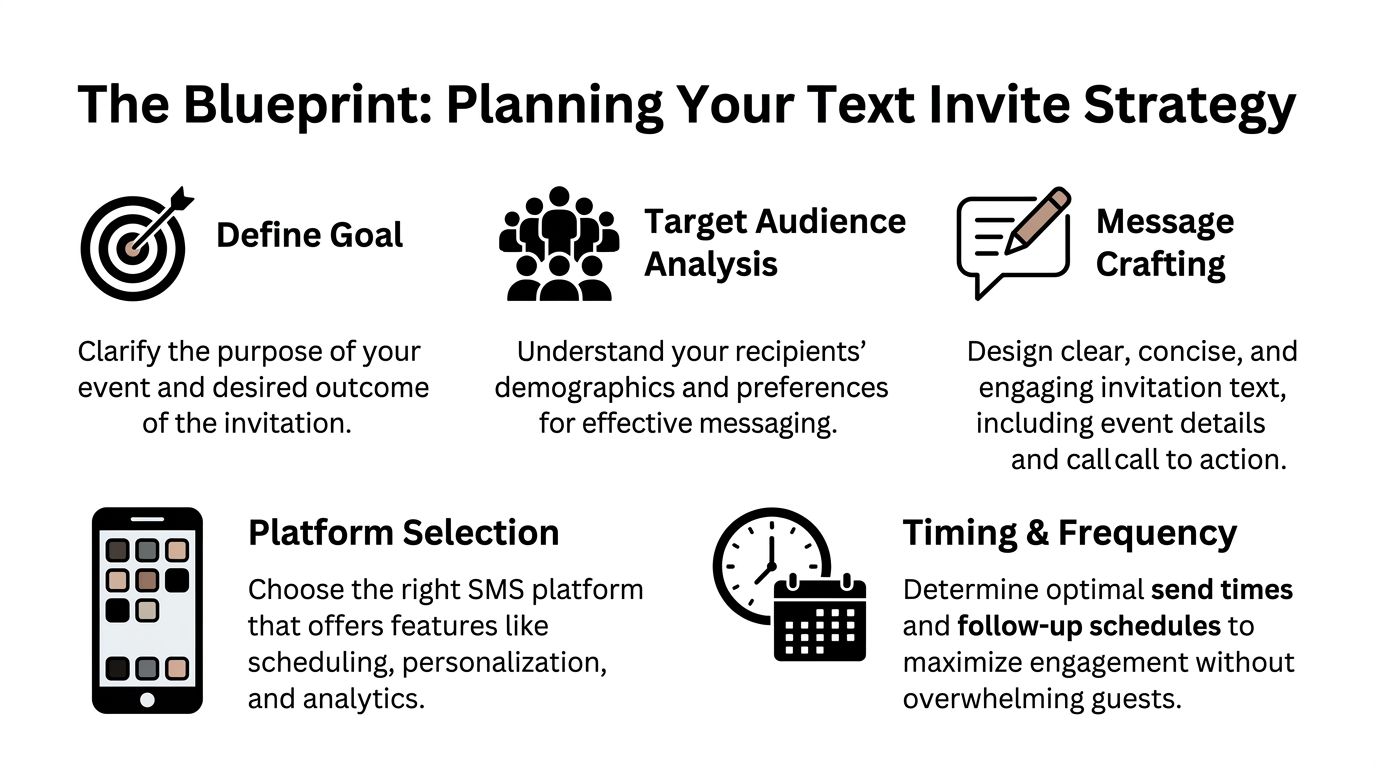
A text invite works when the message, audience, reply path, and compliance rules all line up. If one part is sloppy, the whole campaign gets harder to manage. That's why planning matters more than copy polish.
Set the goal before you pick the tool
Start with the operational question. Are you trying to collect RSVPs, drive registrations, confirm attendance, or push ticket holders toward event-day readiness? Those are different jobs, and the message flow should reflect that.
For a private dinner, simple reply-by-text may be enough. For a conference, you usually need structured data collection, status tracking, and a handoff into ticketing or check-in. If the event has sessions, zones, or multiple entry points, planning for that at the invite stage saves hours later.
A simple decision table helps:
| Event type | Best initial text CTA | Why it works |
|---|---|---|
| Small private event | Reply YES or NO | Low friction, easy to monitor manually |
| Mid-size community event | Open RSVP form | Captures structured attendee data |
| Large conference or graduation | Confirm registration and issue ticket | Connects outreach to check-in operations |
Gallup found that SMS combined with email reminders improved participation across most demographic groups, which is why text usually performs better as one part of a mixed communication funnel rather than the whole system by itself, as noted in Gallup's review of using text messaging with reminders.
Choose the reply path carefully
The choice isn't SMS versus email. It's whether you want the guest experience to stay simple from invite to confirmation.
Three common paths show up in practice:
- Direct reply by text: Best when headcount is small and staff can monitor replies without missing edge cases like plus-ones or special access needs.
- Link to a mobile form: Better for structured RSVPs, meal choices, session selection, or collecting identifiers you'll need later.
- Keyword-based response flow: Useful when people are joining from posters, social posts, or on-site promotion and not from a prebuilt list.
Practical rule: If staff will need the data on event day, capture it in a structured way on day one.
If you're weighing timing, segmentation, and compliance workflow in more depth, this roundup of effective SMS marketing strategies is a useful operational reference.
Consent is operational not legal fine print
Consent is where many teams get casual, and that creates problems fast. If you don't have permission to text people, the campaign is already off track. The issue isn't only regulatory. It affects deliverability, trust, and the quality of the guest list you're building.
Your sheet should show where each number came from and what type of contact it is. Existing customer, staff member, member roster, alumni list, donor list, prior attendee. Those categories affect how confidently you can message and how people will interpret the invite.
A clean planning checklist is short:
- Document opt-in status: Keep a column that shows whether the contact gave permission to receive texts.
- Define the send sequence: Decide who gets the initial invite, who gets reminders, and who should be excluded after replying.
- Pair text with backup channels: Use email for fuller detail, calendar files, or attachments that don't belong in SMS.
- Plan the check-in endpoint: Don't launch invites without knowing how attendees will be validated at the door.
Building Your Master Guest List in Google Sheets
Most text invite problems start in the spreadsheet. Bad formatting creates delivery issues. Missing fields make personalization clumsy. Duplicate rows produce duplicate invites, which is one of the fastest ways to look disorganized.
Use one sheet as the source of truth
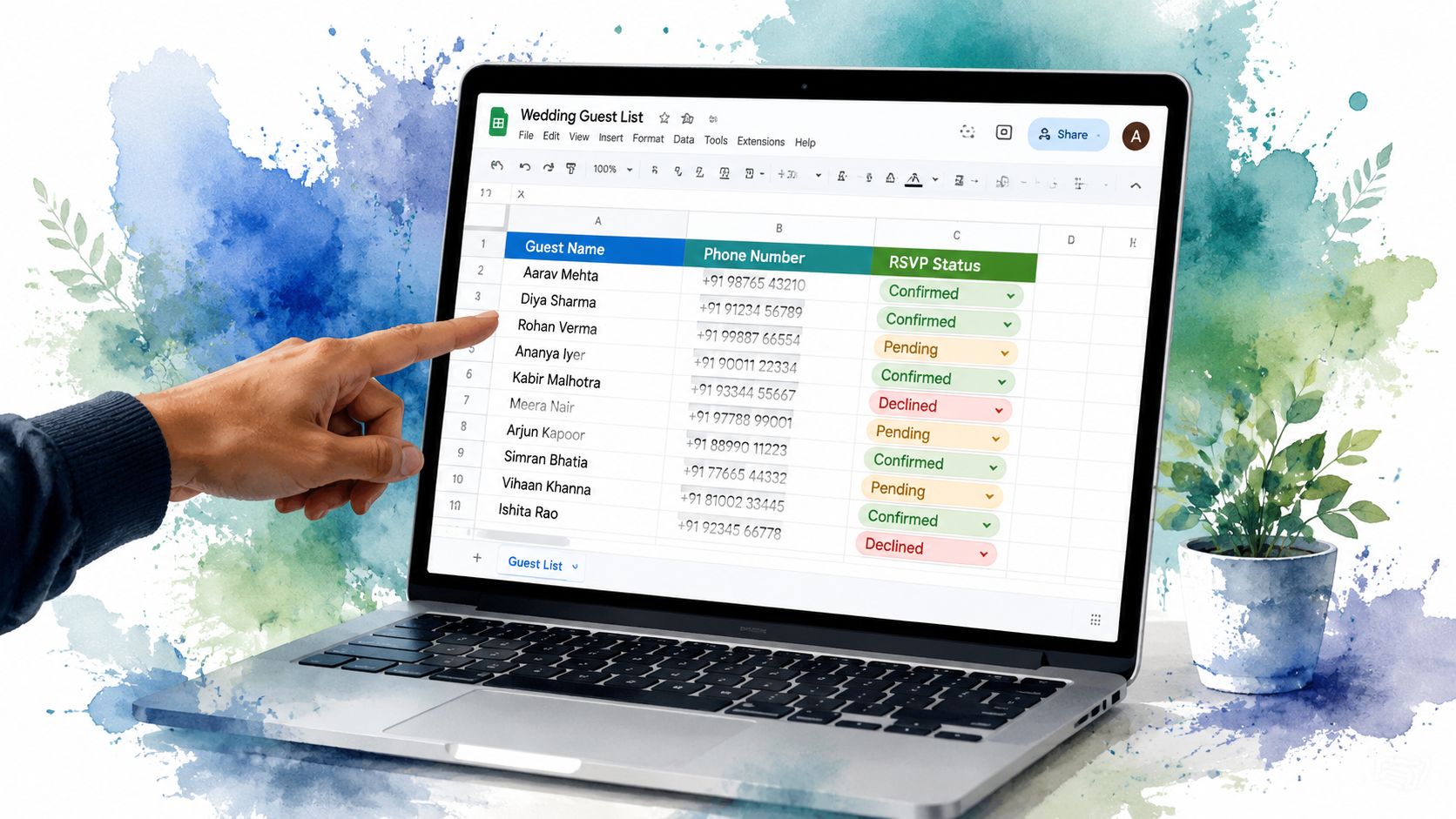
Keep one master tab that drives everything. Don't split your operations across separate lists unless there's a clear reason, such as different audience groups with different permissions.
A solid master sheet usually includes these columns:
- Core identity fields: First name, last name, mobile number, email.
- Operational fields: RSVP status, ticket status, check-in status, guest type.
- Personalization fields: Company, table, session, VIP flag, graduation program, or internal department.
- Audit fields: Consent status, source list, sent date, reminder status.
That structure lets you personalize messages without turning the sheet into a mess. “Hi Maya” is useful. “Hi Maya from Acme, seated in Gold Zone, session B” may be useful too, but only if those fields are controlled and accurate.
Clean the list before you send anything
Phone numbers need consistent formatting. Names should use proper case. Blank rows, duplicate contacts, and merged cells should be removed before you connect the sheet to any sending process.
I also recommend separating “unknown” from “no.” If someone hasn't replied, mark them as pending instead of treating silence as a decline. That one distinction makes reminder targeting much easier.
A practical cleanup sequence looks like this:
- Standardize mobile numbers: Make sure every record follows one consistent format for your audience and geography.
- Remove duplicates carefully: Deduplicate by mobile number first, then review name conflicts manually.
- Lock controlled fields: Use dropdowns for RSVP status, ticket type, and attendance state.
- Tag exceptions early: Add columns for plus-one expected, accessibility requests, or staff-only access if those matter later.
A guest list isn't just a contact list. It's the operating model for the event.
If you're deciding whether to build a lightweight in-house workflow or use a broader platform, this overview of free event ticketing options gives a good sense of the trade-offs.
Google Forms is also useful at the intake stage. Instead of collecting registrations in email threads, create one form that feeds submissions straight into Sheets. That keeps the list current without manual copy-paste and gives you a cleaner base for invitations, reminders, and ticket creation.
Writing Text Invites That Get a Yes
A strong text invite respects two constraints at the same time. First, the message has to fit the medium. Second, it has to move someone to act now, not later.
Research summarized by Survey Insights on SMS invitation response speed shows how quickly people act on text-based prompts: 25% completed a survey within less than 3.5 minutes of receiving a text invitation, and 50% responded within one hour. That speed matters for events because your invite copy has a short window to turn attention into an RSVP.
What good invite copy actually does
Good invite copy answers four questions without wasting space:
- Who is inviting me
- What is the event
- When is it
- What should I do next
That sounds obvious, but many event texts fail because they lean on branding or enthusiasm and bury the action. A guest shouldn't have to infer whether you want a reply, a form submission, or a ticket confirmation.
Here's the basic shape that works:
[Name/organization] + [event] + [date/time] + [clear action]
You also need to decide whether the ask is binary or open-ended. “Reply YES to attend” is faster than “Let us know if you can make it.” For larger events, a short link often works better, but only if the destination is mobile-friendly and obviously relevant.
If you need to tighten long URLs before placing them into a message, this guide to creating powerful links is helpful for keeping the text readable.
Templates you can adapt fast
A few examples show the difference between broad messaging and operational messaging.
Corporate event “Hi Sarah, you're invited to the Finance Leaders Roundtable on Oct 18 at 9 AM. Confirm your spot here: [link]”
Why it works: direct, formal, low-noise.
Community event “Riverside Neighborhood Assoc: Join us Saturday at 3 PM for the fall clean-up and cookout at Lincoln Park. RSVP here: [link]”
Why it works: organization name first, location included, clear purpose.
Small private event “Hi James, dinner at our place this Friday at 7 PM. Can you make it? Reply YES or NO.”
Why it works: no link needed, answer path is obvious.
Last reminder “Reminder: you're confirmed for tomorrow's alumni mixer at 6 PM, City Hall Terrace. Keep this text for entry details.”
Why it works: shifts from invitation to attendance readiness.
A few copy habits make a real difference:
- Lead with identity: Recipients should know who's texting before they decide whether to act.
- Keep one CTA: Don't ask guests to RSVP, read a program, follow social accounts, and share with friends in the same message.
- Write for scanning: People read texts fast. Dense wording lowers response.
- Match the event tone: A gala, campus ceremony, and staff training shouldn't sound the same.
The best text invites feel simple because the operation behind them is organized.
Sending Automating and Tracking RSVPs
Most RSVP friction comes from tool handoffs. The attendee gets a text, taps a link, lands on a cluttered page, waits for it to load, and drops off. Your team then has to reconcile replies across messaging software, forms, email, and spreadsheets.
Why disconnected RSVP flows lose people
The friction isn't theoretical. 42% of mobile users abandon event registration when they must leave their SMS app for a poorly optimized webpage, according to the industry data provided in the brief. That's why clean RSVP workflows matter more than flashy landing pages.
For practical event operations, the best setup is usually the one with the fewest moving parts. If your guest list lives in Google Sheets, your RSVP intake should feed back into that same environment. That gives staff one live record of who was invited, who replied, who still needs a reminder, and who should receive a ticket.
A workable model often looks like this:
| Workflow choice | What attendees experience | Operational result |
|---|---|---|
| Text to generic event page | Extra taps and page load friction | More manual cleanup |
| Text to Google Form | Clear mobile response flow | Structured data back to Sheets |
| Text reply only | Fastest for guests | Harder to scale and report |
A practical Google Workspace workflow
For mid-size and large events, I prefer a sheet-driven process:
- Send the invite from your approved messaging tool.
- Route the CTA to a mobile-friendly Google Form or structured response path.
- Let the response update the master Google Sheet automatically.
- Trigger confirmation, ticket creation, or reminder logic from that updated sheet.
That approach reduces spreadsheet drift. Nobody needs to export one list, mark RSVPs in another tool, and then manually re-import status updates.
One option in this category is QR code attendance for Google Forms and WhatsApp sending modes, which keeps the attendee data flow inside Google Workspace while supporting message distribution and attendance workflows.
Keep the RSVP path boring. Guests shouldn't notice the system. Staff definitely will if it breaks.
There's also value in segmenting follow-up logic inside the same sheet. Pending invites get reminders. Confirmed attendees get prep information. No-shows after a deadline can be excluded from further operational messages.
A short walkthrough helps teams picture the handoff from invite to confirmation:
Integrated tools outperform disconnected stacks. Darkaa, for example, uses Google Sheets and Google Forms add-ons to turn attendee data into QR code tickets, distribute them through existing workflows, and support offline-capable check-in with sync back to Sheets. That's not the only way to run events, but it matches how many operations teams already work.
Integrating Tickets and Managing Event Check-In
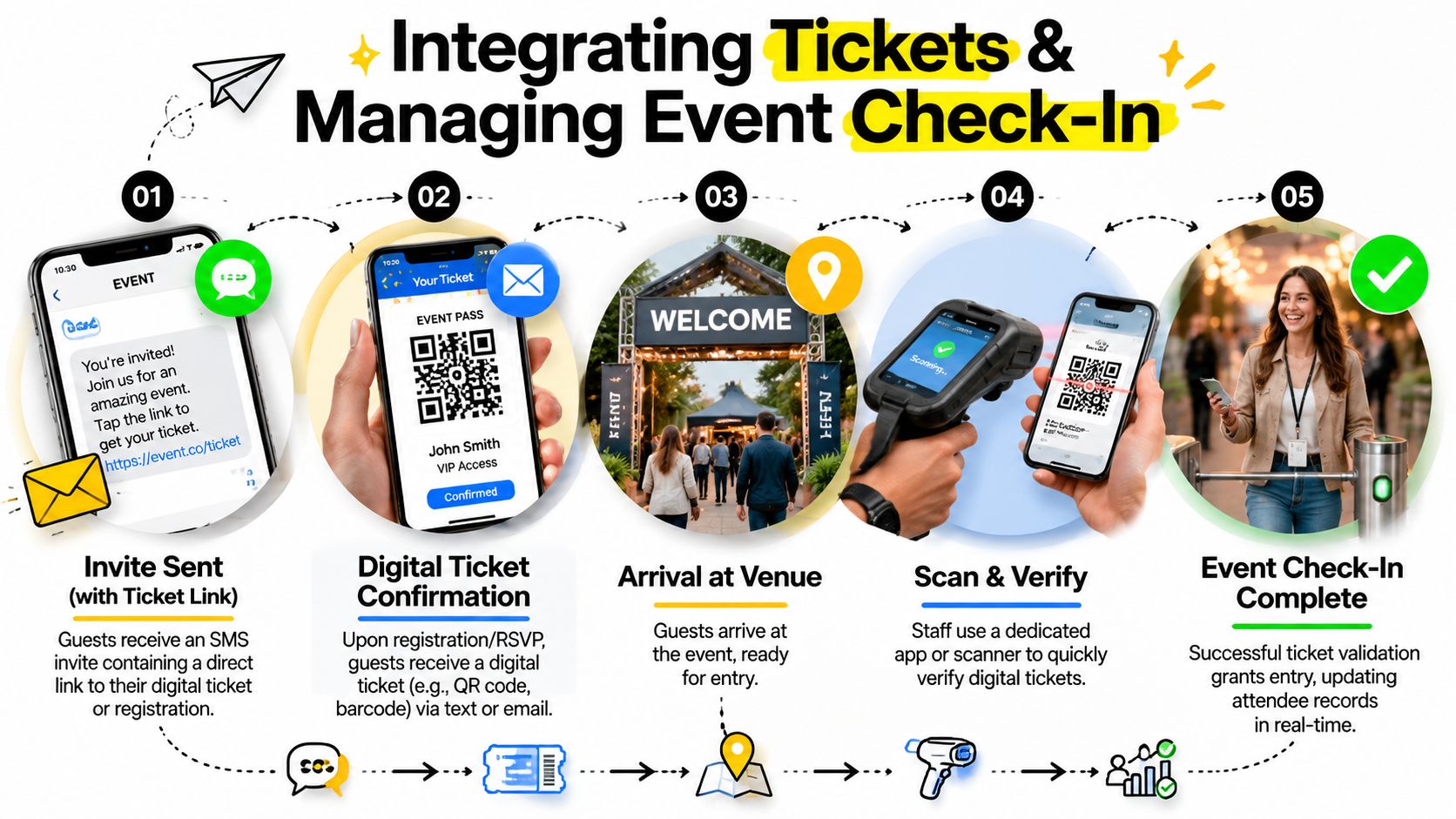
The invite should do more than ask for a response. For many events, it should start the credentialing process. Once someone confirms, the next operational step is to issue something your team can verify quickly at the door.
Turn the invite into a credential
The cleanest handoff is simple. A guest receives a text, confirms attendance, then receives a personalized ticket link or scannable pass tied back to the master record. That can be a QR code in a digital ticket, a PDF pass, or another scannable format that your staff can validate.
This changes the role of texting. You're not only sending invites via text. You're using text as the first delivery step in a full attendance pipeline.
A strong ticketing workflow usually includes:
- Unique attendee record: One person, one record, one credential.
- Scannable output: QR code ticket, badge, or pass that matches the record.
- Access logic: Full event, day-specific access, VIP zone, session permissions, or staff credentials.
- Check-in sync: Scan results flow back into the same operational sheet.
If you're mapping those pieces, this guide on using a QR code for event operations is a practical reference point.
Build for weak venue connectivity
Venue internet is where well-designed digital systems get exposed. A workflow that depends on perfect connectivity can look polished in testing and fail badly at the entrance.
The brief cites a hard operational reality: 68% of event disruptions stem from failed validation, based on data from the Global Event Security Association mentioned in the provided materials. That's why offline-capable scanning matters. Staff need to keep processing guests even if the network is slow or unavailable.
If your check-in process only works online, it doesn't really work.
For real operations, I'd separate validation into two layers:
- Local scan decision: Can the device verify this ticket right now without waiting on the cloud?
- Deferred sync: Can the scan log update the central sheet once the connection returns?
That setup protects both speed and record accuracy. It also helps with multi-entrance events where several staff members are scanning at once.
A practical event-day checklist looks like this:
- Preload scan devices: Make sure staff phones or tablets have the latest ticket dataset before doors open.
- Assign roles by lane: VIP, general admission, staff, problem resolution.
- Test duplicate scans: Know how the system flags an already-used pass.
- Keep a spreadsheet fallback: Printed or offline-accessible lists still matter for exception handling.
- Sync after pressure drops: Once entry lines shorten or connectivity returns, reconcile all scans back to the sheet.
That's the difference between texting people a nice-looking invite and building an invite system that survives the actual event.
Post-Event Analysis and Deliverability Tips
A good post-event review starts in the same Google Sheet you used to build the guest list, track replies, issue tickets, and log check-ins. That matters because disconnected tools create bad analysis. If RSVP data lives in one app, ticket status in another, and door scans in a third, the team spends more time reconciling records than improving the next event.
The goal is simple. Find out where people dropped out of the workflow, then fix that point before the next send.
The numbers worth reviewing after every event
Start with a single tab or summary view that follows the guest journey from first message to front door. For each contact, confirm five states:
- Message delivery: delivered, failed, or unknown
- RSVP status: yes, no, pending, or no response
- Ticket status: issued, not issued, resent, or revoked
- Attendance status: checked in, not checked in, or manually admitted
- Exception status: duplicate record, duplicate scan, bad number, or staff override
That structure makes the review useful. You can sort for failed sends and clean phone numbers. You can filter confirmed guests who never received a ticket. You can also compare accepted RSVPs against actual check-ins, which is one of the fastest ways to improve capacity planning.
I look for operational patterns, not vanity numbers. If one guest segment had strong RSVP rates but weak attendance, the reminder timing may be off. If check-in exceptions were high, the problem may not be the invite at all. It may be ticket formatting, naming mismatches in the sheet, or staff handling edge cases inconsistently at the door.
Timing still matters, but it should come from your own event data. A simple sequence often works well: initial invite after the event details are locked, a reminder close enough to the event to be useful, and a final message shortly before doors open. Keep the timing consistent enough that guests know what to expect.
Deliverability habits that prevent avoidable problems
Deliverability usually breaks at the list level before it breaks at the message level. Bad numbers, stale contacts, duplicate rows, and mixed audience segments cause trouble long before copy does.
A few habits reduce those problems:
- Clean the sheet before every send: remove duplicates, normalize phone number format, and archive old opt-outs
- Segment with intent: send only to the guests who should receive that event
- Identify the event immediately: guests should know who texted and why in the first line
- Keep one clear action per message: RSVP, claim ticket, or review event details
- Hold naming steady: use the same event name, sender identity, and link pattern across invite and reminders
- Test on actual devices: check line breaks, link previews, and reply handling on iPhone and Android
- Respect opt-outs fast: once someone opts out, remove them from the next send cycle
Consistency does more work than clever wording. If the first text says one thing and the reminder changes the event name, short link, or call to action, reply rates usually drop and support questions go up.
I also recommend reviewing failed deliveries as a spreadsheet task, not just a messaging report. Add columns for failure reason, correction status, and owner. Then assign cleanup before the next event is scheduled. That habit turns deliverability into routine list maintenance instead of a last-minute scramble on send day.
The best invitation flow is the one your team can audit quickly, fix in a sheet, and run again without guessing what changed.
For recurring events, keep the structure. Reuse the same Google Sheets columns, status labels, ticket rules, and post-event checklist. That gives you a clean record from invite to check-in, even when venue connectivity is unreliable and scan data syncs later.
If you want to keep invitations, QR ticket generation, and offline-capable check-in inside Google Workspace, QR code tickets for Google Sheets can help you run the full workflow from one operational source of truth.