अपने टिकट डिज़ाइन का पूरा नियंत्रण लें
लोगो लगाना बुनियादी हिस्से में है। यह पन्ना उस समय के लिए है जब टिकट पर आपका पूरा लेआउट चाहिए, या वॉलेट पास पर आपका ब्रांड — और बाद में फ़ील्ड का नाम बदलने पर भी डिज़ाइन चालू रहे, इसके लिए।
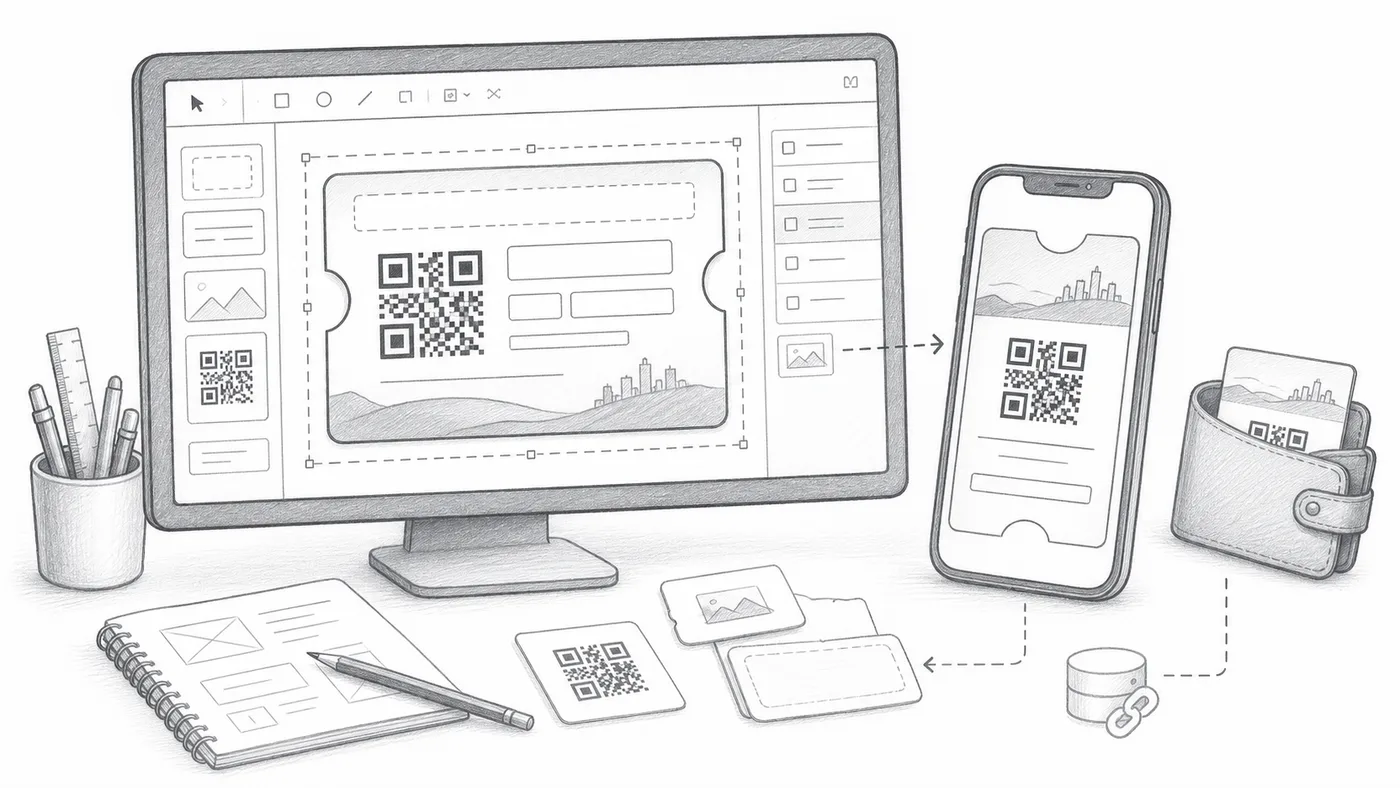
चरण 1
असली फ़ील्ड से डिज़ाइन करें
वही प्रतिभागी फ़ील्ड इस्तेमाल करें जो शीट या फ़ॉर्म जवाबों में मौजूद हैं।
चरण 2
सेव करें और टेस्ट करके देखें
एक नमूना टिकट बनाएँ और उसे मोबाइल पर देखें।
चरण 3
फ़ील्ड में बदलाव सोच-समझकर करें
बाद में फ़ील्ड का नाम बदलना या हटाना डिज़ाइन तोड़ देता है, जब तक आप भागीदार डेटा अपडेट न करें या डिज़ाइन को नए फ़ील्ड की ओर न मोड़ें।
यह कैसे काम करता है
उदाहरण
Ada Mensah का टिकट तभी सही बनता है जब सभी इस्तेमाल किए गए फ़ील्ड मौजूद हों।
इन गलतियों से बचें
- शीट कॉलम का नाम बदलने से डेटा सिंक होने तक टिकट बनना टूट सकता है।
- वॉलेट बैनर इमेज असली फ़ोन पर टेस्ट करें।
- छपने वाला टेक्स्ट बैज के आकार में भी पढ़ा जा सके, ऐसा रखें।
अगला चरण
QR कोड टिकट शुरू करने के लिए तैयार हैं?
Google Sheets, Google Forms, Jotform, Tally, Fillout या WordPress के लिए QR कोड टिकट बनाएँ। वह तरीका चुनें जो आप पहले से इस्तेमाल करते हैं, फिर अपनी प्रतिभागी सूची एक जगह रखें।