完全掌控你的門票設計
加 Logo 屬於基礎操作。這一頁用於門票必須承載你整個版面、錢包卡必須穿上你的品牌的場合——也用於之後重新命名欄位時保持設計不出問題。
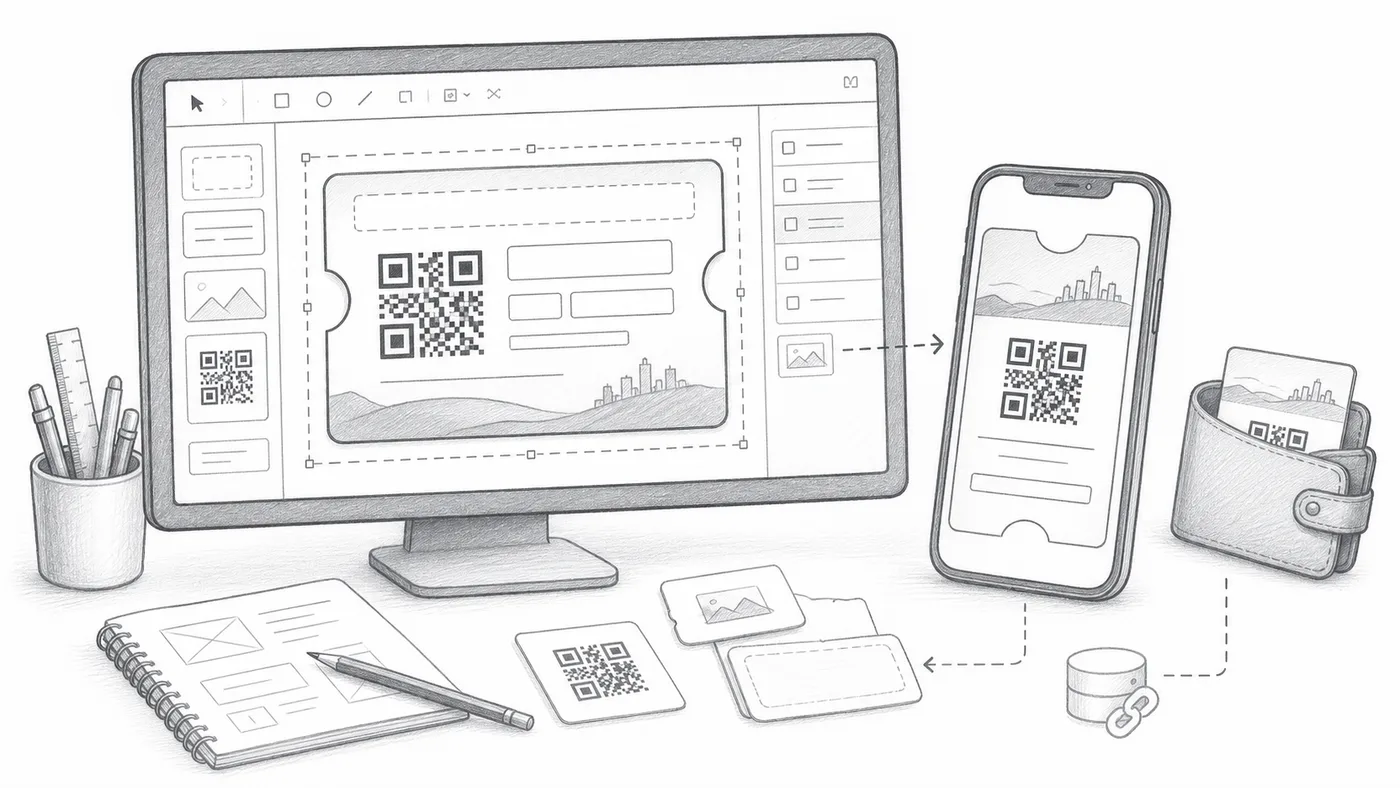
第 1 步
用真實欄位設計
使用工作表或表單回覆中存在的參加者欄位。
第 2 步
儲存並測試顯示效果
產生一張範例票券,並在手機上檢查。
第 3 步
謹慎處理欄位變更
之後重新命名或刪除欄位會破壞設計,直到你更新來賓資料或把設計指向新欄位為止。
運作方式
範例
只有當所有引用的欄位都存在時,Ada Mensah 的票券才能正確顯示。
避免這些錯誤
- 重新命名工作表欄可能導致票券顯示錯誤,直到資料同步為止。
- 錢包橫幅圖片應在真實手機上測試。
- 保持列印文字在識別證尺寸下清楚易讀。
下一步
準備好開始使用 QR Code 票券了嗎?
為 Google Sheets、Google Forms、Jotform、Tally, Fillout 或 WordPress 建立 QR Code 票券。選擇您已在使用的流程,然後把參加者名單儲存在一個地方。