Pause or restart automatic ticket sending
Use this while you are still testing your form, or after registration closes. Responses keep arriving in your form either way; only the tickets wait.
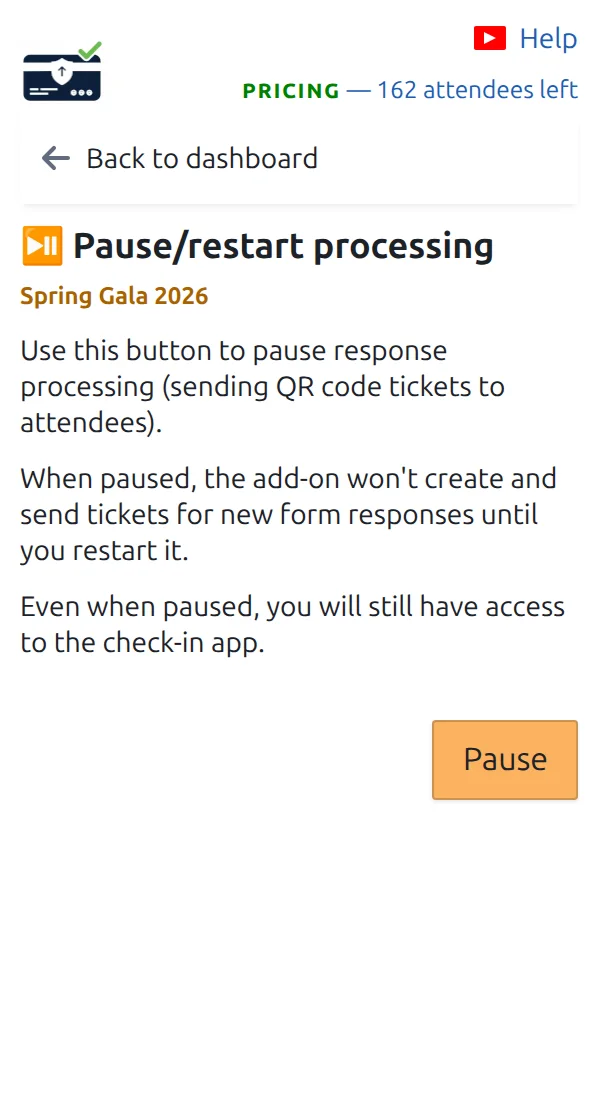
Step 1
Open Pause/restart processing
It is on the dashboard, under your ticket pages.
Step 2
Press pause
New responses stop receiving their ticket straight away. Your form still works and still records every answer.
Step 3
Restart when you are ready
Press restart on the same page. To send the tickets missed while you were paused, open Send missing QR code tickets.
How it works
Example
You pause on Friday to rehearse with your team, restart on Monday morning, then catch up the weekend responses in one press.
Watch how it works
Avoid these mistakes
- Restarting does not send the missed tickets by itself. Use the catch-up page for that.
- Closing the add-on panel does not pause anything. Sending only stops when you press pause.
Next step
Ready to get started with QR code tickets?
Create QR code tickets for Google Sheets, Google Forms, Jotform, Tally, Fillout, or WordPress. Pick the workflow you already use, then keep your attendee list in one place.