改變票券外觀
在傳送任何內容之前,讓票券看起來像您的活動。
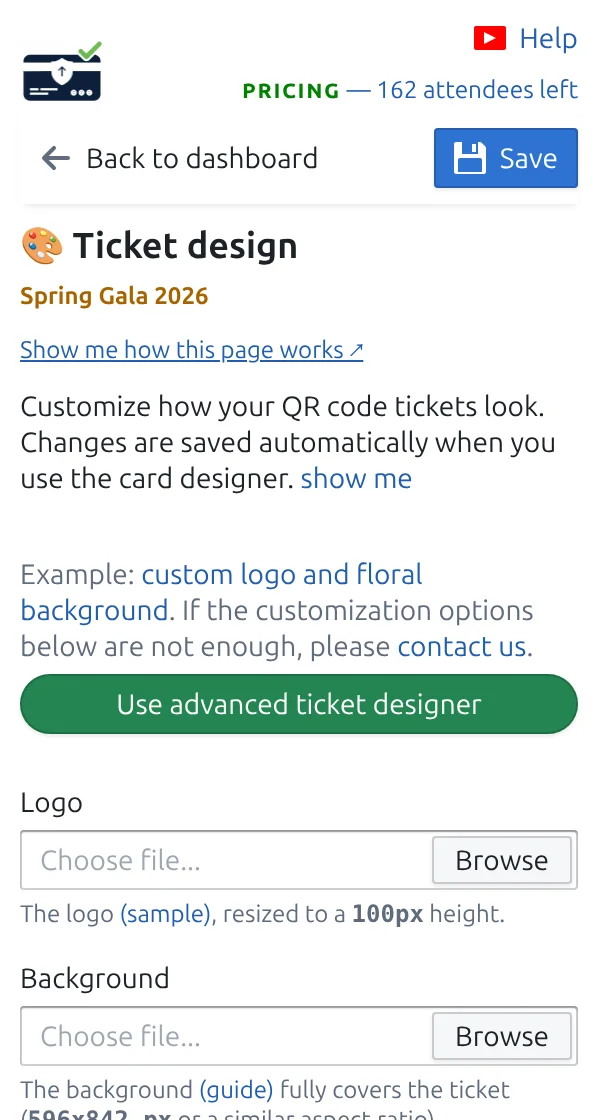
第 1 步
開啟「票券設計」
您會看到票券的即時預覽,每處修改都立即可見。
第 2 步
新增您的標誌和背景
背景保持淺色,讓 QR Code 和來賓姓名清楚易讀。
第 3 步
選擇要顯示的資訊
選擇哪些回答填入大標題和下方的小字行,例如來賓姓名和票券類型。
運作方式
範例
票券會顯示您的標誌、Ada Mensah 的姓名,以及工作人員將掃描的 QR Code。
觀看運作方式
避免這些錯誤
- QR Code 後面太深的背景會拖慢掃描。
- 過長的標題會被截斷,大標題行請用短欄位。
- 已傳送的票券保留舊設計;重新傳送即可更新。
在真實設定中查看
- Running 34 school balls a season from one Google Sheet template
- A 2,000-delegate medical conference run from Google Sheets
- A 600-guest community gala invited and confirmed entirely on WhatsApp
- A 1,200-person company family day registered through Google Forms
- Weekly club nights with VIP, Gold, and General tickets from parallel sheets
下一步
準備好開始使用 QR Code 票券了嗎?
為 Google Sheets、Google Forms、Jotform、Tally, Fillout 或 WordPress 建立 QR Code 票券。選擇您已在使用的流程,然後把參加者名單儲存在一個地方。