Send tickets to people who answered before you set this up
From the moment your email settings are saved, every new response gets its ticket on its own. People who answered earlier are not forgotten: one page sends their tickets too.
Check your email settings first
Open Email settings and make sure the question that asks for the email address is the right one. Everything sent from this page uses it.
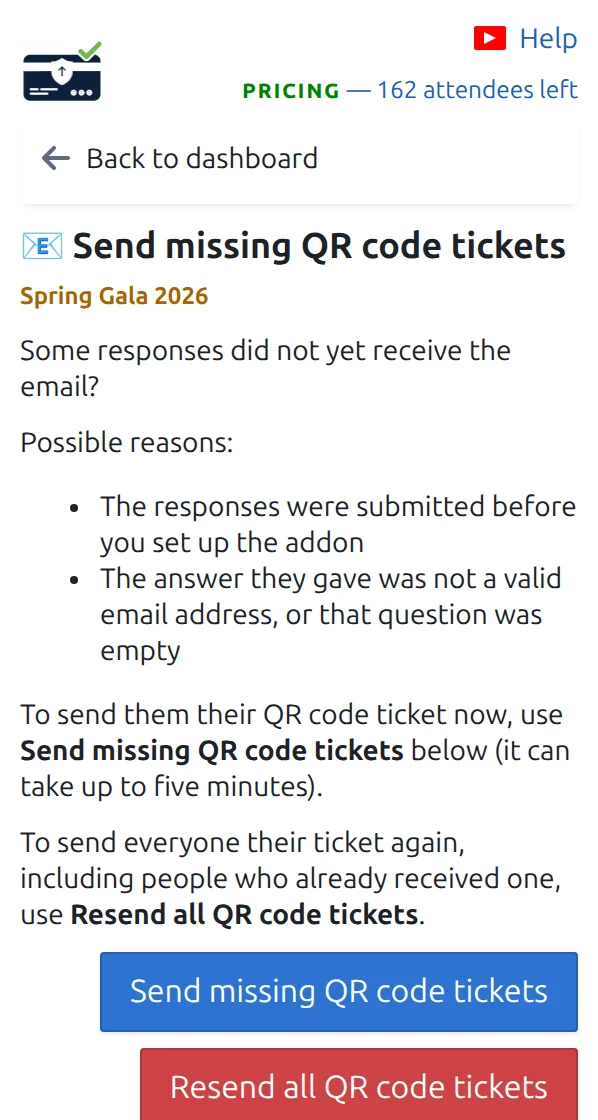
Open Send missing QR code tickets
On the dashboard, open the card called Send missing QR code tickets. It tells you how many earlier responses have never received a ticket.
Start the catch-up and leave the panel open
Press the button and wait. Tickets go out a few at a time, so a long list can take a few minutes. Nobody receives a second copy: responses that already have their ticket are skipped.
How it works
Example
You opened your form on Monday and set up the add-on on Wednesday. The forty people who answered on Monday and Tuesday get their tickets from this page.
Watch how it works
Avoid these mistakes
- Check the email question before sending, so tickets do not go to the wrong address.
- If some responses have no usable address, they appear on the People with unknown email page instead.
- Google™ limits how many emails you can send in one day. Anything left over is sent the next day, on its own.
Next step
Ready to get started with QR code tickets?
Create QR code tickets for Google Sheets, Google Forms, Jotform, Tally, Fillout, or WordPress. Pick the workflow you already use, then keep your attendee list in one place.