Let your team scan tickets too
Use this when more than one person will be scanning at the door.
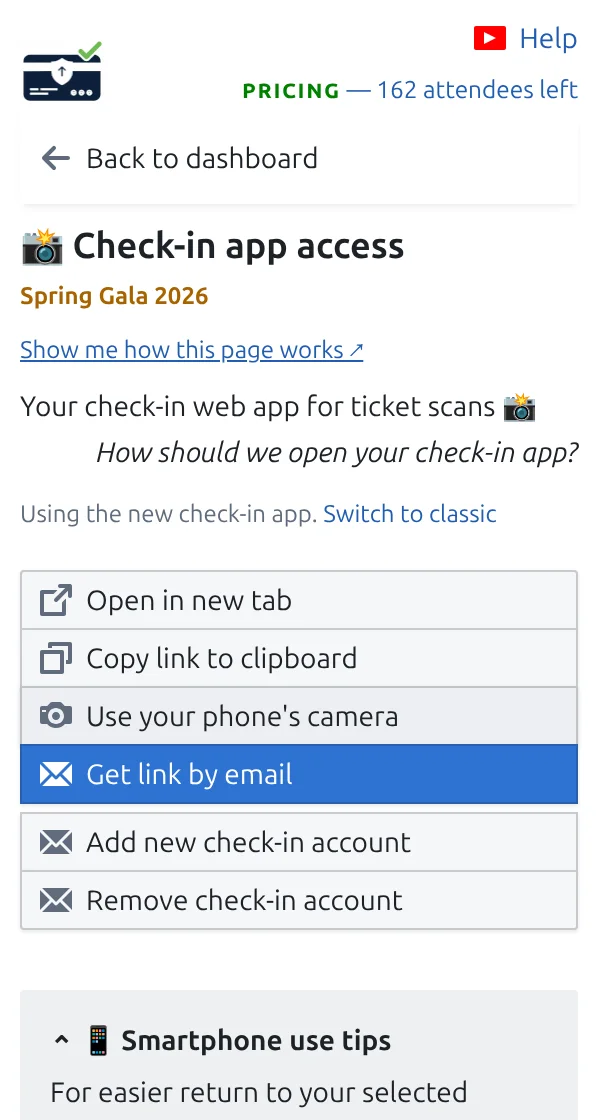
Step 1
Open Check-in app access
This page holds everything your team needs: the scanner link, a QR code to open it on a phone, and the option to send it by email.
Step 2
Add one account per colleague
Give each colleague their own access, so reports can tell you who scanned which guest.
Step 3
Send them the link before event day
Ask them to open it once, allow the camera, and add it to their home screen. No password to remember.
How it works
Example
Two colleagues scan at two doors, and the report shows how many guests each of them welcomed.
Watch how it works
Avoid these mistakes
- Sharing one link with everyone means reports cannot tell your colleagues apart.
- Ask staff to test the camera at home, not at the door.
- Remove access after the event if a phone is lost or a colleague leaves.
See it in a real setup
- Running 34 school balls a season from one Google Sheet template
- A 16-city open house roadshow checked in by name, no scanner needed
- A 2,000-delegate medical conference run from Google Sheets
- A 1,200-person company family day registered through Google Forms
- A school spring fair where one email covers the whole family
Next step
Ready to get started with QR code tickets?
Create QR code tickets for Google Sheets, Google Forms, Jotform, Tally, Fillout, or WordPress. Pick the workflow you already use, then keep your attendee list in one place.