Gunakan kode QR yang sudah Anda miliki
Kode QR sudah tercetak, atau tiket dari sistem lama? Tidak perlu cetak ulang: arahkan pengaturan ke teks di dalam kode-kode itu dan aplikasi check-in mengenalinya di samping tiketnya sendiri.
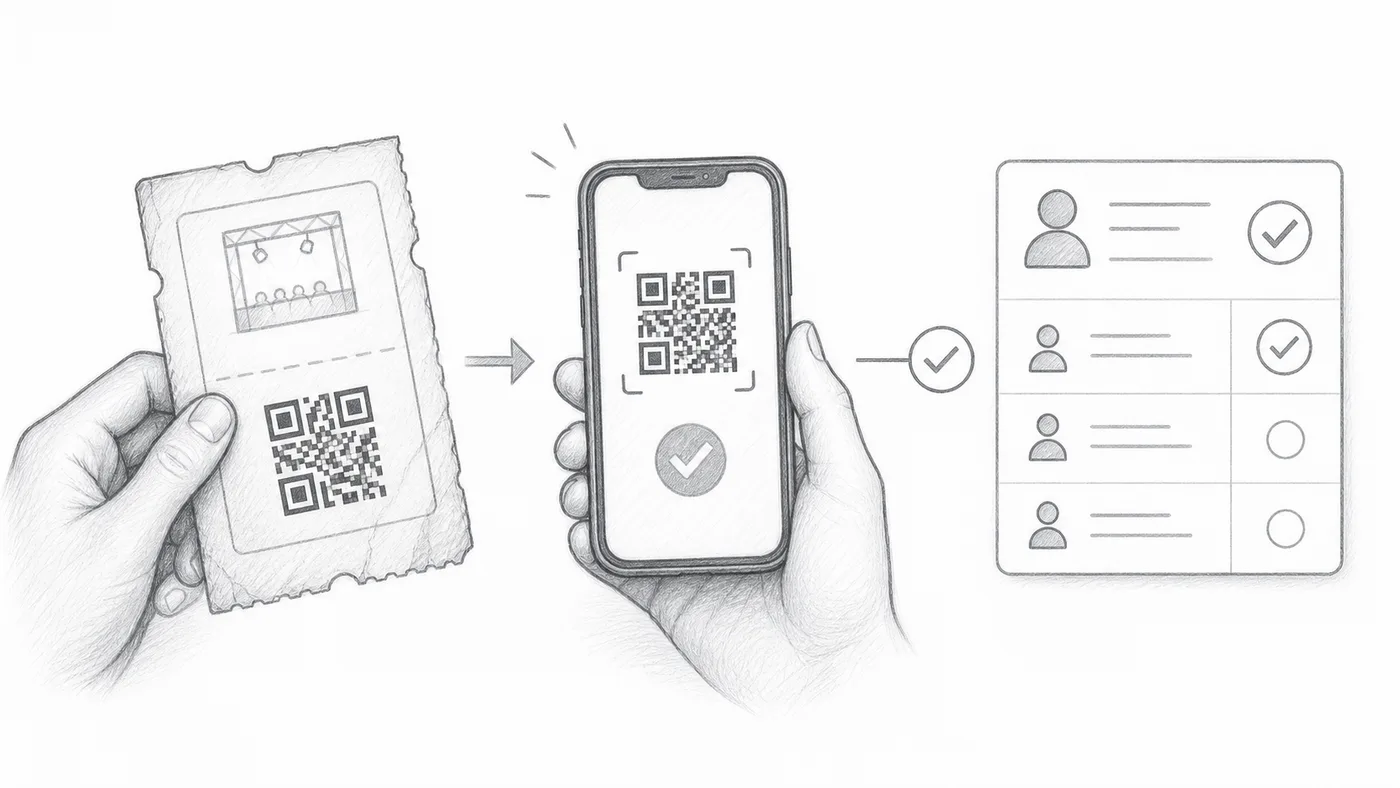
Langkah 1
Simpan nilai QR eksternal
Simpan teks di dalam kode QR yang sudah ada di kolom lembar atau pertanyaan formulir.
Langkah 2
Pilih isian itu
Pilih sebagai sumber isi QR kustom di Setelan check-in → Setelan check-in lanjutan.
Langkah 3
Pindai salah satu kode QR
Aplikasi check-in mengenali kode QR Anda yang sudah ada maupun tiket yang dibuat add-on.
Cara kerjanya
Contoh
Kode QR dengan nilai dari External QR code membuka peserta yang sama seperti tiket yang dibuat.
Hindari kesalahan ini
- Gunakan teks yang tersimpan di dalam kode QR, bukan tangkapan layar atau tautan gambar.
- Nilai harus unik per peserta, kecuali duplikat memang disengaja.
- Uji beberapa tiket asli sebelum hari acara.
Langkah berikutnya
Siap memulai dengan tiket kode QR?
Buat tiket kode QR untuk Google Sheets, Google Forms, Jotform, Tally, Fillout, atau WordPress. Pilih alur kerja yang sudah Anda pakai, lalu simpan daftar peserta Anda di satu tempat.