直接使用你已有的 QR 碼
QR 碼已經印好了,或者手上有舊系統的票?什麼都不必重印:把設定指向那些 QR 碼內的文字,報到應用程式就會在自家票券之外辨識它們。
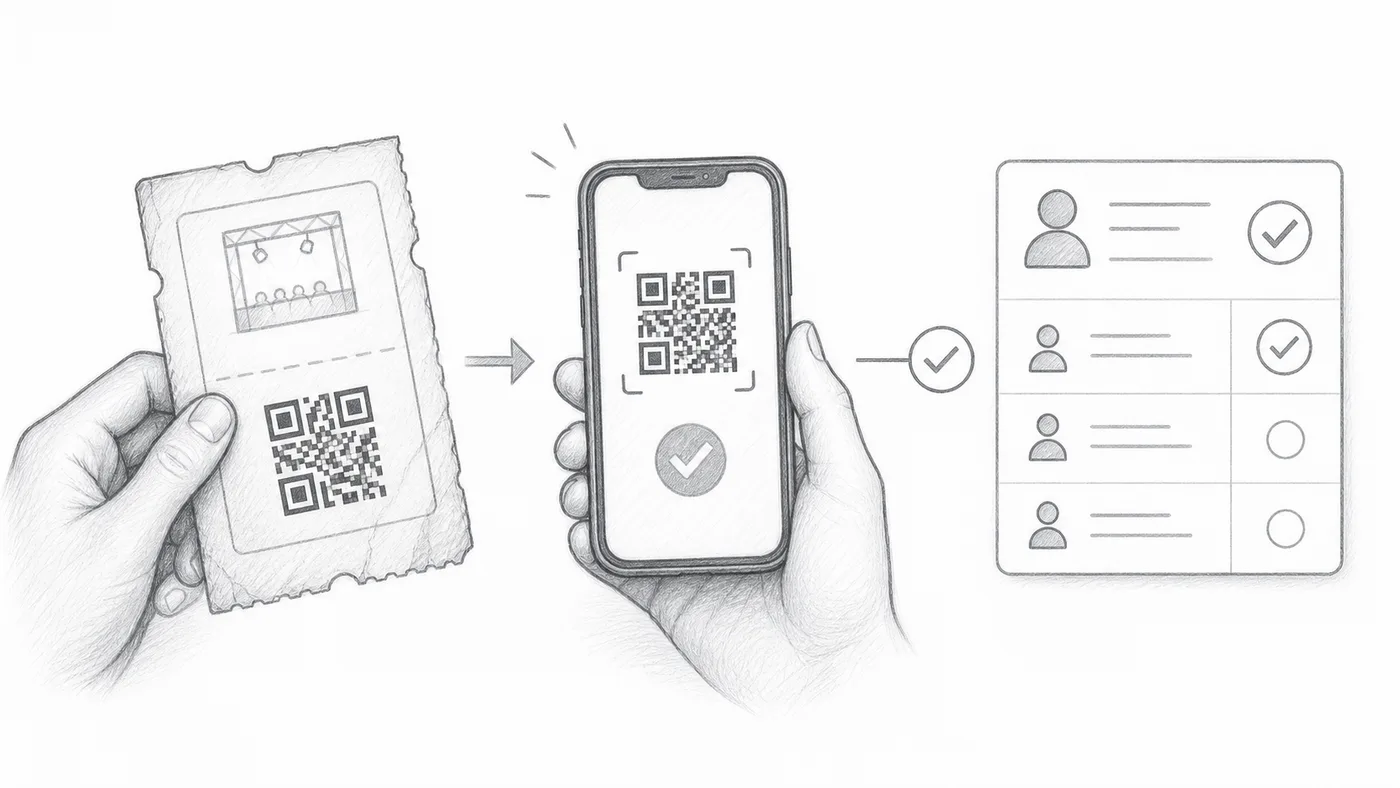
第 1 步
保留外部 QR Code 的值
將現有 QR Code 中的文字存入工作表欄或表單問題。
第 2 步
選擇該欄位
在報到設定 → 進階報到設定中,將它選為自訂 QR Code 內容來源。
第 3 步
掃描任一個 QR Code
報到應用程式既能識別您現有的 QR Code,也能識別外掛程式建立的票券。
運作方式
範例
使用 External QR code 中的值產生的 QR Code 會開啟與產生票券相同的參加者。
避免這些錯誤
- 使用 QR Code 中儲存的文字,而不是螢幕截圖或圖片連結。
- 除非有意重複,否則每位參加者的值必須唯一。
- 活動當天之前,先測試幾張真實票券。
下一步
準備好開始使用 QR Code 票券了嗎?
為 Google Sheets、Google Forms、Jotform、Tally, Fillout 或 WordPress 建立 QR Code 票券。選擇您已在使用的流程,然後把參加者名單儲存在一個地方。