Pilih apa yang dilihat tamu di surel tiket mereka
Aplikasi surel tidak semuanya memperlakukan pesan dengan cara yang sama: ada yang menyembunyikan gambar balik satu ketukan, ada yang memotong surel panjang. Opsi-opsi ini meletakkan kode QR dengan cermat di dalam surel agar tiap tamu cepat menemukan tiketnya, apa pun aplikasinya.
Konfigurasikan email tiket
Atur dulu siapa yang menerima surel dan isinya: kolom penerima, subjek, isi, pengirim, dan lampiran.
Pilih apa yang ditampilkan surel
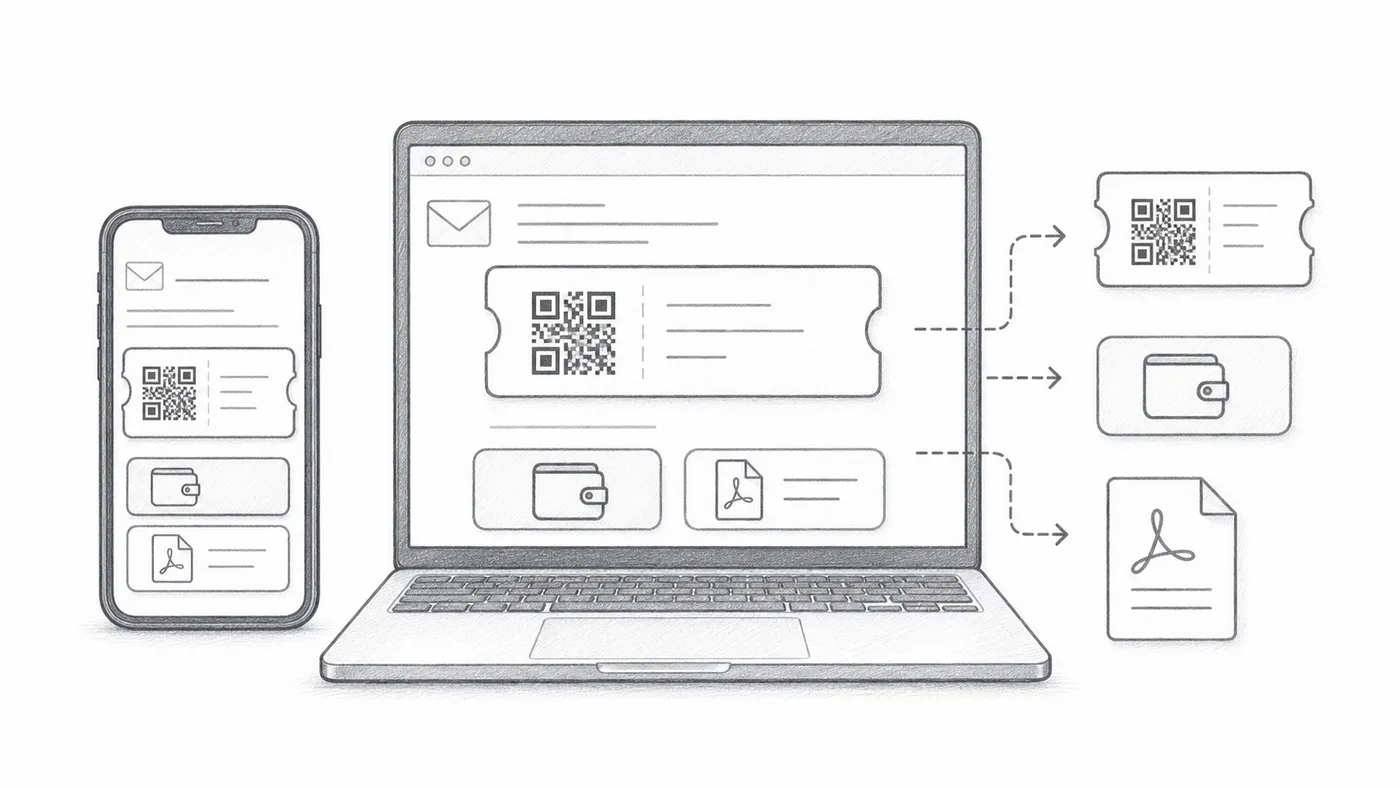
Gambar QR bisa berada di dalam pesan itu sendiri, tombol Google Wallet dan Apple Wallet bisa muncul di bawahnya, dan kaki PDF bisa membawa kode tiket singkat. Matikan apa pun yang tidak perlu bagi tamu Anda.
Kirim uji coba
Buka di ponsel dan komputer sebelum mengirim ke semua peserta.
Cara kerjanya
Contoh
Tiket dikirim ke Email address; QR sebaris bisa menampilkan kode langsung di dalam pesan.
Hindari kesalahan ini
- Sebagian aplikasi email menyembunyikan gambar secara default.
- Tombol dompet berguna untuk acara yang berpusat di ponsel.
- Lampiran PDF sering lebih aman untuk dicetak.
Langkah berikutnya
Siap memulai dengan tiket kode QR?
Buat tiket kode QR untuk Google Sheets, Google Forms, Jotform, Tally, Fillout, atau WordPress. Pilih alur kerja yang sudah Anda pakai, lalu simpan daftar peserta Anda di satu tempat.