ゲストがチケットメールで見る内容を選ぶ
メールアプリによってメッセージの扱いは異なります。画像をタップまで隠すものもあれば、長いメールを切り詰めるものもあります。これらのオプションはQRコードをメールの中の適切な位置に置き、どのアプリを使ってもゲストが素早くチケットを見つけられるようにします。
ステップ1
チケットメールを設定する
まず誰に届くか、何と書くかを設定します。宛先フィールド、件名、本文、差出人、添付ファイルです。
ステップ2
メールに表示する内容を選ぶ
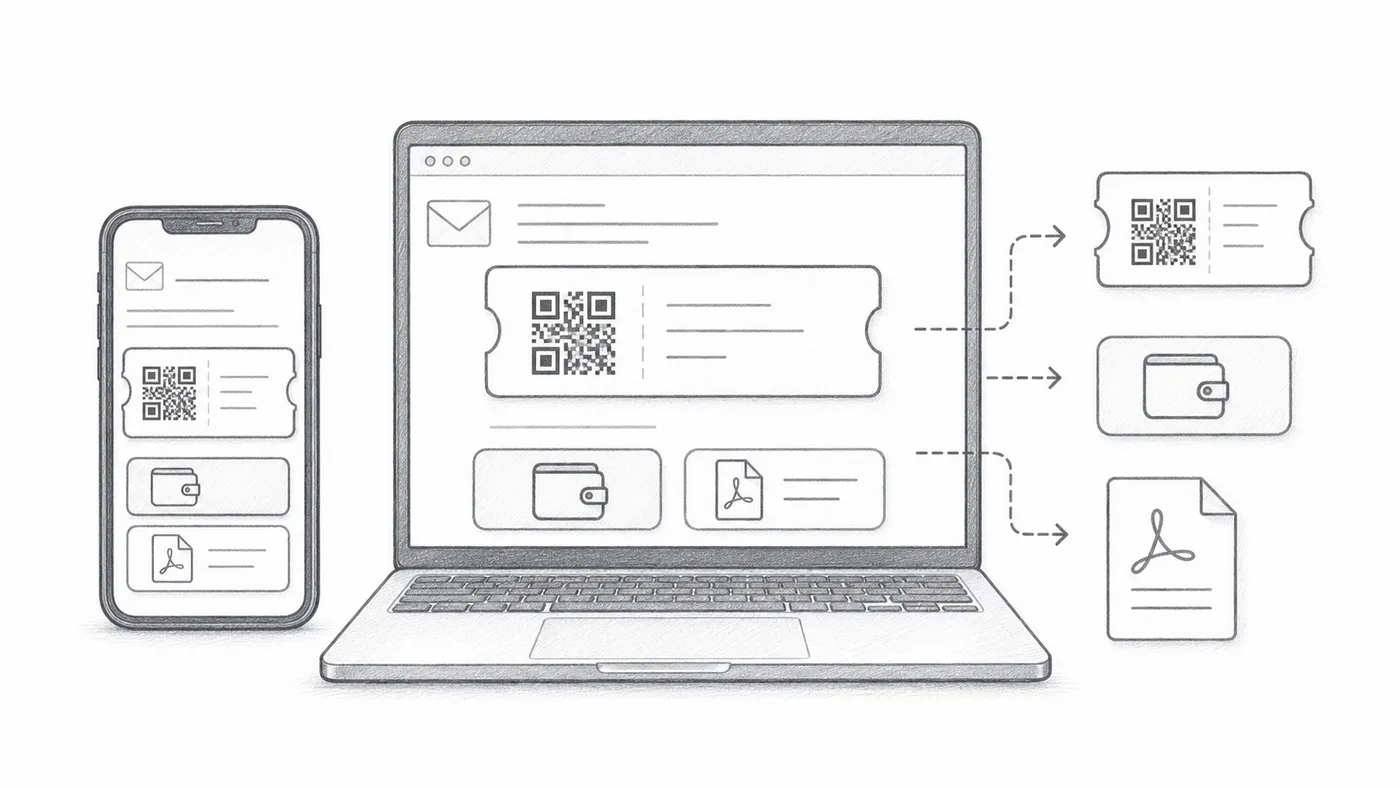
QR画像はメッセージ本体に入れられ、その下にGoogle WalletとApple Walletのボタンを置け、PDFのフッターには短いチケットコードを載せられます。ゲストに不要なものはオフにしてください。
ステップ3
テストを送る
全参加者に送る前に、モバイルとPCで開いて確認してください。
仕組み
例
チケットはEmail addressに送信されます。メール内QRを使えば、コードをメッセージ内に直接表示できます。
避けるべき間違い
- メールアプリによっては、画像がデフォルトで非表示になります。
- ウォレットボタンはモバイル中心のイベントに便利です。
- PDF添付は印刷に安心です。
次のステップ
QRコードチケットを始める準備はできましたか?
Google Sheets、Google Forms、Jotform、Tally, Fillout、WordPressでQRコードチケットを作成します。いつものワークフローを選び、参加者リストを1か所にまとめましょう。