Konukların bilet e-postasında ne göreceğini seçin
E-posta uygulamaları iletilere aynı şekilde davranmaz: bazıları resimleri bir dokunuşun ardına gizler, bazıları uzun postaları budar. Bu seçenekler QR kodunu e-postada dikkatle konumlandırır; böylece her konuk bileti hangi uygulamayı kullanırsa kullansın hızlıca bulur.
Bilet e-postasını yapılandırın
Önce e-postayı kimin alacağını ve ne söyleyeceğini ayarlayın: alıcı alanı, konu, gövde, gönderici ve ekler.
E-postanın ne göstereceğini seçin
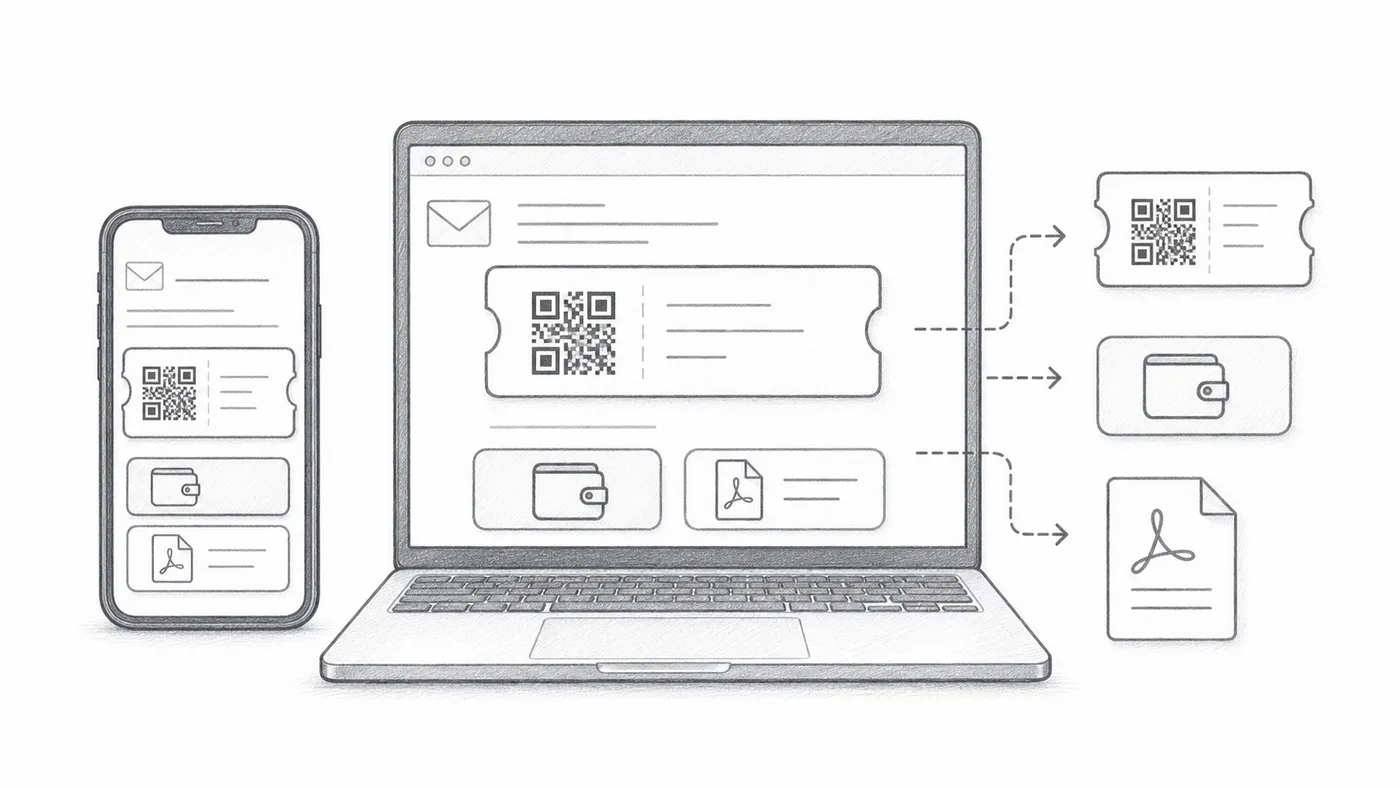
QR görseli iletinin içinde durabilir, altında Google Wallet ve Apple Wallet düğmeleri görünebilir, PDF altbilgisi kısa bilet kodunu taşıyabilir. Konuklarınızın gerek duymadığı her şeyi kapatın.
Bir test gönderin
Tüm katılımcılara göndermeden önce mobilde ve masaüstünde açın.
Nasıl çalışır
Örnek
Biletler Email address adresine gönderilir; satır içi QR, kodu doğrudan mesajda gösterebilir.
Bu hatalardan kaçının
- Bazı e-posta uygulamaları görselleri varsayılan olarak gizler.
- Cüzdan düğmeleri mobil öncelikli etkinlikler için kullanışlıdır.
- PDF ekleri yazdırma için genellikle daha güvenlidir.
Sonraki adım
QR kod biletlerine başlamaya hazır mısınız?
Google Sheets, Google Forms, Jotform, Tally, Fillout veya WordPress için QR kod biletleri oluşturun. Zaten kullandığınız iş akışını seçin, ardından katılımcı listenizi tek yerde tutun.