Välj vad gäster ser i sitt biljettmejl
E-postappar behandlar inte alla meddelanden likadant: vissa gömmer bilder bakom ett tryck, andra klipper långa mejl. De här valen placerar QR-koden noggrant i mejlet så att varje gäst snabbt hittar sin billett, oavsett app.
Konfigurera biljettmejlet
Ställ först in vem som får mejlet och vad det säger: mottagarfält, ämne, text, avsändare och bilagor.
Välj vad mejlet visar
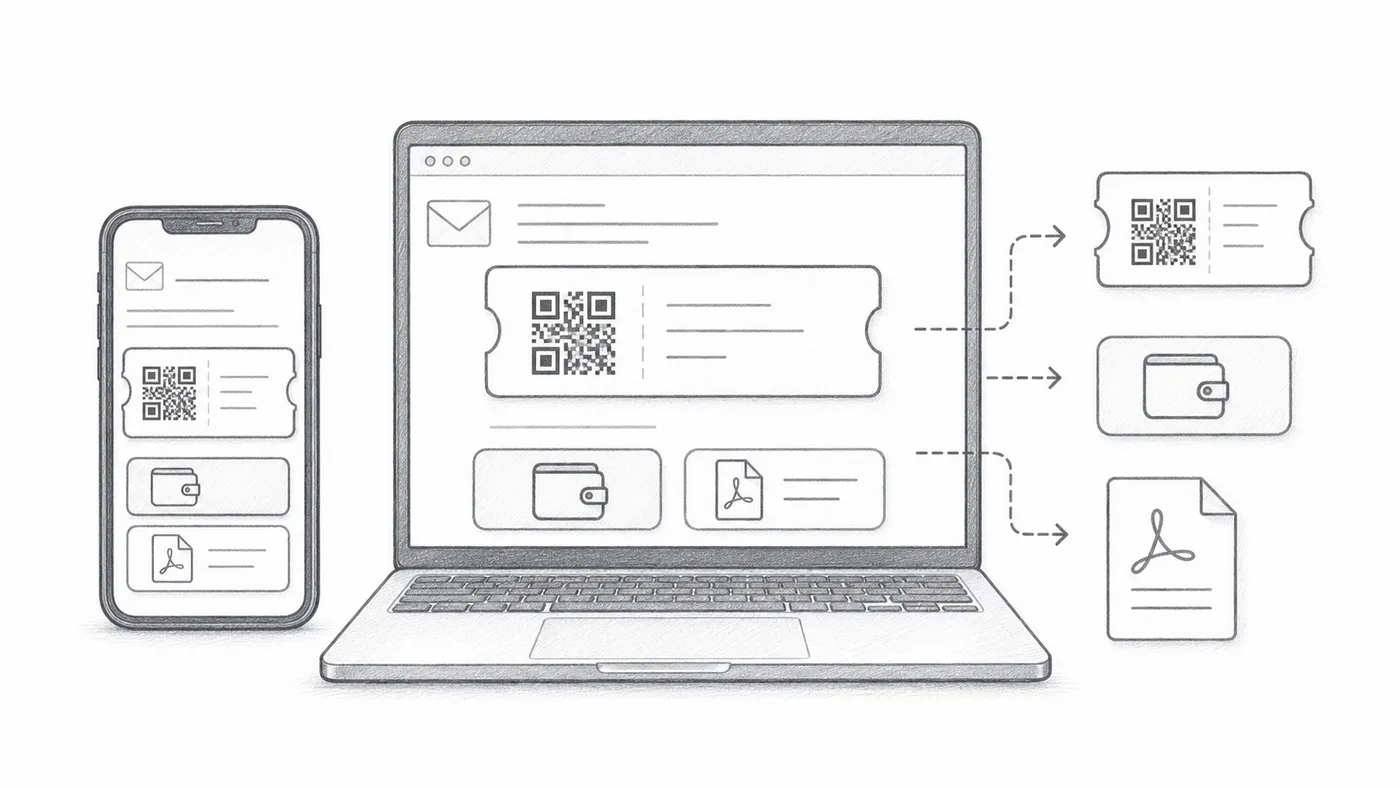
QR-bilden kan ligga i själva meddelandet, knappar för Google Wallet och Apple Wallet kan synkas under, och PDF-sidfoten kan bära den korta biljettkoden. Stäng av det dina gäster inte behöver.
Skicka ett test
Öppna det på mobil och dator innan du skickar till alla deltagare.
Så fungerar det
Exempel
Biljetter skickas till Email address; infogad QR-kod kan visa koden direkt i meddelandet.
Undvik dessa misstag
- Vissa e-postklienter döljer bilder som standard.
- Plånboksknappar är användbara för evenemang där allt sker på mobilen.
- PDF-bilagor är ofta säkrare för utskrift.
Nästa steg
Redo att komma igång med QR-kodbiljetter?
Skapa QR-kodbiljetter för Google Sheets, Google Forms, Jotform, Tally, Fillout eller WordPress. Välj arbetsflödet du redan använder och håll sedan deltagarlistan på ett ställe.