Vyberte, co hosté uvidí v e-mailu s vstupenkou
E-mailové aplikace nezpracovávají zprávy stejně: některé schovávají obrázky za klepnutí, jiné dlouhé e-maily zkracují. Tyto volby pečlivě umístí QR kód do e-mailu, aby si každý host rychle našel svou vstupenku, ať už používá jakoukoli aplikaci.
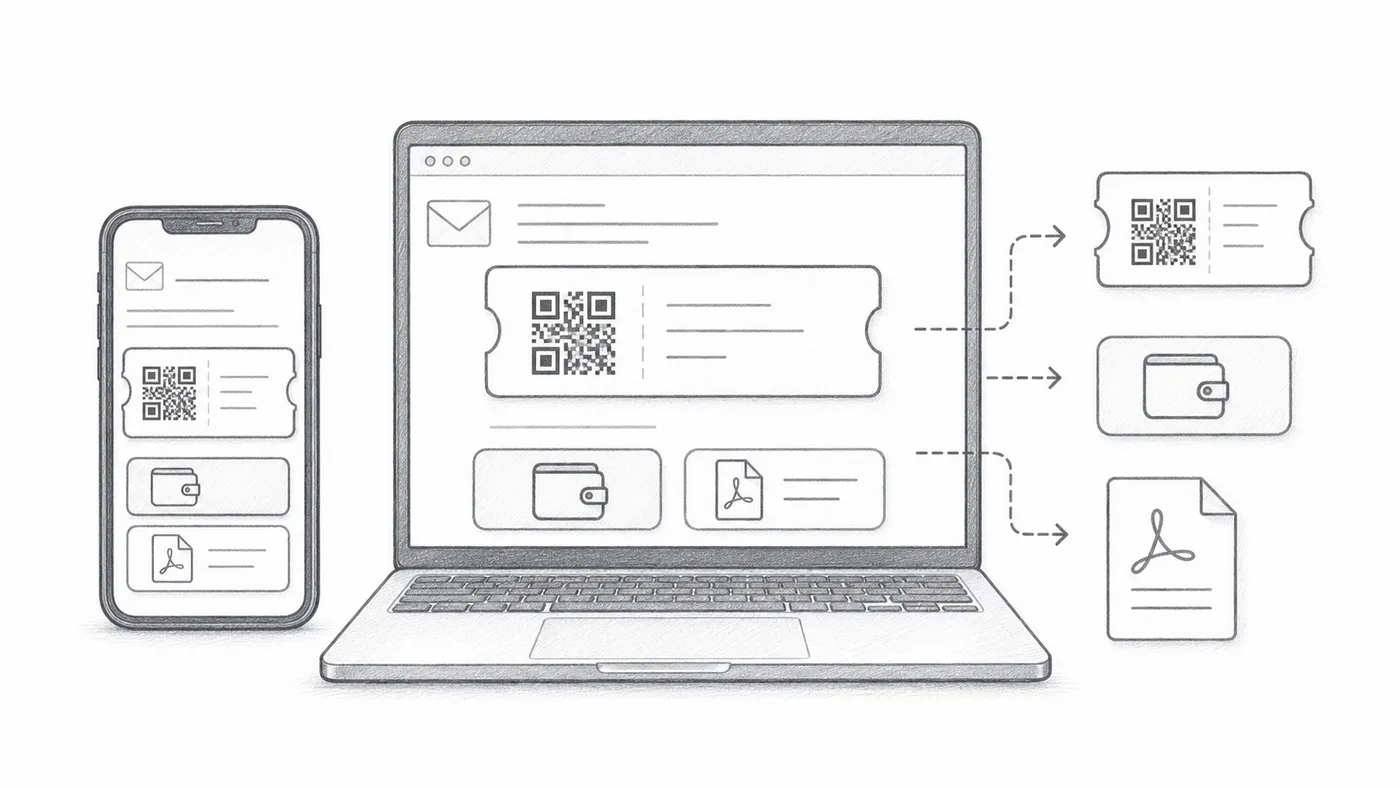
Nakonfigurujte e-mail se vstupenkou
Nejprve nastavte, kdo e-mail obdrží a co bude obsahovat: pole příjemce, předmět, text, odesílatele a přílohy.
Vyberte, co e-mail ukazuje
Obrázek QR může být přímo ve zprávě, tlačítky Google Wallet a Apple Wallet se mohou objevit pod ní a patička PDF může nést krátký kód vstupenky. Vypněte, co vaši hosté nepotřebují.
Odešlete test
Před odesláním všem účastníkům ho otevřete na mobilu i počítači.
Jak to funguje
Příklad
Vstupenky se odesílají na Email address; vložené QR může zobrazit kód přímo ve zprávě.
Vyhněte se těmto chybám
- Někteří e-mailoví klienti ve výchozím stavu skrývají obrázky.
- Tlačítka peněženky jsou užitečná u akcí zaměřených na mobil.
- Přílohy PDF jsou pro tisk často bezpečnější.
Další krok
Připraveni začít s QR vstupenkami?
Vytvářejte QR vstupenky pro Google Sheets, Google Forms, Jotform, Tally, Fillout nebo WordPress. Zvolte pracovní postup, který už používáte, a pak mějte seznam účastníků na jednom místě.