選擇來賓在門票郵件裡看到什麼
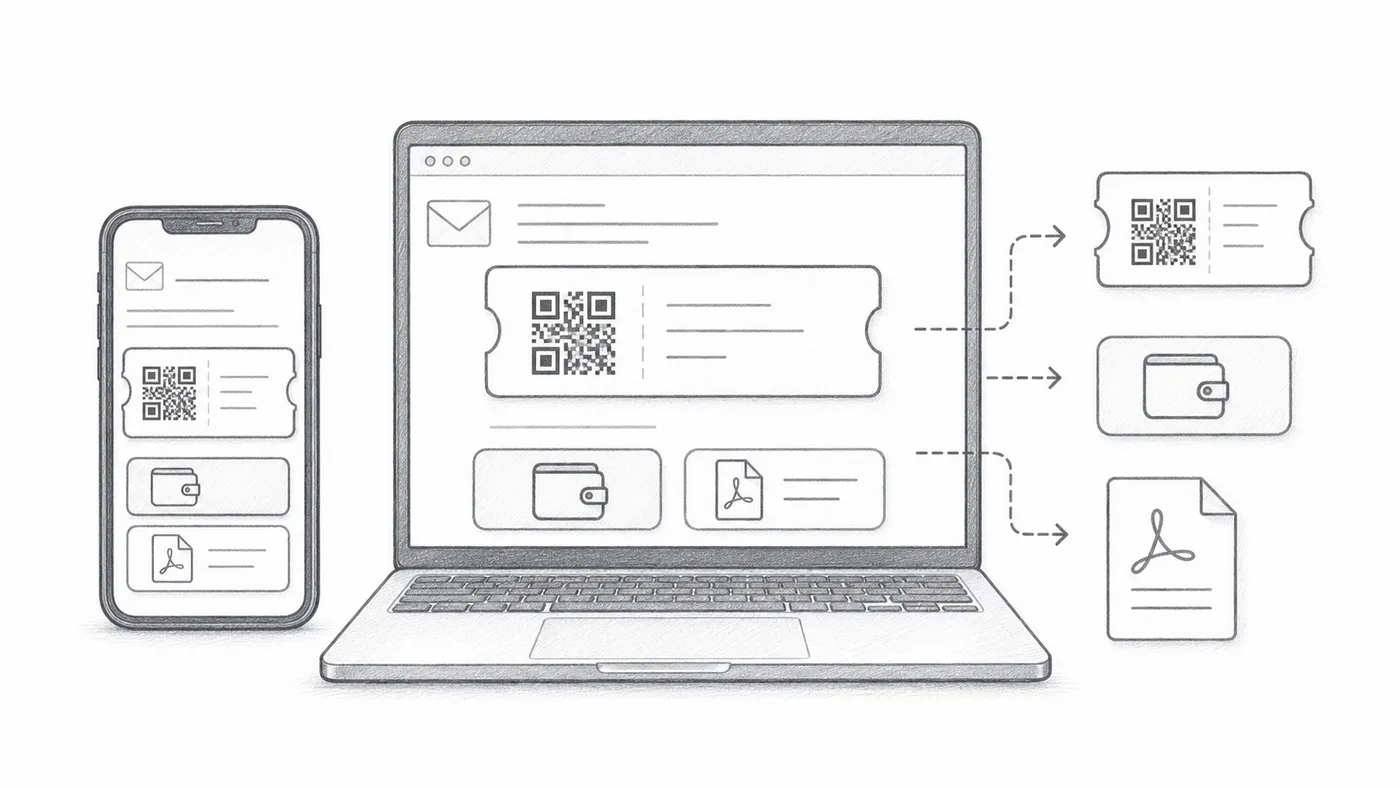
各家郵件應用程式處理郵件的方式不同:有的把圖片藏在一次點擊之後,有的剪裁長郵件。這些選項會把 QR 碼妥帖地放進郵件裡,無論來賓用哪種應用程式,都能快速找到自己的票。
第 1 步
設定票券郵件
先設定郵件寄給誰、寫了什麼:收件人欄位、主旨、內文、寄件人和附件。
第 2 步
選擇郵件顯示的內容
QR 圖片可以直接放在郵件內文裡,下方可以出現 Google Wallet 和 Apple Wallet 按鈕,PDF 頁尾也可以帶上短票碼。來賓用不到的就關掉。
第 3 步
傳送測試
在傳送給所有參加者之前,先在手機和電腦上開啟查看。
運作方式
範例
票券會傳送到 Email address;內嵌 QR Code 可以直接在郵件中顯示 QR Code。
避免這些錯誤
- 有些郵件用戶端預設隱藏圖片。
- 錢包按鈕適合以手機為主的活動。
- PDF 附件通常更適合列印。
下一步
準備好開始使用 QR Code 票券了嗎?
為 Google Sheets、Google Forms、Jotform、Tally, Fillout 或 WordPress 建立 QR Code 票券。選擇您已在使用的流程,然後把參加者名單儲存在一個地方。