Valitse, mitä vieraat näkevät lippusähköpostissaan
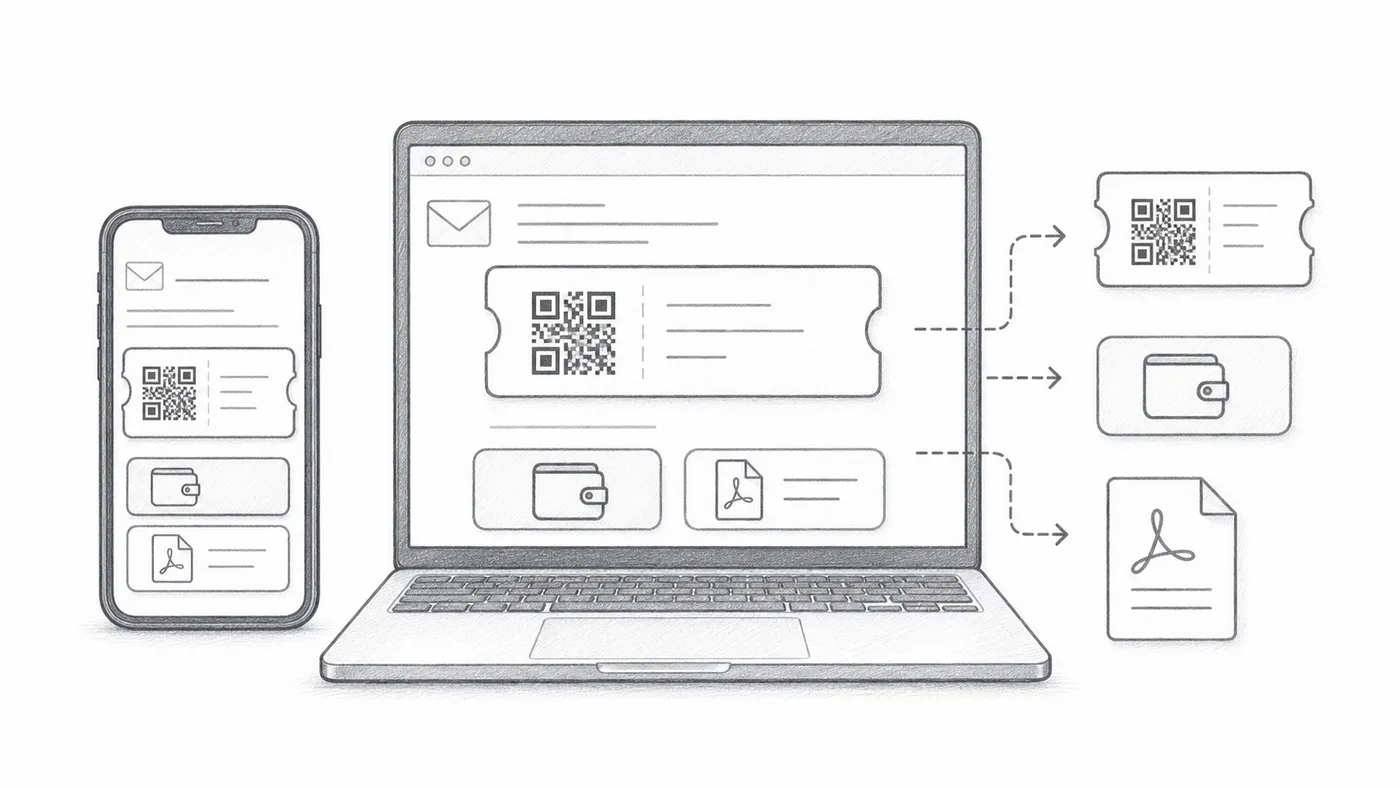
Sähköpostisovellukset eivät käsittele viestejä samalla tavalla: jotkut piilottavat kuvat napautuksen taakse, toiset typistävät pitkiä viestejä. Nämä valinnat sijoittavat QR-koodin huolella viestiin niin, että jokainen vieras löytää lippunsa nopeasti käyttämästään sovelluksesta riippumatta.
Määritä lipun sähköposti
Aseta ensin, kenelle viesti menee ja mitä se sanoo: vastaanottajakenttä, aihe, teksti, lähettäjä ja liitteet.
Valitse, mitä viesti näyttää
QR-kuva mahtuu itse viestiin, Google Wallet- ja Apple Wallet -painikkeet voivat ilmestyä sen alle, ja PDF:n alatunniste voi kantaa lyhyen lipputunnuksen. Sammuta se, mitä vieraasi eivät tarvitse.
Lähetä testi
Avaa se mobiilissa ja työpöydällä ennen kaikille osallistujille lähettämistä.
Miten se toimii
Esimerkki
Liput lähetetään osoitteeseen Email address; upotettu QR voi näyttää koodin suoraan viestissä.
Vältä nämä virheet
- Jotkin sähköpostiohjelmat piilottavat kuvat oletuksena.
- Lompakkopainikkeet ovat hyödyllisiä mobiilirikkaisiin tapahtumiin.
- PDF-liitteet ovat usein turvallisempia tulostukseen.
Seuraava askel
Valmis aloittamaan QR-koodilipuilla?
Luo QR-koodilippuja Google Sheetsille, Google Formsille, Jotformille, Tally, Filloutlle tai WordPressille. Valitse työnkulku, jota jo käytät, ja pidä sitten osallistujalistasi yhdessä paikassa.