चुनें कि मेहमानों को टिकट ईमेल में क्या दिखे
ईमेल ऐप सब एक जैसा व्यवहार नहीं करते: कुछ तस्वीरों को एक टैप के पीछे छिपा देते हैं, कुछ लंबे ईमेल काट देते हैं। ये विकल्प QR कोड को ईमेल में सोच-समझकर रखते हैं ताकि हर मेहमान को अपना टिकट जल्दी मिले, चाहे कोई भी ऐप हो।
टिकट ईमेल सेट करें
पहले तय करें ईमेल किसे जाएगा और उसमें क्या होगा: प्राप्तकर्ता फ़ील्ड, विषय, मुख्य भाग, प्रेषक और अनुलग्नक।
चुनें कि ईमेल क्या दिखाए
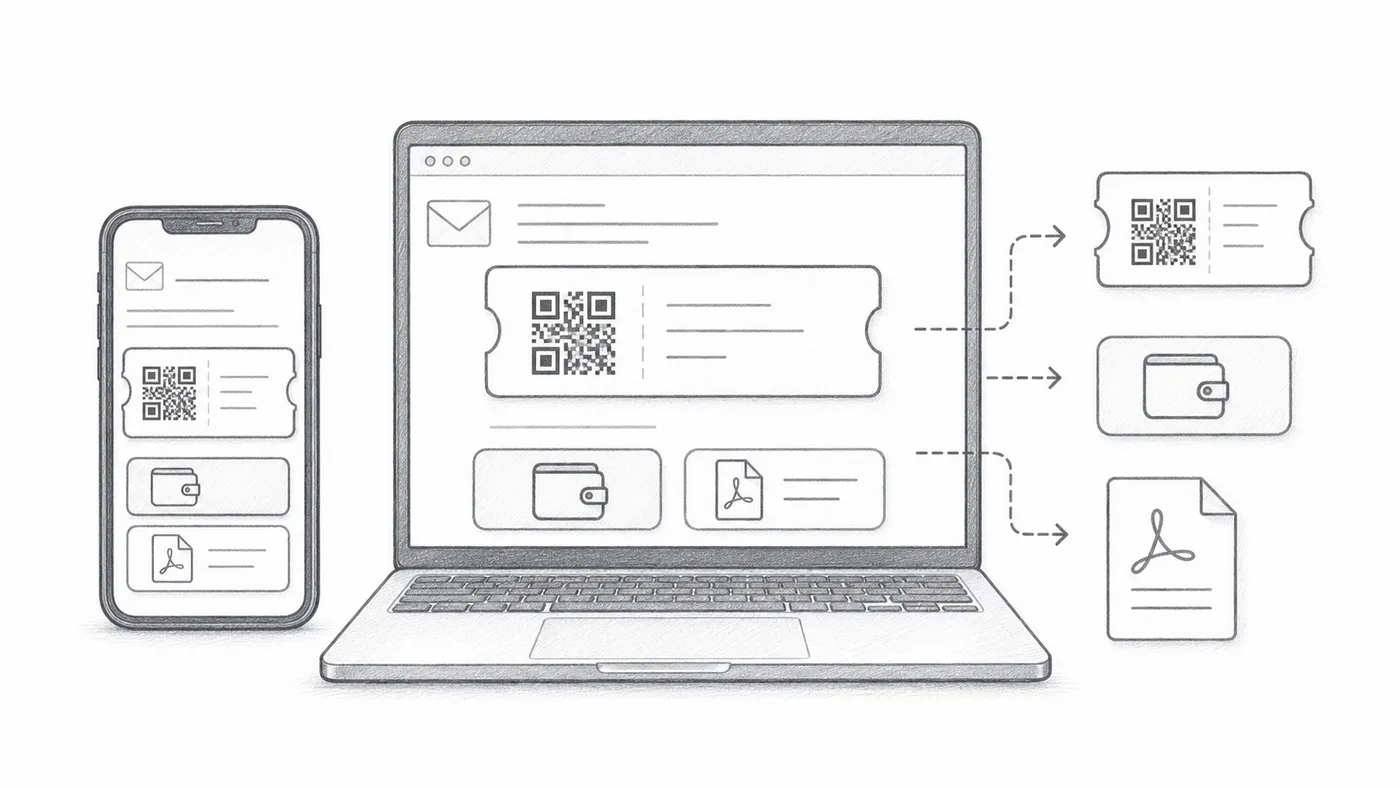
QR तस्वीर संदेश के अंदर ही रह सकती है, उसके नीचे Google Wallet और Apple Wallet बटन आ सकते हैं, और PDF के फुटर में छोटा टिकट कोड रह सकता है। जो मेहमानों को चाहिए ही नहीं, उसे बंद कर दें।
एक टेस्ट भेजें
सभी प्रतिभागियों को भेजने से पहले इसे मोबाइल और कंप्यूटर दोनों पर खोलें।
यह कैसे काम करता है
उदाहरण
टिकट Email address पर भेजे जाते हैं; ईमेल के अंदर QR से कोड सीधे संदेश में दिख सकता है।
इन गलतियों से बचें
- कुछ ईमेल ऐप डिफ़ॉल्ट रूप से इमेज छिपाते हैं।
- वॉलेट बटन उन इवेंट के लिए उपयोगी हैं जहाँ सब फ़ोन ही इस्तेमाल करते हैं।
- छपाई के लिए PDF अटैचमेंट अक्सर बेहतर रहते हैं।
अगला चरण
QR कोड टिकट शुरू करने के लिए तैयार हैं?
Google Sheets, Google Forms, Jotform, Tally, Fillout या WordPress के लिए QR कोड टिकट बनाएँ। वह तरीका चुनें जो आप पहले से इस्तेमाल करते हैं, फिर अपनी प्रतिभागी सूची एक जगह रखें।